You can listen to internet radio for free on almost anything with a screen and a connection: open a station’s website in a browser, install a free radio app, ask a smart speaker to play it, or paste a stream link into a media player. No paid subscription is needed, and no account is required for most stations. The whole thing takes about two minutes once you know where to look.
The catch is rarely the price. It is picking a player that does not fill your screen with pop-ups, and finding the stream when your favourite local station does not show up in a directory. That is what this guide walks through, step by step, for October 2026.
Table of Contents
- What You Need
- Step-by-Step: How to Listen to Internet Radio for Free
- Common Mistakes
- Frequently Asked Questions
- Can I listen to internet radio for free without creating an account?
- What is the best free app for listening to internet radio?
- Does listening to internet radio use a lot of mobile data?
- Can I listen to free internet radio on a smart speaker or smart TV?
- Are free internet radio streams legal?
- Why is my internet radio stream buffering or not playing?
What You Need
The bare minimum is a device, an internet connection and something that can play audio. A current smartphone, laptop, tablet or smart TV covers it, and nearly all of them already have a music player built in.
You also need a way to find a station, which is either a station’s own website or a directory app. Directories are convenient but they sometimes insert their own adverts on top of a station’s, so listening straight from the station’s own site is often the cleaner option.
Speakers or headphones are optional but worth having. Bluetooth speakers and smart speakers give you far better sound than a phone speaker lying flat on a worktop, and they free your hands for cooking or working in a workshop.
One thing you do not need is a credit card. If an app asks for payment details before it will play a single station, there is usually a free alternative one search away.
Step-by-Step: How to Listen to Internet Radio for Free
Step 1: Choose a Device and Listening Method
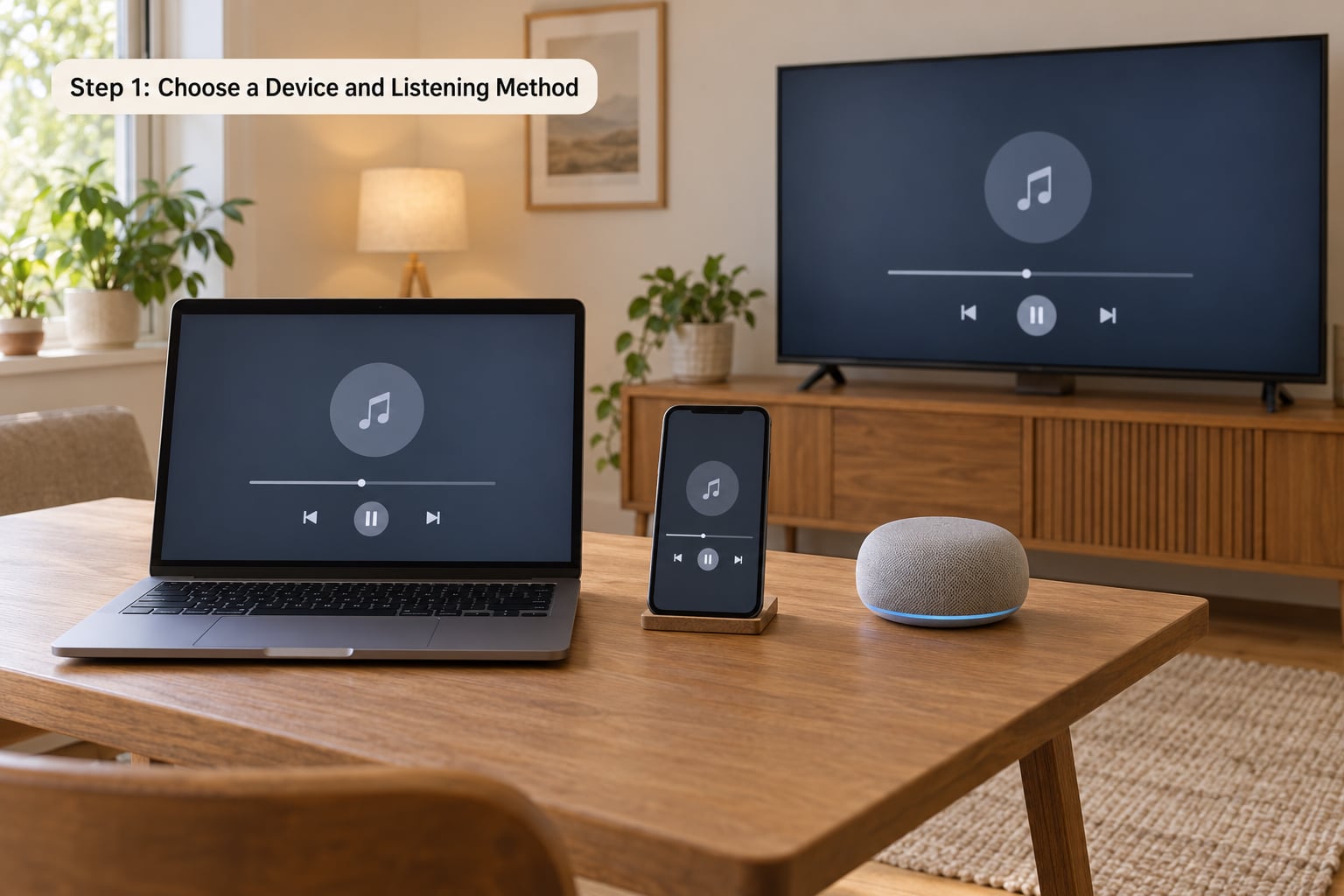
Start with whatever is already in front of you. On a computer, the browser is the fastest route because you can go from a search to playing audio in under a minute, and most directories are built to work there.
On a phone, a radio app is usually better than a website. Apps keep playing when the screen locks, remember your favourite stations between sessions, and many connect to CarPlay or Android Auto so navigation is not interrupted.
A smart speaker suits the kitchen, the workshop or a bedroom, where you want music while your hands are busy. A smart TV works if the station is mostly talk or news and you want the picture off the screen. A car system is just a Bluetooth or USB connection from the phone once the stream is playing.
If you are starting from scratch, my advice is to prove the method on a laptop first, then move it to the device you will actually use daily.
Step 2: Find a Legitimate Station to Listen to Internet Radio For Free
Start with the station itself. Every broadcaster has a website with a Listen button, and that button plays the station’s own feed. It is the most direct route, usually the least interrupted by adverts, and it is the version the broadcaster actually wants you to hear.
When you want something broader, use a directory. TuneIn, radio.net, iHeartRadio, AccuRadio, Simple Radio, Audials Play, Radio Garden and SomaFM all offer free listening tiers, and each has a different flavour: some lean towards local and community stations, others towards genre-heavy channels, and SomaFM is a long-running example of listener-supported, commercial-free stations in the US.
On Android, RadioDroid is a popular open-source option with no account at all. BBC Sounds covers the BBC’s own stations and local radio output from one app if you are in the UK.
Watch out for clone apps. If a search result offers “TuneIn” but the icon, spelling or developer name is slightly off, you are looking at an imitation, and it is not worth installing just to save a tap.
Step 3: Open the Station Stream or Player
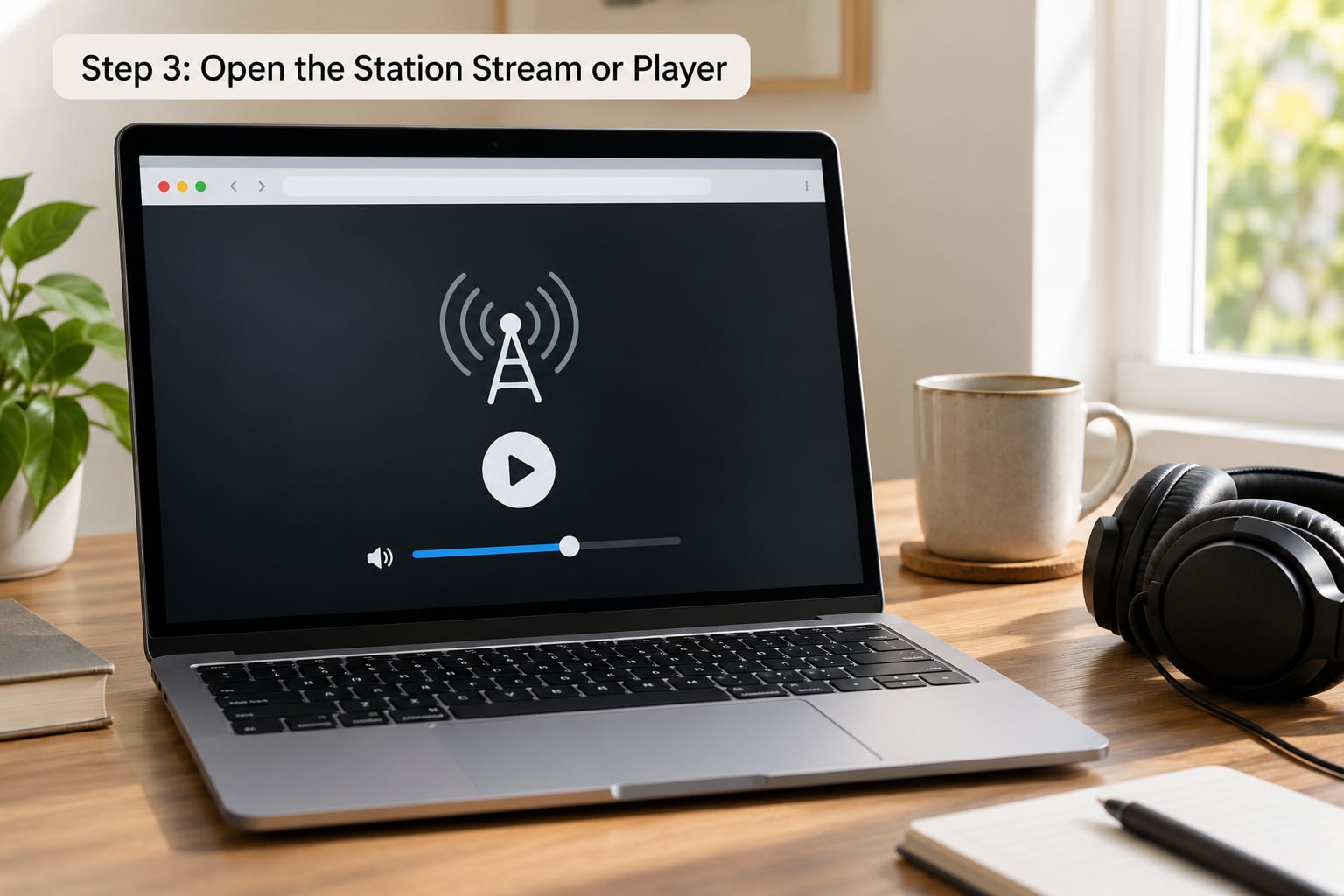
On a station website, find the Listen button. Some open a small player in the page; others hand you a link or a stream URL ending in .mp3 or .aac, which is the raw audio feed. Both work, and the stream URL is the one to save if you want to reuse the station elsewhere.
In a directory app, search by name, city, country or genre, then tap the station. The station card usually shows the city and a one-line description, which matters more than it sounds when two stations share a name.
A station that will not start on the first tap is usually not broken. Many apps need a second tap after the page finishes loading, and a few require you to wait a few seconds for a buffer to fill before audio appears.
Step 4: Start Listening and Adjust the Sound
Press play, then turn the volume up on the device rather than inside the app, since the two sliders interact oddly on some phones. You should hear the station within three or four seconds on a decent connection.
Where a quality setting appears, Low or Standard is fine for music and talk on mobile data. High quality sounds better at home on WiFi but is pointless on a phone speaker, and it uses noticeably more data for a difference you cannot hear there.
Test the volume before you commit to a long listen. A station mixed for broadcast, with a narrow stereo image, can sound quiet on earbuds that expect a wide, loud source.
Step 5: Save Favorites and Listen on Other Devices
Bookmark the station page in your browser, or tap the heart in an app’s station list. A small favourites list of five or six stations you actually return to is far more useful than a huge directory you scroll through every morning.
To move a station to a phone or smart speaker, you rarely transfer anything. Look the station up again in the phone app, or on a smart speaker say the station name and ask the assistant to play it. Alexa, Google Home, Siri and Sonos all handle most mainstream stations by voice.
Setting a station as a smart speaker alarm or as a wake-up playlist is where internet radio quietly beats FM. Nothing to tune, nothing to retune in the morning.
A simple routine is what makes it stick: one station for the drive, one for the kitchen, one for late-night listening. Keep the list short and you will stop scrolling every morning.
Common Mistakes
Nothing plays when you press the button. Browsers block autoplay until you interact with the page. Click anywhere on the station page first, then press play. On iPhone, the play control can sit in a banner that is easy to miss when the phone is upright.
The stream keeps buffering. Check the signal first: mobile data in a weak area will drop out, and overloaded WiFi does the same. Switching to Low quality helps more than anything else, and closing other streams on the same connection frees bandwidth.
The station plays on one device but not another. The stream is probably geo-restricted to its broadcast country, or the station is running a limited number of concurrent slots and you are arriving when they are full. Both are things only the station can fix, so switching to the station’s own site is worth a try.
A pop-up advert covers the player. That is usually the directory, not the station. Open the station’s own website instead, and if you can, close the advert rather than clicking it.
Your mobile data disappears fast. Radio uses roughly 60MB an hour at standard quality, which works out at about 16 hours of listening per 1GB. On a capped plan, set the app quality to Low, use WiFi at home, and check for a data saver mode in your phone settings that restricts background streaming.
A link looks suspicious. Real stations stream from their own domain or through a known app. If a page asks you to disable your security settings, install a file, or enter card details before playing audio, close it and find the station through an official store search instead.
Frequently Asked Questions
Can I listen to internet radio for free without creating an account?
Yes, for most stations. Official station websites and directories such as radio.net, TuneIn, AccuRadio and Radio Garden all play audio without a login, and an account is only needed if you want favourites synced across devices. Some apps push you towards signing up to skip adverts, but the free version plays first. One exception worth knowing: a few directory apps restrict background playback on iOS until you have logged in, so if a station cuts out the moment you lock the phone, an account is the fix.
What is the best free app for listening to internet radio?
It depends on where you listen. In a browser, radio.net or TuneIn need no install at all. On Android, RadioDroid is open-source, ad-light and asks for no account. For US stations, iHeartRadio has the widest directory; for UK listeners, BBC Sounds covers BBC national and local output. For genre-heavy listening, AccuRadio and SomaFM suit people who care more about what plays than how many stations are listed.
Does listening to internet radio use a lot of mobile data?
Less than most people expect. A standard-quality stream uses roughly 60MB an hour, so a full 1GB of mobile data covers about 16 hours of continuous listening. High-quality streams use noticeably more, and listening in a car where the phone hunts for signal burns through it faster. If your plan is capped, set playback quality to Low, keep the app on WiFi at home, and turn on your phone’s data saver, which blocks background streaming.
Can I listen to free internet radio on a smart speaker or smart TV?
Yes, and it is the easiest way to listen once it is set up. Alexa, Google Home, Siri and Sonos all play mainstream stations by voice, and each has its own radio skill. On a smart TV, most built-in Chromecast or Google TV models accept a station stream from the browser, or you can cast the tab itself. Community and independent stations are patchier on voice assistants, so use the app and cast or AirPlay from your phone instead.
Are free internet radio streams legal?
The streams offered by the broadcaster on its own site or through its official app are legal, and listening to them needs no licence. What is not legal is rebroadcasting someone else’s stream, running an unlicensed station, or re-hosting a station’s audio in an app that has no rights to it. Pirate stream sites exist and they break the law; the practical risk is that they carry malware alongside the audio. Stick to official sites and the app stores.
Why is my internet radio stream buffering or not playing?
Four causes cover most cases. A weak or overloaded connection causes stuttering, and dropping the quality to Low normally fixes it. Autoplay rules can block a stream until you interact with the page, so tap the page and press play again. A geo-restricted stream will refuse to play outside the station’s broadcast country, and a station whose concurrent listener slots are full will also stay silent. If it works on WiFi but not mobile data, the stream is likely region-locked.
Start with the station’s own website on whatever device is nearest you. Get one station playing, bookmark it, and only then move it to a phone app or a smart speaker. Everything after that is just repetition, and repetition is what makes it a habit.