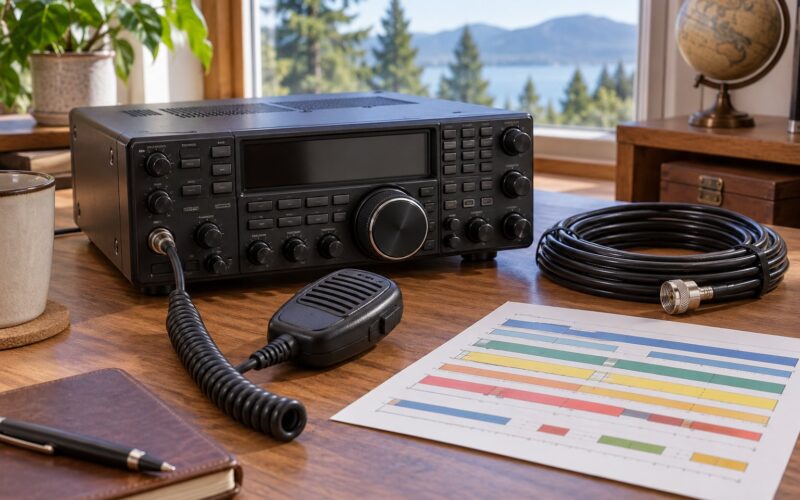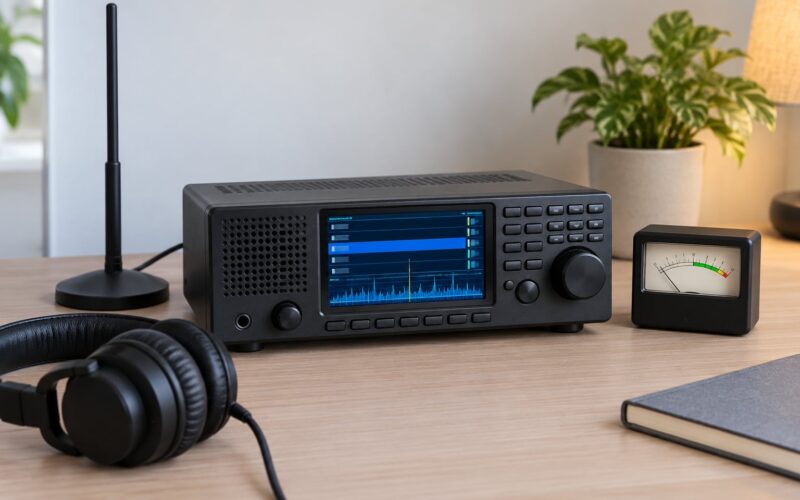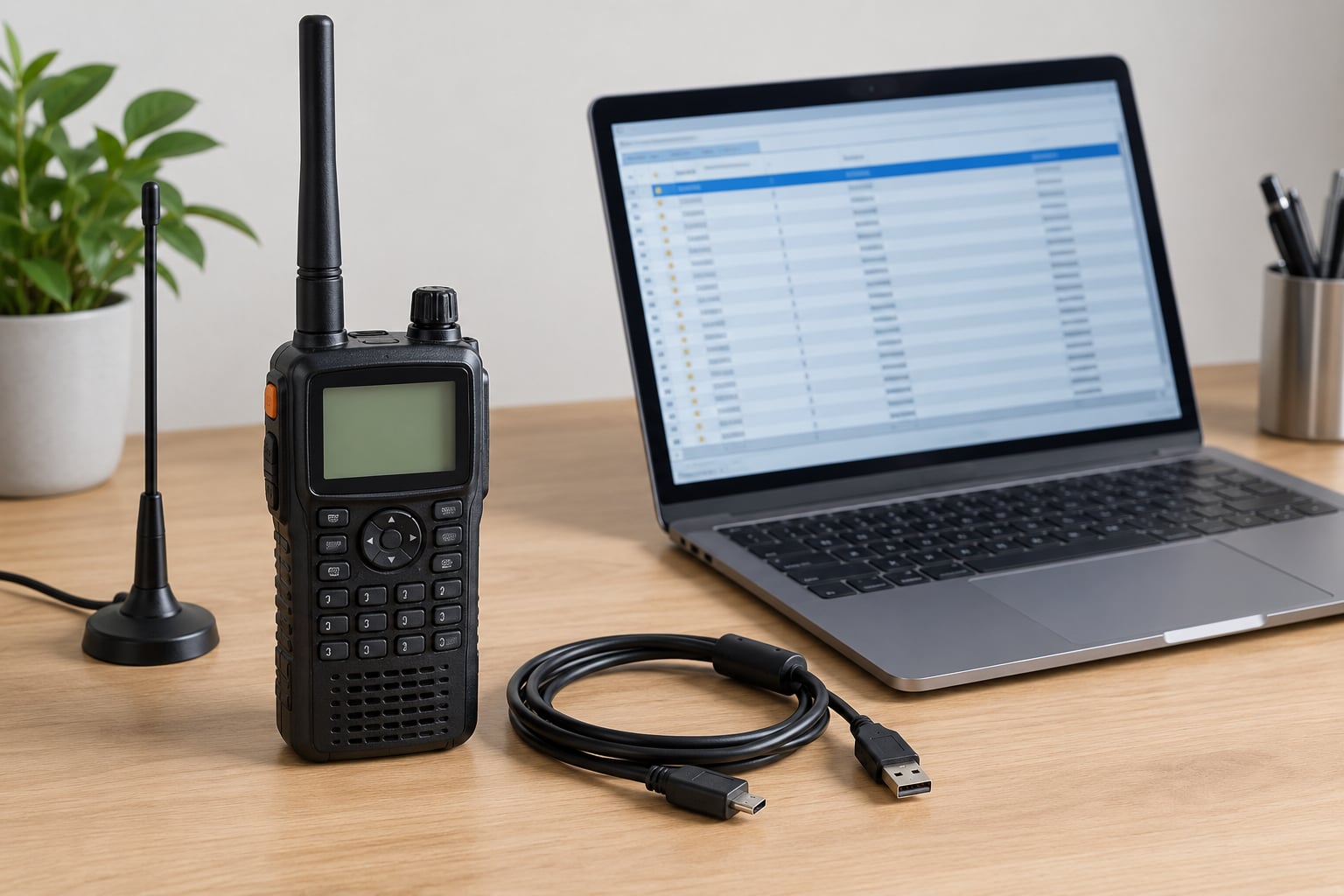
Programming a scanner radio comes down to two methods: typing each frequency into the keypad by hand, or connecting the radio to a computer and loading a channel list with the manufacturer’s software. Most people should do both — a handful of channels by keypad on day one, then a proper software program once the radio is familiar. The whole job takes about an hour the first time, and about ten minutes for every update after that.
If you have not touched a scanner since the 1990s, take heart. The buttons look complicated because the manuals explain them badly, not because the process is hard. A scanner with an empty memory receives nothing but hiss. Programming is the step that turns it into a working receiver.
One question comes up before anything else, so let us answer it straight away: yes, in the UK and in the United States, listening to public safety radio is legal for private citizens. You may not transmit on those frequencies, you may not sell or share recordings of other people’s conversations, and you should follow the Scanner Users Code of Practice in Britain or the usual federal and state rules in America. Rules vary by country, so check what applies where you live before you start.
Table of Contents
What You Need
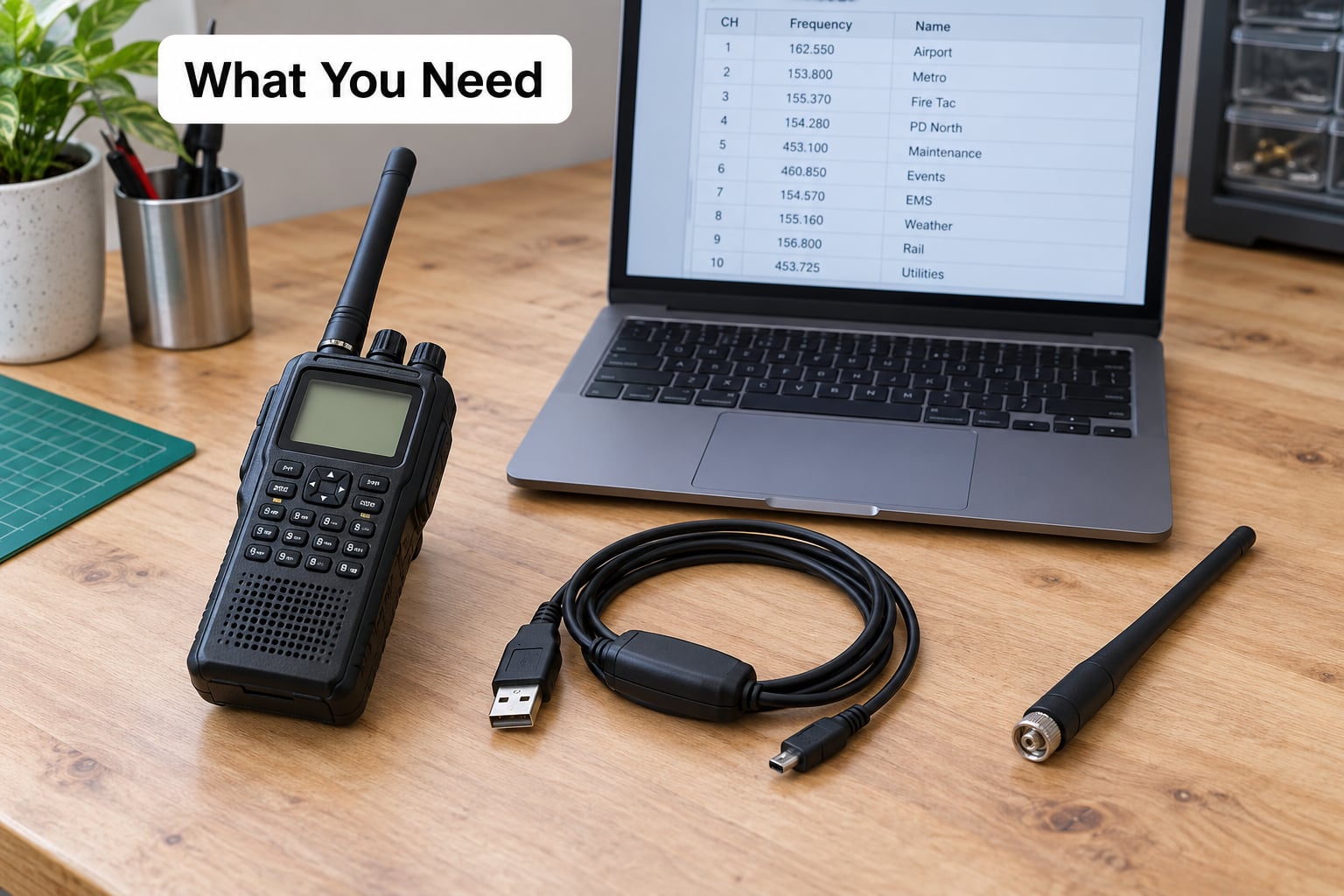
You need very little, and most of it probably comes in the box:
- The scanner itself, with its power supply or charge cradle. Desktop units run on mains; handheld models also take a battery pack.
- A programming cable — usually a USB cable supplied with the radio, sometimes a proprietary one. Check what came with yours before buying anything else.
- A computer if you plan to use software. A Windows laptop is the safe choice, since the major programming programs are Windows-first.
- A decent antenna. The rubber duck that comes in the box is fine for testing, and useless past a room or two.
- A source of local frequencies. RadioReference is the standard reference in the US, and in the UK the Radio Management Bureau data and OFCA airband publications cover most of what you want.
- A pen and paper, or a spreadsheet. Writing the list out first makes the programming itself quick.
Before you decide which route to take, it helps to see the two side by side.
| Method | Time for 10 channels | What you need | Best for |
|---|---|---|---|
| Keypad programming | 15 to 20 minutes | The radio and its manual | Five or ten local channels, or programming away from a computer |
| Computer software | Under an hour for a whole county | Cable, computer, correct program | Trunked systems, talkgroups, anything you will need to update later |
My rule of thumb: keypad for the first five channels so you learn how your particular radio behaves, software for everything after that.
Step-by-Step: How to Program a Scanner Radio
1. Identify Your Scanner Model and Controls
The model number sits on a sticker on the back or underneath the case, usually in a format like BCD-436HP or WS1040. Write it down — the software, the cable and the menu layout all depend on it.
Older Uniden, Realistic and Radio Shack sets are non-DMA models. They store channels individually and you enter each frequency, mode and talkgroup by hand. Newer Uniden HomePatrol, SDS and BCD-XHP models, and most current Whistler scanners, are DMA models, which means they hold a database and follow a trunked system automatically. If you buy the wrong cable for your set, nothing you do afterwards will work.
Note which keys do what before you start: FUNC shifts a key into a secondary function, PROG or MENU opens programming, FUNC+VOL or a number keypad handles tuning on many sets, and a HOLD key pauses the scan while you edit.
2. Create a Frequency List
On RadioReference, look up your county or region and the agency. You will get a table with a frequency column, a mode column (FM, NFM, AM, D-STAR, NXDN or P25), and often a tone column.
Write each row down with four things: the frequency in MHz, the mode, the bandwidth (usually 12.5 kHz for narrowband FM in the US, 25 kHz elsewhere), and the CTCSS or DCS tone if one is listed. Anything missing stays blank.
Two details catch newcomers out. First, a trunked system row gives you a control channel rather than a voice frequency, and some entries in the database carry a small “c” after the number — that is an annotation for the database, not part of the frequency, so do not type it in. Second, agencies rename talkgroups constantly, so a label from a year ago may be out of date even when the frequency is right.
Before you load anything, cut duplicates and drop channels you have no interest in. A list of 40 useful channels beats 800 where you skip through ten strong signals for every one you want.
3. Connect the Scanner to Your Computer or Phone
Most modern scanners use a USB port on the scanner or in the charging cradle, and the cable included with the radio carries both data and power. Plug the scanner into the computer first, then the cable, then wait a few seconds.
On Windows, check Device Manager for the port appearing under Ports (COM and LPT). If the scanner shows as an unknown device instead, you are missing the USB-to-serial driver that came with it — install that, not a generic driver Windows offers. This single step is the most common reason the software cannot see the radio at all.
Some current scanners connect over Bluetooth or built-in Wi-Fi instead, and the manufacturer’s app pairs with your phone or tablet. That route avoids USB entirely and works well on Android and iOS, but it is still software programming, with the same read-before-you-write rule.
4. Open the Correct Programming Software or App
Match the program to the brand:
- Sentinel for current Uniden DMA scanners, and Uniden’s older Uniden Legacy utility for non-DMA sets.
- ARC Patrol for most current Whistler scanners, with the older ARC utility for legacy sets.
- FreeSCAN is free and covers a wide spread of older Uniden, Whistler and Radio Shack / Realistic models.
- Scanner Master offers simplified easier-to-read manuals and quick reference cards alongside the software.
Download only from the manufacturer’s site. Once the program opens, choose the option to read from the scanner. A successful read shows your existing channel list on screen. If the read fails, stop there and fix the connection — writing blind can wipe memory.
5. Enter Frequencies and Channel Settings
Add one channel at a time. Enter the frequency first, in MHz, using the decimal point rather than any separator. Then set the mode to match the database: FM or NFM for voice, AM for aviation and broadcast, digital modes only on sets that support them.
Set the bandwidth to match. Narrowband 12.5 kHz and wide 25 kHz FM sound different, and a mismatch is a common cause of garbled audio.
Squelch just needs to be high enough to stop the hiss between transmissions. Turn it up slowly until the noise floor disappears, then back it off slightly. Too much squelch swallows weak signals, which is a frequent source of “the scanner works but misses half the traffic”.
Here is the part that confuses almost everyone: CTCSS (PL) and DCS (DPL) tones are squelch codes, not scramblers. They open or close the receiver based on a sub-audible tone. For listening, a wrong tone means silence, so leave the tone field blank unless the database lists one. If you ever want to transmit — which needs a licence — the tone becomes essential.
Finally, give the channel a name. An alpha tag of “County Fire Tac 3” tells you what you are listening to; “CH 12” tells you nothing.
6. Add Digital Systems and Talkgroups When Supported
On a non-DMA scanner you add a trunked system by typing the system type, the system ID number and every voice frequency the database lists, then add each talkgroup ID with its own alpha tag. It is slow work, and on a county-wide P25 system it can be hundreds of lines.
On a DMA scanner you skip all of that. You pick the state and system from the built-in database, choose “fire service dispatch” or “county sheriff” to pull in the right talkgroup tags, apply your county or distance filter, and let the radio follow the control channel on its own. That single selection is why DMA scanners are worth the extra money for anyone near a trunked system.
One thing no programming method fixes: encryption. When an agency moves to encrypted digital, the control channel still lists the talkgroups, your scanner still tracks them, and you still hear encrypted noise. No consumer scanner decodes it, and no software update changes that. If a system goes quiet after it worked, check whether the agency switched to encryption before you assume the radio is faulty.
7. Save, Sort, and Test the Program
Write the program back to the scanner and wait for the confirmation. Then put a single channel in a scan list and listen to it for a few minutes before switching it on properly. If that channel works, the settings are right.
Group channels into banks or scan lists by area and purpose: local police, local fire, aviation, state wide. Use the priority function sparingly, since a priority channel that never stops transmitting will block everything behind it. Many scanners also let you lock out a channel with a single press during a transmission when you realise it is not for you.
Save the file you imported as your backup, with today’s date in the filename. Firmware updates and factory resets both wipe memory, and restoring from that file takes minutes.
Common Mistakes and Quick Fixes
Most of the frustration in this hobby traces back to one of four things:
| Symptom | Likely cause | Fix |
|---|---|---|
| No sound on any channel | Squelch set too high, or a tone programmed on a channel that does not use one | Open squelch fully, then reset it slowly; clear the tone field |
| Garbled or breaking-up audio | Wrong bandwidth or mode, poor antenna position, or simulcast | Match the mode and bandwidth to the database; move the antenna away from metal and computers |
| Software cannot find the scanner | Wrong port, wrong cable, or missing USB-to-serial driver | Install the manufacturer’s driver and confirm the COM port in Device Manager |
| Scanner went quiet after working | Agency moved to an encrypted digital system | Check the system type; nothing you program will fix encryption |
| Frequencies all stale | Database entry has not been updated | Check the last-updated date on the database entry before programming |
| Talkgroups not appearing | Talkgroup tags not assigned, or a DMA scan list filter excluding them | Reapply the service tag and widen the distance filter |
| Memory lost unexpectedly | Firmware update, factory reset, or weak internal battery | Keep a dated backup file and replace the internal battery if the clock resets |
Simulcast deserves its own note. When one transmitter’s signal is broadcast from several towers across a region, your receiver hears several slightly offset copies at once and the audio breaks up badly. It is not your radio failing, and no setting fully cures it. Raising the scanner helps, a good rooftop antenna helps more, and many digital scanners offer a digital correction setting that sharpens it.
Tips for Reliable Scanning
Put the antenna high. A scanner on a windowsill loses to the same scanner in an attic, and the difference is dramatic on marginal channels. A basic external antenna with a few metres of coax costs very little and is usually the best upgrade after the radio itself.
Use a proper power supply rather than a wall wart, and keep the original battery pack in good condition. Scanners rely on that internal battery to hold memory and settings through a power cut, which is why an old battery causes programs to vanish.
Test at low power first. If channels sound clean at low power, the programming is right and the reception is the limitation, not the settings.
Before an airshow, race meeting or a long trip, update the database, load any event frequencies, and save a fresh backup the night before. Event organisers and local clubs often publish prepared channel lists, and those are a useful starting point rather than gospel.
And keep to the rules. Listening is generally permitted; transmitting on emergency frequencies without a licence is not, anywhere. Do not record or share other people’s conversations, treat medical details as private, and do not use a scanner to follow someone. In Britain, the Scanner Users Code of Practice covers most of this; in the US, state law varies and some restrictions apply to emergencies.
Frequently Asked Questions
Can civilians listen to police scanners?
In the UK and the US, yes — listening to unencrypted public safety radio is legal for private citizens. You may not transmit without a licence, follow or interfere with emergency traffic, or share recordings of other people’s conversations. England, Scotland and Wales also have the Scanner Users Code of Practice, which sets sensible limits on recording and sharing. Rules differ by country and sometimes by state, so check locally before recording anything.
What software can I use to program my Uniden scanner?
Use Sentinel for current Uniden DMA scanners such as the HomePatrol, SDS and BCD-XHP ranges. Older non-DMA Uniden models are handled by Uniden Legacy, and FreeSCAN is a free third-party option that covers many of them. Download Sentinel from Uniden’s own site, install the USB-to-serial driver that came with the radio, and always read the scanner before writing to it.
Is it hard to program a police scanner?
Not really, once you understand that a scanner just stores frequencies in numbered memory channels. Keypad programming takes a few minutes per channel. Computer programming takes longer to set up the first time, then lets you load hundreds of channels at once. The manuals are the weak point, not the process, and forums report most people’s difficulty is reading the documentation rather than pressing buttons.
How do I program a digital police scanner?
You need a scanner that supports the digital mode in use, which is usually P25, DMR or NXDN. On a trunked system, enter the system ID and its voice frequencies on a non-DMA model, then add each talkgroup ID with a label. On a DMA model, pick the system from the built-in database and select the service tags you want. Encryption on any of these modes cannot be decoded by a consumer scanner.
What are the frequency codes used by police scanners?
A frequency is simply the number a transmitter broadcasts on, written in MHz — for example 155.3400. Alongside it in most databases you will see a mode (FM, NFM, AM or a digital standard), a bandwidth such as 12.5 or 25 kHz, and sometimes a CTCSS or DCS tone, which is a sub-audible squelch code rather than a channel number of its own.
Why is my scanner not picking up police frequencies?
Check four things in order. Squelch may simply be too high, so open it and retune it. The bandwidth or mode may not match the database entry. The antenna may be in a bad spot, so raise it and move it away from metal and computers. Finally, the agency may have moved to an encrypted digital system, which no consumer scanner can decode — check the system type on the database entry first.
Conclusion
Start tonight with five channels: find your county on RadioReference, write down the frequency, mode, bandwidth and tone for each, and type them into the keypad. Listening to one clear channel proves your radio and your settings work, and it takes twenty minutes. Once that lands, move to Sentinel or ARC Patrol and load the whole county properly, then save a dated backup file the same evening.
Keep the manual open, follow the rules for where you live, and expect to update the list a few times a year. That is the job, and it is a manageable one.