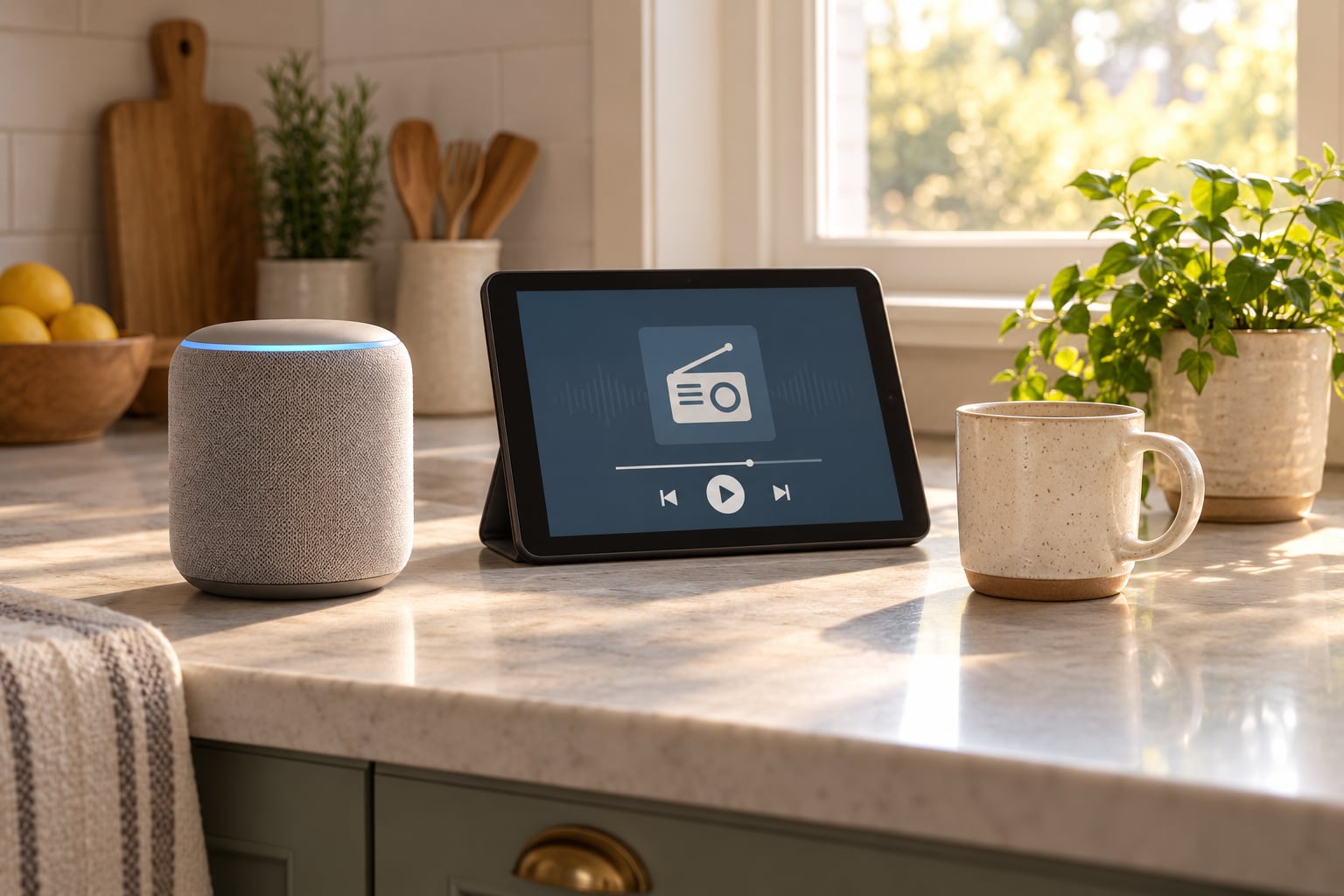
How to listen to the radio on a smart speaker is simpler than most people expect: open the Alexa, Google Home or Siri app on your phone, switch on a radio service such as TuneIn or BBC Sounds, then say the station name out loud. Ten minutes of setup, no tools, and you never touch the speaker again.
There is one catch worth knowing up front. A smart speaker plays internet radio, not the FM or DAB signal your kitchen set picks up off an aerial. That difference explains almost every problem people hit, including the famous case of the speaker announcing the station and then going quiet.
This guide covers all four routes: using an app, using your voice, routing audio over Bluetooth, and feeding in a direct stream URL. Pick the one that matches what you are trying to do.
Table of Contents
What You Need
You need five things, and you probably already have four of them.
- A voice-activated smart speaker. Amazon Echo, Echo Dot or Echo Show; Google Home, Google Nest Audio or Nest Hub; Apple HomePod or HomePod mini; or a Sonos speaker. Any of them will do the job.
- The matching app on your phone. The Alexa app, Google Home app, Apple Home app or Sonos app. It has to be the same account you set the speaker up with.
- A steady Wi-Fi connection. Radio is a live internet stream, so a weak signal on the 2.4 GHz band is the single most common cause of dropouts. Ethernet on a Sonos or HomePod eliminates the variable.
- A radio service. TuneIn and BBC Sounds ship pre-installed on Alexa and Google speakers in the UK. iHeartRadio and MyTuner Radio are added through the Alexa Skills Store.
- An account for some services. BBC Sounds and iHeartRadio want you to sign in before playback works. Linking your BBC account is what unlocks the live national stations.
Two optional extras. If you want a community or local station the big directories do not carry, you need its direct stream URL, which you can usually find on the station website. If you want to keep listening to your existing FM or DAB set, you need something with Bluetooth audio output, such as a portable DAB radio or a phone.
How to listen to the radio on a smart speaker, step by step
There are four ways to get radio playing, and they suit different situations. Start with the voice method if you want a hands-free kitchen radio. Use the app method when the station name is long or the directory has several similar entries.
How to listen to the radio on a smart speaker with an app
The app method takes about two minutes and gives you the most control, because you can see the station list instead of guessing at a name.
- Open the Alexa, Google Home, Apple Home or Sonos app and tap your speaker to reach its playback controls.
- Choose the radio service. On Alexa it sits under Services, Music and Radio. On Google Home, tap the speaker, then Audio app. On Sonos, look for TuneIn or your station’s own app in the services list.
- Search for the station by name and pick the exact entry you want. Regional stations often appear several times, so check the city in the listing.
- Tap Play. Sound comes out of the speaker with no extra step, because the app is already talking to the speaker over your home network.
You know it worked when the station starts within a second or two and the app’s now-playing screen shows the live title. The iHeartRadio approach on both ecosystems is the same: say “Alexa, play on iHeartRadio” or “Hey Google, play iHeartRadio” and browse from there.
How to listen to the radio on a smart speaker by voice
This is the method you will use daily. The service is already there, so it comes down to the wording.
On Amazon Alexa:
“Alexa, play BBC Radio 4”
“Alexa, open TuneIn and play Radio X”
“Alexa, play [station name] on MyTuner”
“Alexa, pause” / “Alexa, resume” / “Alexa, stop”
On Google Home, Google Nest Audio and Google Nest Hub:
“Hey Google, play BBC Radio 6 Music”
“Hey Google, play [station name] on TuneIn”
“Hey Google, pause the radio”
On Apple HomePod and HomePod mini with Siri:
“Hey Siri, play BBC Radio 4 Extra”
“Hey Siri, play [station name] on TuneIn”
“Hey Siri, what’s playing?”
On Sonos, with either Alexa or Google Assistant built in:
“Alexa, play [station name] on Sonos”
“Alexa, play [station name] everywhere”
If the station is not recognised, three fixes in order. Say the name the way the directory lists it, because search matches text rather than meaning. Name the service out loud, which is what “on TuneIn” and “on MyTuner” are for. If it still fails, the station is probably not in that directory, and you are better off adding it as a personal station with its stream URL.
That last case is common with community radio. Users on the Amazon UK forum who bought a speaker specifically to hear a regional station got the wrong result on the first attempt, because the assistant matched a similarly named service instead.
How to listen to the radio on a smart speaker with Bluetooth
Bluetooth is the route for FM and DAB. No smart speaker in common use has an FM tuner built in, so if you want your existing radio set, you send its audio to the speaker instead.
- Put your speaker into pairing mode. On an Echo, hold the volume down button until the ring light pulses blue. On a HomePod, the setup app offers Bluetooth mode. On Sonos, Bluetooth is available on the portable and Move models.
- On the source device, open Bluetooth settings and tap the speaker name. Most Echo, Nest and HomePod models will not act as a Bluetooth receiver at all, which is worth knowing before you start.
- Open a radio app on the phone and press play. An FM or DAB radio with Bluetooth output pairs directly and plays over the air in the same way.
- Control volume from the source, not the speaker. The speaker’s own buttons generally do nothing in this mode.
The catch: your phone or radio has to stay within range and awake, so this is the least hands-free of the four methods. The upside is no buffering and no aggregator delay, which is why Sonos owners on their community forum say radio requested through Alexa drops out for them while the same station plays cleanly from the native Sonos app.
How to listen to the radio on a smart speaker with a direct stream
A direct stream plays the station’s own audio feed, skipping the directory layer entirely. It is the best option for local and community stations, and the only reliable one for some of them.
- Find the stream URL on the station’s website. Look for Listen Live or an audio player, then copy the playlist address, usually a line ending in .m3u or .pls.
- Check it plays in VLC on your phone first. If it buffers or stays silent there, the problem is the station’s feed, not your speaker.
- On Alexa, go to the Alexa app, then Skills, then enable Personal Radio. Paste the URL when prompted and give the station a simple name, for example “Amber Sound FM”.
- Save it to your speaker and say “Alexa, play [name]”.
- On Google Home and Sonos, add it as a radio service or custom station in the app rather than searching by name.
Two warnings. Use the official feed from the broadcaster rather than a scraped link someone posted in a forum, because third-party mirrors go down without notice. And expect a delay. One Google Home owner reports roughly 90 seconds of lag when a station plays through TuneIn compared with the official icecast stream, which is the trade-off for using a directory at all.
Common mistakes that stop radio playing
Almost every failure below has a short fix. Work through the symptom column until you find yours.
Symptom, cause and fix at a glance
| Symptom | Likely cause | Fix |
|---|---|---|
| Speaker says the station name, then silence | Skill loaded but stream failed, or the wrong speaker group is answering | Stop playback, then replay. If it repeats, add the station as a personal radio URL instead of relying on search |
| Audio cuts out every few minutes | Weak 2.4 GHz Wi-Fi or power saving on the router | Move the speaker closer to the router, split the 2.4 and 5 GHz bands, or use Ethernet |
| Radio plays about a minute and a half behind the broadcast | Playing through an aggregator directory | Use the station’s own stream URL directly |
| Wrong station plays when you ask for yours | Similar name matched by search | Add the station personally and use its exact saved name |
| Nothing happens on “play” | Not signed in to the service, or region-locked | Open the service in the speaker app and sign in. BBC stations need a UK account and UK location |
| Routine ends on music or news | Default audio service, not the station you wanted | In the routine editor, set the station explicitly as the action rather than “play something” |
| Speaker not found by Bluetooth | Most Echo, Nest and HomePod models are senders, not receivers | Check the model first. Use Cast or AirPlay, or pair from the phone to the speaker instead |
Two more worth knowing. If a command used to work and stopped, an app update or a moved speaker account is usually the cause, so re-link the service before assuming hardware is broken. And if you want radio at a fixed time, a routine beats an alarm tone, because you can name the station rather than settling for a beep.
Frequently Asked Questions
Can I listen to radio on a smart speaker?
Yes. Every major voice-activated speaker streams live internet radio once you enable a radio service such as TuneIn, BBC Sounds, iHeartRadio or MyTuner. Turn the service on in the Alexa, Google Home, Apple Home or Sonos app, then say the station name. It plays over your home Wi-Fi with no phone in your hand, and you can link it to alarms and routines.
Can I listen to FM radio on Alexa?
Not directly, because an Echo has no FM tuner. What you can do is play internet versions of the same stations, or send your FM set to a Bluetooth speaker. Many kitchen DAB sets also have a stream on the broadcaster website, which you can add to Alexa as a personal radio station for a cleaner result.
Which smart speakers play BBC radio?
Alexa speakers, Google Home and Nest Audio devices, HomePod and HomePod mini, and Sonos all play BBC live radio. You need the BBC Sounds service enabled and a signed-in BBC account, and BBC stations are region-locked, so they need a UK location. Outside the UK the service will often refuse to play or will show a rights message.
How do I play radio through a Bluetooth speaker?
Pair the speaker first: hold the volume down button on an Echo until the light pulses blue, then tap the speaker name in your phone’s Bluetooth settings. Open a radio app and press play, or pair a Bluetooth DAB or FM radio directly. Note that many Echo, Nest and HomePod models cannot act as Bluetooth receivers, so check yours before you start.
What radio stations can Alexa play for free?
Alexa comes with TuneIn enabled out of the box, which covers thousands of live stations at no cost. MyTuner Radio and iHeartRadio also have free tiers with broad international coverage. Paid upgrades such as TuneIn Premium and iHeartRadio Plus add extra stations and remove adverts, but they are not needed for mainstream national and local radio.
How do I add a radio station to an Alexa alarm?
Open the Alexa app, go to Routines, then create a routine and set the time. Choose Audio as the action, pick the radio service and then select the specific station rather than a generic music option. Set it for weekdays only if you do not want it at weekends. The station starts playing automatically when the alarm fires.
Start with the voice method
If you do one thing today, open the Alexa or Google Home app, confirm TuneIn is switched on, and say the name of the station you listen to most. It takes a minute and it works about nine times out of ten.
If that fails, or the station you want is a local community one, add its direct stream URL as a personal station. That route is slower to set up but it sidesteps the search problems and the delay that make people give up on smart speaker radio.
Updated for October 2026.