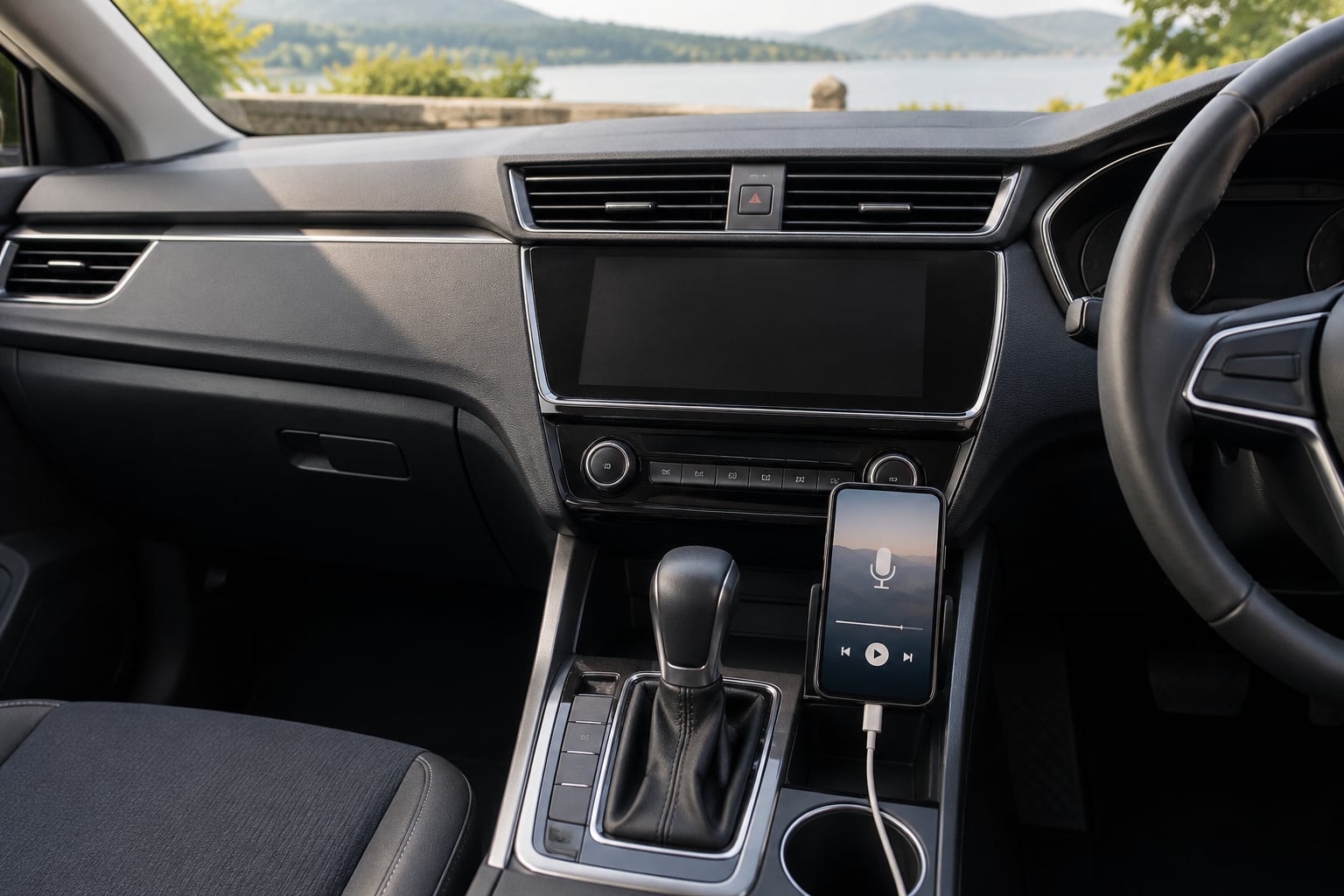
To listen to podcasts in the car, connect your phone to the stereo with CarPlay, Android Auto, Bluetooth, a USB cable or a 3.5mm AUX lead, then play the episode from your podcast app. Most people get it working in about ten minutes, and the whole job is done while parked.
The difference between a good setup and a bad one is rarely the car. It is whether the connection survives a bumpy road, whether the episode is already downloaded, and whether you can pause it without picking up the phone. Those three things decide whether podcast listening in the car becomes a habit or something you quietly turn off after a week.
Most guides cover a single phone brand and stop at CarPlay. This one covers both ecosystems, plus Bluetooth, USB, AUX, FM transmitters and cassette adapters for older cars, and the handful of fixes that solve the problems drivers actually report. Updated for 2026.
Table of Contents
- What You Need to Listen to Podcasts in the Car
- Step-by-Step
- Common Mistakes
- Frequently Asked Questions
- Can I listen to podcasts in my car without Bluetooth?
- Why are my podcasts not playing through my car?
- Do listening to podcasts in the car use a lot of mobile data?
- Should I download podcast episodes before driving?
- Can I listen to podcasts with CarPlay or Android Auto?
- Is it safe to control podcasts while driving?
- Conclusion
What You Need to Listen to Podcasts in the Car
You need five things, and most drivers already own four of them. The phone comes first, because it holds the app and does the playing.
- A phone with a podcast app installed. Recent iPhones and Android phones handle car audio without extra hardware.
- A podcast app with the shows you follow, and downloads turned on if you drive through patchy signal.
- An audio route into the car: Bluetooth, a USB cable, a CarPlay or Android Auto link, or a 3.5mm AUX input.
- Power if you drive long enough for the phone to drain. A USB charge port or a 12V socket adapter handles that.
- Optional car features that make life easier: steering wheel audio controls, a voice assistant button, or a touchscreen with CarPlay or Android Auto.
Check what your car already has before you buy anything. Look for a screen with a USB port or a 3.5mm jack near the centre console, and check whether the steering wheel has volume or track buttons. If there is no screen at all, Bluetooth or an AUX cable still works fine — you just control playback from the phone or your voice assistant.
One compatibility note worth knowing: CarPlay and Android Auto need a compatible head unit, not just a phone. Most cars from roughly 2015 onwards have at least one of the two, and many older cars gained it as a retro-fit box from the dealer. If your car predates that and the screen was never fitted, go straight to the Bluetooth and AUX sections.
| Connection method | Phone type | What the car needs | Controls on screen | Audio quality |
|---|---|---|---|---|
| CarPlay, wired | iPhone | USB port, CarPlay-equipped car | Full app control | Highest |
| CarPlay, wireless | iPhone | Bluetooth and Wi-Fi, CarPlay car | Full app control | Very good |
| Android Auto | Android | USB port or wireless, compatible car | Full app control | Highest |
| Bluetooth audio | Any | Bluetooth audio support | Phone only | Good |
| USB cable | Any | USB playback or charging | Steering wheel usually | Highest |
| AUX cable | Any | 3.5mm jack | Steering wheel if mapped | Good, no charging |
| FM transmitter | Any | 12V socket and a tuner | Transmitter buttons | Varies with signal |
Step-by-Step
Choose the Best Podcast App
Choose the app first, because some work far better on a car screen than others. The features that matter in a car are downloads, a queue that syncs, and reliable resume.
Look for four things: automatic downloads so new episodes are on the phone before you leave, an Up Next queue that follows you between phone and car, playback-speed control, and confirmed support for CarPlay or Android Auto. Free options such as Apple Podcasts, Spotify and BBC Sounds handle all four well. For subscribers, Overcast on iPhone and Podcast Addict on Android get repeated mention on car forums for one reason: they keep playing the right episode from the right place every time you start the car.
Spotify works, but drivers report it sorts and queues shows differently on the car screen than on the phone, which is disorienting when you are merging onto a slip road. For audiobooks rather than podcasts, Audible and Google Play Books both send audio to the car through the same connections described below.
Whatever you pick, set the app to download over Wi-Fi only if you want to protect your monthly data, and turn on auto-download for your regular shows.
Connect Your Phone to the Car
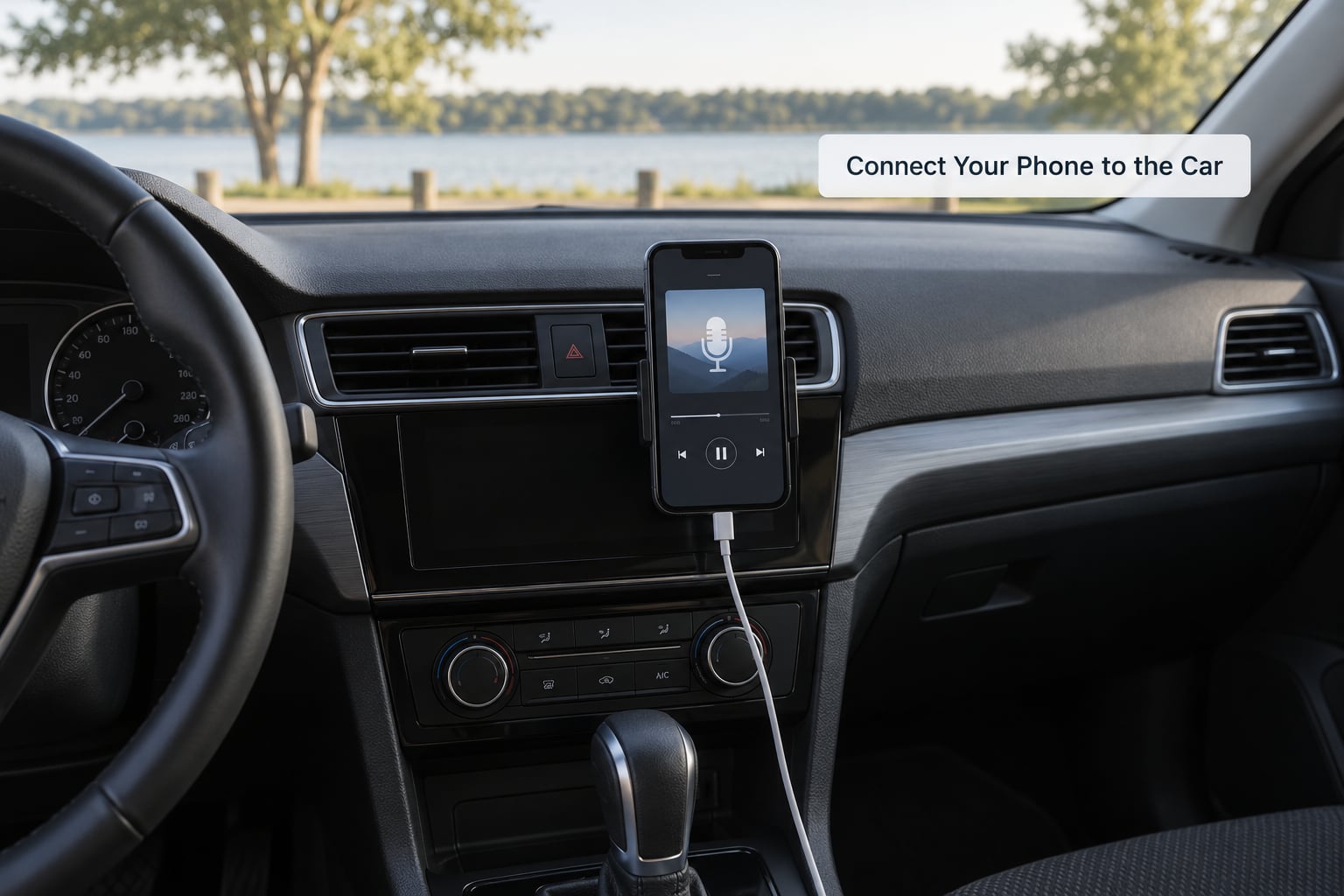
Pair once and most cars reconnect automatically from then on. The method depends on your phone and your car.
CarPlay with an iPhone, wired: plug a USB-C to Lightning cable into the port below the dash, unlock the phone, and accept the CarPlay prompt on the touchscreen. On the phone, check Settings > General > CarPlay if it does not appear within a few seconds. Then open the Podcasts app from the CarPlay dock.
CarPlay, wireless: on iOS 16 or later, hold the voice assistant button until Siri speaks, or follow Settings > General > CarPlay > Add Car. The car and phone share a Bluetooth link for audio and hand off the display over Wi-Fi.
Android Auto: connect by USB first, unlock, and accept the prompt. Some Android phones will not show the prompt until you enable developer options and USB debugging, which is a toggle in Settings > About phone — tap Build number seven times. On the car screen, pick Android Auto and then the Podcasts app. Android Auto Wireless works on newer cars if you pair over Bluetooth first.
Bluetooth only: on the phone, open Settings > Bluetooth, pick your car from the list, and confirm the pairing code. In the car’s audio menu, choose the phone as the source. You now have sound, but no app controls on the car screen — that is normal.
AUX cable: connect a 3.5mm cable from the headphone socket to the car’s AUX input, set the source to AUX, and press play on the phone. If the cable has a button on it, that button answers calls and skips tracks.
FM transmitter: plug the transmitter into the 12V socket, start a podcast on the phone, and press the channel button to move through frequencies. Tune the car radio to the same number, away from any station you can already hear clearly.
Download and Queue Episodes
Downloading is the single biggest upgrade for anyone who drives outside towns. Streaming a podcast over mobile data in a dead spot means buffering silence; a downloaded episode never buffers.
Most apps use roughly 40MB per hour of audio, so a 45-minute episode costs under 30MB and a full hour of download around the size of one streamed video call. Download on Wi-Fi, at home, overnight, and your data use on the drive drops to almost nothing.
Build the queue before you leave. Add two or three episodes to Up Next, check that the one you want first is at the top, and skim for anything with a long sponsor break. Setting a per-show playback speed in the app settings means the car screen never gets touched for that job.
Open the app on the car screen and let it run for about ten seconds before you move off. If audio plays and the progress bar moves, the episode is ready and downloaded. That check is far cheaper than discovering at the lights that you queued the wrong show.
Start Playback Without Distraction
Set up controls before you drive, not during. Every car puts the essentials on the steering wheel or the voice button, and both work with podcasts.
Volume up and down, next track and previous track on the steering wheel map to skip-forward and skip-back in most podcast apps, which usually jumps 30 seconds or to the next episode depending on the app. Check the behaviour once while parked so you know whether a press skips an ad break or eats a whole chapter.
Voice control is the safest option. Press the voice assistant button and say resume my podcast, play my podcasts, or skip forward thirty seconds. Siri and Google Assistant both run the podcast app once audio is routed to the car.
If your phone has a car mode that blocks notifications, turn it on. Hands-free calling and audio keep working while texts and app alerts stop interrupting.
The rule for the moving car is simple: eyes forward, hands on the wheel, phone in the mount or pocket. Choosing a podcast, changing speed or queueing a new episode all wait until you are parked.
Improve Audio, Data and Battery Performance
Podcast audio is often quieter than music through the same stereo, and drivers spend hours trying to fix it in the wrong place. The cause is usually the equaliser or fader setting on the car side, not the app.
Try these in order: set the stereo balance and fader to centre, switch the head unit from a surround or theatre mode to stereo, and check whether the phone’s own volume is lower than the car volume. Bluetooth compression affects speech more than music, so raising the phone volume and dropping the stereo volume a few notches often clears it. If one app is quiet and another is not, the app is the problem.
For data, set downloads to Wi-Fi only, use lower-quality audio on mobile data, and finish downloads before motorway stretches. For signal dead zones, downloaded audio just keeps going. For battery, a wired USB connection charges while it plays, and Bluetooth costs less power than a screen mirroring over Wi-Fi, so turn wireless CarPlay off if your battery drains quickly.
On a shared family car, set a short screen lock and an app PIN so nobody clears your queue. It takes a minute and saves the frustration of arriving to a car with nothing queued.
Common Mistakes
Almost every in-car podcast problem has a known cause. Work down this list in order and you will usually find it in a few minutes.
- Bluetooth drops or drops out mid-drive. Old phones pair to a car and then quietly fall back to their own speaker. Delete the car from Bluetooth settings on both devices, forget the phone on the car’s side too, and pair again fresh.
- The podcast app is missing from the car screen. The app has no CarPlay or Android Auto template. Apple Podcasts, Overcast, Pocket Casts, Spotify and Audible all work; many small apps do not. Use Bluetooth instead.
- Playback keeps running after you unplug. This is a well-documented Android Auto and CarPlay annoyance where an episode continues playing silently and you lose hours of listening without noticing. The fix is to pause before you unplug rather than relying on the system to stop.
- Audio is far quieter than music. Centre the balance and fader, turn off surround mode, and lower the car volume while raising the phone volume.
- Downloads stop halfway. Leaving Wi-Fi mid-download or running low on storage both cause it. Check free space and set downloads to allow mobile data for the trip.
- The queue or subscriptions do not show on the car screen. Not every app syncs filters and queues. Switch to one that does, or scroll to your show on the car screen and start the newest episode manually.
- Nothing works and you are in a hurry. Toggle the phone’s media output from the quick-settings shade and pick the car connection explicitly, which is the fix that resolves most brand-forum cases.
Set everything up parked. Ten minutes of fiddling with a still car beats arriving at the motorway with a broken connection and a phone at half charge.
Frequently Asked Questions
Can I listen to podcasts in my car without Bluetooth?
Yes. A USB cable, a 3.5mm AUX lead or an FM transmitter all work without pairing anything, and any phone with a headphone socket or USB port can drive them. USB usually gives the best audio because the digital signal is untouched, though your car may not play podcast apps from the phone straight away and the phone still handles playback. AUX is the simplest option on older cars, and an FM transmitter works when the car has no aux input at all.
Why are my podcasts not playing through my car?
Most failures come down to four things: the audio is routed to the phone speaker rather than the car, the podcast app has no CarPlay or Android Auto template so it never appears on the car screen, Bluetooth has paired but the connection dropped to the car only, or the phone has locked the app because it was left in the background. Check the media output setting in your quick-settings shade and choose the car connection explicitly, then reconnect Bluetooth from scratch if the app still does not show.
Do listening to podcasts in the car use a lot of mobile data?
Streaming does, downloading does not. A typical podcast episode is roughly 40MB per hour, so a 45-minute show costs under 30MB while streaming and nothing at all once downloaded. Set your app to download over Wi-Fi only and let new episodes land overnight, and your daily commute uses almost no data. Keep downloads switched on for mobile data only when you know you will be out of signal for a long stretch.
Should I download podcast episodes before driving?
Yes, especially for motorway journeys, rural routes and anything longer than about half an hour. Downloaded episodes never buffer, so a dropped connection or a dead zone does not interrupt you mid-sentence. Download on Wi-Fi at home, queue two or three episodes in your Up Next list, and confirm the one you want first is playing before you set off. Streaming is fine for short trips through well-covered towns.
Can I listen to podcasts with CarPlay or Android Auto?
Yes, and it is the best in-car experience because you get app controls, steering wheel buttons and voice control rather than just sound. Apple Podcasts, Overcast, Pocket Casts, Spotify and Audible all send audio through CarPlay, and Apple Podcasts, Pocket Casts, Podcast Addict, Spotify and Audible work through Android Auto. Small independent apps often have no car template, so they will not appear on the dashboard screen. Those are best used over Bluetooth.
Is it safe to control podcasts while driving?
Keep it hands-off. Use the steering wheel volume and track buttons, or the voice assistant button to resume, skip or change speed without touching the phone. Choosing an episode, changing playback speed or queueing a new show should all wait until you are parked. Avoid wearing earbuds in both ears, since you need to hear sirens and other vehicles, and keep the phone in a mount rather than in your hand. If a podcast holds your attention more than the road, turn it off and revisit it later.
Conclusion
Start with four things while the car is parked: pick a podcast app that supports your phone, download a couple of episodes so they work without signal, connect the phone with the best method your car offers, and check that the steering wheel and voice buttons control the app. Get those right once and getting podcasts playing in your car becomes a two-second job on every drive from then on.