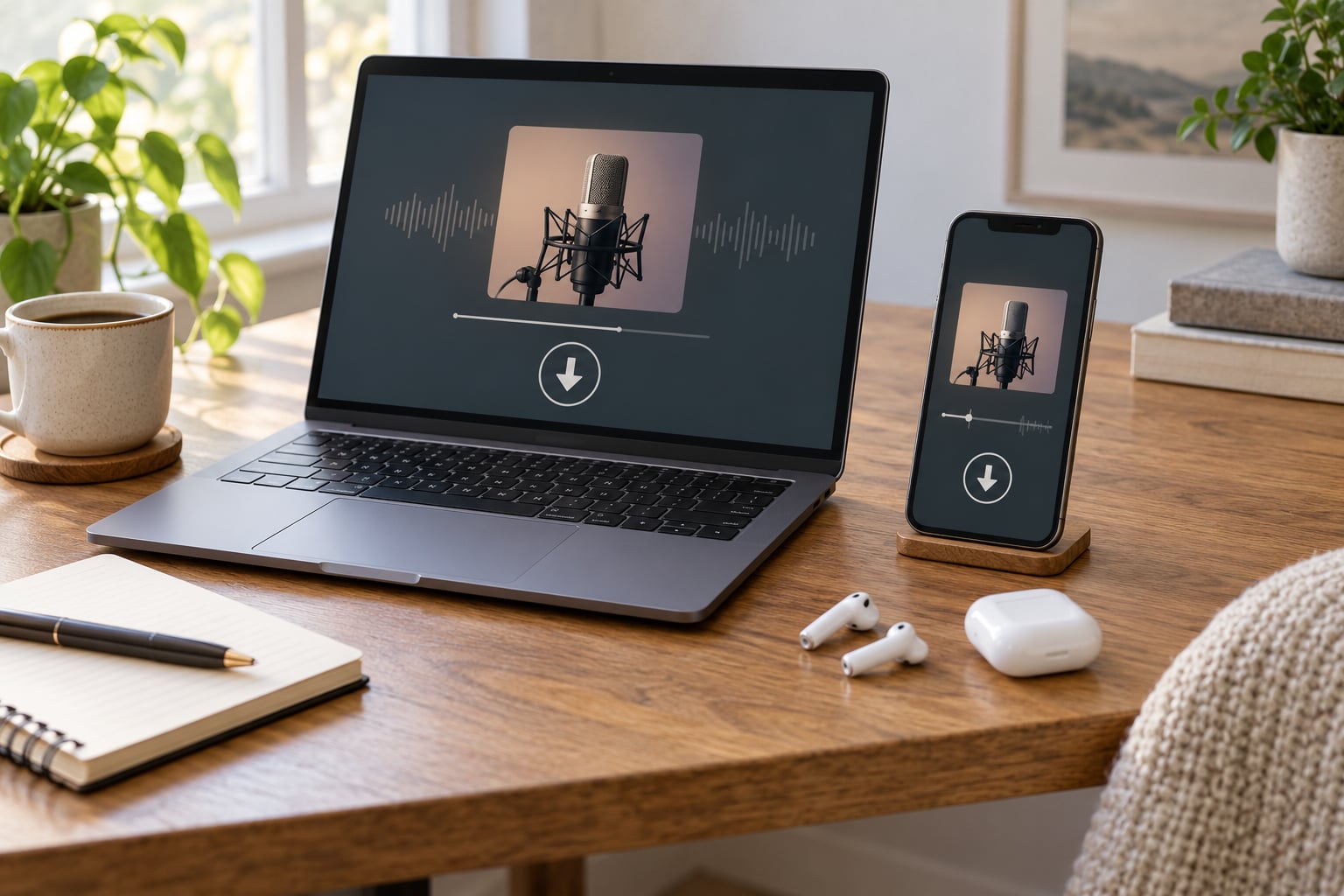
If you have never worked out how to download podcasts for offline listening, the whole job is one button. Open your podcast app, find an episode, tap the download arrow, and the audio is copied onto your device instead of streaming every time you press play. The same pattern works on iPhone, Android and desktop, and this guide covers each one.
Last updated October 2026. App screens move around often, so the menus below are named exactly, and every path is written for current app versions on both mobile and desktop.
Table of Contents
- What You Need
- How to Download Podcasts for Offline Listening: Step-by-Step
- Common Mistakes
- Frequently Asked Questions
- Can I listen to downloaded podcast episodes without internet?
- Are downloaded podcasts available on every device signed into the same account?
- How do I download an entire podcast show for offline listening?
- Where are downloaded podcast episodes stored on my phone or computer?
- How much storage and mobile data does an offline podcast use?
- Why did my podcast download disappear or stop working?
What You Need
You need a smartphone, tablet or computer with a podcast app on it. That is genuinely the whole list. Apple devices already include Apple Podcasts, Android phones come with several podcast apps ready to install, and desktop users can use the Podcasts app on Mac or a dedicated player.
The one thing worth understanding first is the difference between streaming and downloading.
Streaming means the app fetches the audio over the internet each time you hit play. Nothing is stored, so it stops the moment your connection does.
Downloading means the episode’s audio is saved to your device’s storage. It plays in a tunnel, on a plane, in a lift, or on a data plan that has run out.
Most apps do both, and that is why people get confused: they play an episode, assume it saved, and then lose it in a car park. You have to tap the download control yourself, or switch on automatic downloads.
How to Download Podcasts for Offline Listening: Step-by-Step
The universal method, in the order the steps matter:
- Open your podcast app and go to the show you follow.
- Open the episode list, not just the show page.
- Find the download control next to the episode title. It is a downward arrow, a cloud icon, or a circle with a line through it.
- Tap it once. A progress bar or a filled arrow confirms the download finished.
- Repeat for as many episodes as you want before you lose signal.
- Turn on automatic downloads so you never have to do this manually again.
On an iPhone or iPad, tap and hold an episode title instead of the arrow and a menu appears with Download, Add to Queue, Mark as Played and Play Next. On Android, long-press does the same thing. If nothing happens at all, you are probably tapping the show artwork rather than the episode row.
Download Podcasts on Apple Podcasts
Apple Podcasts is the app most people already have, and it is the one with the most sensible auto-download default built in.
On iPhone and iPad:
- Open Podcasts and tap Listen Now, Browse or Library.
- Find the episode and tap the download arrow icon to the right of its title.
- Wait for the arrow to fill in. That filled icon is your confirmation the episode will play without internet.
- To grab several at once, swipe left across the episode titles on the episode list and tap Download on each one that appears.
On Mac: open the Podcasts app, click a show, then click the download arrow beside an episode. The Mac app is separate from the iPhone app since Apple split iTunes up, so installing it on a Mac is a download from the App Store in the first place.
Automatic downloads: open the app, tap your name or profile picture, then Settings and Automatic Downloads. The default, Only New, grabs the latest episode of every show you follow. All Unplayed grabs everything you have not finished. Off turns it off completely.
Storage: the same settings screen holds Storage and Delete Played Episodes. Turning on delete-after-playing is the single most useful setting for anyone with a small phone, because it stops downloads piling up forever.
Download Podcasts on Spotify
Podcast downloads on Spotify need a Premium subscription. On the free tier the download control simply is not there, which is the single most common reason people believe they cannot download anything.
On mobile: open Spotify, go to Your Library, tap Podcasts, open a show and choose an episode, then tap the downward arrow icon underneath the play bar. The arrow changes to a check when the download is complete.
On desktop: the same control sits under the play bar in the full Spotify desktop app. The web player in a browser does not offer podcast downloads at all, so if you listen on a laptop, install the desktop app rather than bookmarking the site.
Automatic downloads: tap Your Library, then the Settings or filter icon at the top, then Downloads and switch on Automatically download podcasts. There is a separate switch for keeping finished episodes, which is worth turning off if storage is tight.
Download Podcasts on YouTube Music
YouTube Music downloads podcasts on Android, iPhone and desktop, and like Spotify the control sits under the player rather than in a list.
Open the show, pick an episode, start the episode or open its three-dot menu, and tap Download. The same menu carries a playback speed option, which is useful if you like a show but at 1.5x.
One thing confuses people here: downloading a song in YouTube Music is not the same as downloading a podcast episode. The music download button stores audio for playback like any other track. Podcast downloads are attached to the episode in your library and appear alongside other saved shows. Check the Library tab under Downloads to confirm what you actually saved.
Download Podcasts in Pocket Casts
Pocket Casts is a good free option with an unusually clear offline indicator, and it runs on Android, iPhone and the web.
Download one episode: open the episode and tap the downward arrow in the player bar. The arrow becomes a tick when the file is finished.
Auto-download: tap the Settings gear icon, then Automatic downloads, and switch on New episodes. Choose how many episodes to keep per show — two or three is plenty for most people.
Check what you have: the Downloads section in the sidebar lists everything saved, and a downloaded episode shows a small arrow beside its title even with the app offline. The Pocket Casts web player streams only, so downloads belong to the mobile and desktop apps.
Download Podcasts on Other Apps
Overcast, AntennaPod, Castbox, Downcast and Podcast Addict all follow the same convention, and the steps transfer directly between them.
- Open the show, then the episode list.
- Tap the three-dot menu or swipe the episode row.
- Choose Download or Download episode.
- Watch for the filled arrow, checkmark or progress bar.
- Open the app’s Downloads tab to see everything stored locally.
AntennaPod and Podcast Addict, both free on Android, go one step further. Their episode menu usually has Download alongside options to play on a media player, which handles the file as an ordinary MP3 in your device’s music library. That is the route to take if you want the audio on a feature phone, a dedicated MP3 player or a USB stick.
Amazon Music on iPhone works the same way as Spotify: open the episode, tap the arrow under the player, and Premium is required. Several of these services have no official desktop download at all, which is the gap that leaves desktop-only listeners stuck streaming.
Choose What to Download for Offline Listening
Downloading everything is how people fill a phone and then delete the entire app in frustration. A little arithmetic helps more than any setting.
Match downloads to the trip. Most commutes run 30 to 60 minutes, so two or three episodes per show is plenty. Before a long flight, download the whole season of something short.
Watch your storage. Most episodes at normal quality run roughly 30 to 60 MB for an hour of audio. Fifty downloaded episodes can quietly eat 2 GB or more, and phones with 64 GB of space feel that quickly.
Use Wi-Fi only. On an iPhone, Automatic Downloads has a cellular switch, and most Android podcast apps have an equivalent. On a capped data plan, leaving it on means a week of commuting quietly drains your allowance.
Check the update rhythm. A daily news show produces 40-plus episodes a week. Downloading all unplayed on a daily show fills storage in a fortnight, so set that one to new episodes only.
Set delete-after-playing. Every major app has this, usually near the storage or download settings. It removes a file once you finish it, which turns downloads from a growing pile into a rolling buffer.
Verify That an Episode Works Offline
Airplane mode is the test, and it takes ten seconds.
Turn on airplane mode, open the episode from your library rather than from a search, and press play. Audio that starts within a second or two is genuinely stored on the device. A spinner, silence, or an error message means it was only cached and never downloaded.
If it fails, three things are usually responsible. You opened the episode from a browse or search screen rather than your library. Your download was over cellular, interrupted, and never finished. Or the app cleared its cache to reclaim storage.
Before a flight, do one pass through the Downloads tab of your app and look for any episode without a filled arrow or tick. That single check catches almost every bad surprise at the gate.
Common Mistakes
Almost every download complaint comes down to one of six causes.
- No download button anywhere. The app or service needs a paid tier. Check the subscription status: Spotify and Amazon Music require Premium for podcast downloads, while Apple Podcasts, Pocket Casts, Overcast and AntennaPod do not.
- Downloaded episodes vanish after a few weeks. Automatic downloads are set to All Unplayed, or the app purged old files to reclaim space. Switch automatic downloads to New episodes or a fixed count, and check the app’s storage limit setting.
- Plays online, not offline. The episode was cached by streaming and never downloaded. Tap the download arrow, confirm the filled icon, then retest in airplane mode.
- Download stops part way. The connection dropped, usually cellular, or the device ran low on space. Free up storage and download again on Wi-Fi.
- Downloads gone after reinstalling the app. The app’s local files were removed with the app itself. Subscribe to the show again and re-download. This is the strongest case for exporting MP3 files instead.
- Downloads gone after a free trial ended. The service holds saved content only while the subscription is active. Keep important episodes in an app with no subscription requirement.
One more deserves attention because it is easy to miss: clearing an app’s cache or letting your phone’s storage cleaner run removes downloaded episodes in most apps. If you use a cleaner tool, exclude your podcast app from its list.
And if you want downloads that outlive the app entirely, save episodes as MP3 files from within the app and move them to your music library. That is the only route to a feature phone, an old MP3 player, or a USB stick you can hand to someone else.
Frequently Asked Questions
Can I listen to downloaded podcast episodes without internet?
Yes, and that is exactly what a download is for. Once an episode finishes downloading, it is stored on your device and plays with no connection at all. Switch on airplane mode and open it from your library rather than from a search screen. If it still stalls, the file was never fully downloaded and you need to tap the arrow again.
Are downloaded podcasts available on every device signed into the same account?
Your subscriptions, follows and listening position sync across devices, but the downloaded audio files do not. Each device downloads its own copy. That is deliberate, since a download counts as one file per device and apps avoid uploading your files to a server. If you use two devices regularly, allow time to download the same episodes on both before a trip.
How do I download an entire podcast show for offline listening?
Open the show, enter its episode list, then download episodes one at a time with the arrow, or swipe across several rows to select them in a batch. In Pocket Casts and similar apps, set automatic downloads to a fixed number of new episodes so the backlog keeps itself current. Apple Podcasts offers no single button for an entire back catalogue, which is the most common complaint from its users.
Where are downloaded podcast episodes stored on my phone or computer?
Inside the app’s own private folder, which is why the files are invisible in a normal file manager. That folder is tied to the app, so removing the app removes the audio with it. Apps such as AntennaPod, Podcast Addict, Overcast and Downcast offer a play-on-media-player option, or can place the file in your music library, which is the only way to move it to another device or an MP3 player.
How much storage and mobile data does an offline podcast use?
Expect roughly 30 to 60 MB per hour-long episode at normal quality, so a season of ten episodes can approach half a gigabyte. Higher download quality settings increase that noticeably. Downloading over mobile data uses the same amount as the audio itself plus a small overhead. To protect a capped plan, switch on the Wi-Fi-only or cellular download toggle in your app’s download settings.
Why did my podcast download disappear or stop working?
The usual reasons are storage pressure, an app cache clear, automatic downloads set to all unplayed with an aggressive storage limit, or a subscription that has ended. Your phone’s own storage cleaner can also wipe an app’s downloads without warning. Start by checking the app’s storage limit and delete-after-playing settings, then exclude the podcast app from any cleanup tool.
Start with one episode and the airplane mode test. Tap the arrow on something you want to hear on the drive tomorrow, confirm the filled icon, then go through the same route for a few more and switch on automatic downloads for the shows you follow every day. Leave delete-after-playing on and storage stops being a problem you have to think about.