Free audio editing software can record, cut, trim, splice, denoise, mix, process with effects, and export to every common audio format without costing a penny. Programs like Audacity, ocenaudio and GarageBand cover most podcast, voice-over and basic music work entirely offline and with no account.
The catch is what free editors leave out. Mastering-grade limiters, unlimited track counts, surround sound and collaborative editing usually sit behind a paywall, and a few free tiers cap export length or add a watermark. Knowing which is which saves a lot of wasted evenings.
This guide walks through the twelve tasks free audio editing software handles well, where the tools start to show their seams, and how to pick the right one for a podcast, a radio clip, a voice-over or a track you are trying to finish.
Table of Contents
- What Free Audio Editing Software Can Do
- Recording and Capturing New Audio
- Recording and Capturing New Audio for Podcasts
- Cutting, Trimming, and Rearranging Clips
- Cleaning Up Noise, Echo, and Poor Recordings
- Mixing Music and Voice Together
- Adding Music, Sound Effects, and Room Sound
- Exporting and Publishing Your Finished Audio
- Which Free Audio Editor Fits Your Project?
- Frequently Asked Questions
- Conclusion
What Free Audio Editing Software Can Do
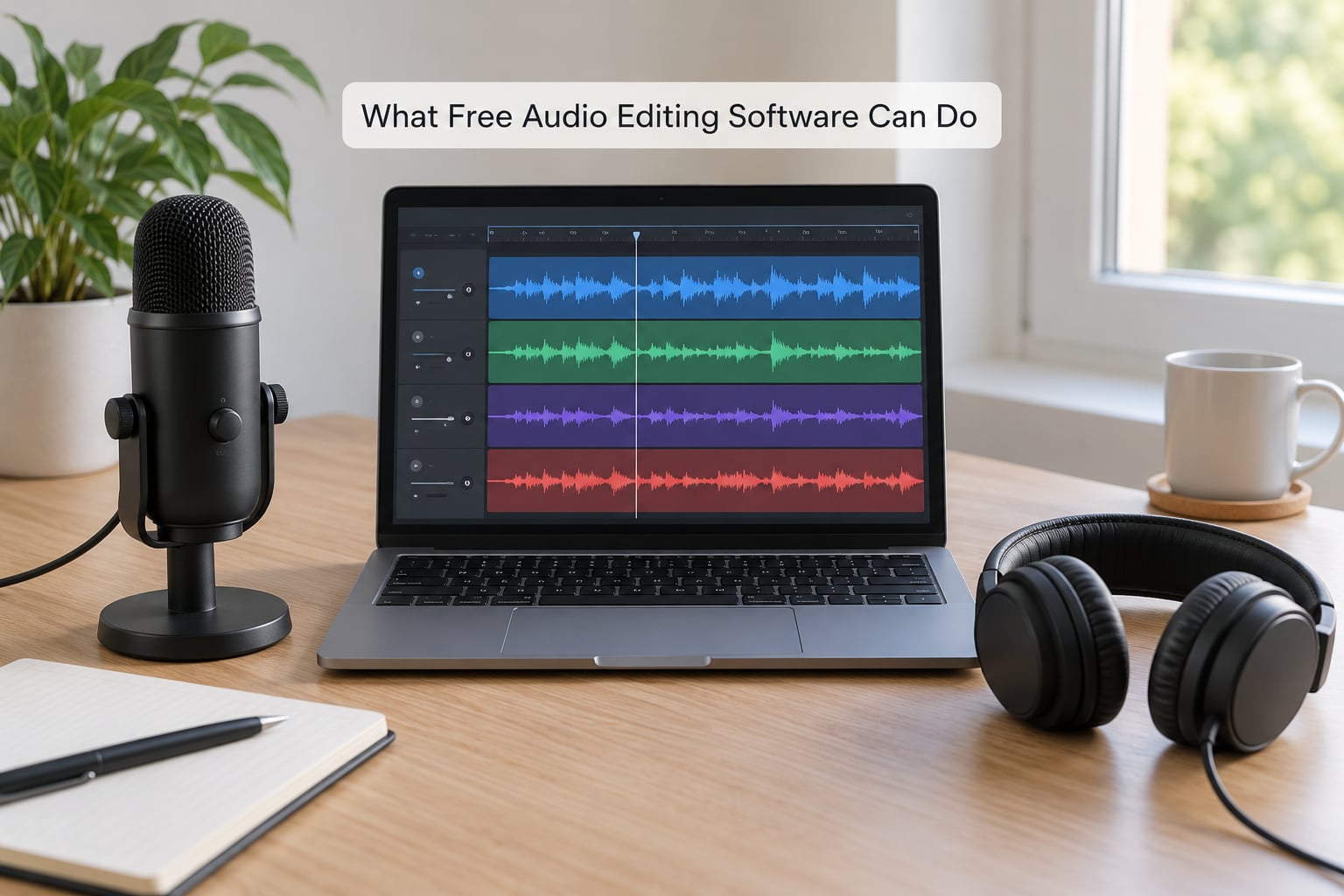
The twelve jobs below are the ones free editors genuinely do as well as paid ones. Everything else on this list is a bonus.
- Cut, copy, paste and splice — split a recording anywhere and remove the bits you do not want.
- Trim the head and tail — shave dead air from the start and end of a file in seconds.
- Fade in and fade out — add short ramps so clips start and stop cleanly.
- Normalise volume — bring peaks to a consistent level across a whole set of files.
- Truncate silence — detect and strip long gaps between sentences automatically.
- Reduce background noise — sample the room tone and remove hum, hiss and air conditioning.
- Apply EQ, compression and filters — shape tone with bass and treble controls, compression, high-pass and low-pass filters.
- Change pitch and tempo — slow a voice down without the chipmunk effect, or match loop lengths.
- Add reverb, delay and chorus — built-in effects that need no plugin hunting.
- Record and mix multiple tracks — lay voice, music and effects onto a timeline together.
- Convert between formats — move between MP3, WAV, FLAC, AIFF, OGG and M4A.
- Run plugins and batch processing — run the same edit across a whole folder at once.
That list is the honest answer to what free audio editing software can do. It is also, for most people, more than they will ever use.
Task to tool: what does what
Not every free editor covers all twelve. Here is how the main options divide up, along with the limit worth knowing before you start.
| Task | Free tools that handle it | Watch out for |
|---|---|---|
| Cut, trim, splice, fades | Audacity, ocenaudio, GarageBand, WavePad | All handle this at full quality |
| Truncate silence | Audacity, ocenaudio, GarageBand | Mobile and hosted tools often move this behind a paid plan |
| Noise reduction | Audacity, ocenaudio, GarageBand, Reaper | Overdo it and voices sound underwater |
| EQ, compression, filters | Every free DAW and editor listed here | Full parametric EQ is rarer than a simple tone control |
| Pitch and tempo change | Audacity, GarageBand, Cakewalk by BandLab, LMMS | ocenaudio does pitch but not independent tempo stretching |
| Multitrack recording | Audacity, GarageBand, Cakewalk by BandLab, LMMS, Waveform Free | ocenaudio’s multitrack handling is its weak spot |
| Format conversion | Audacity, ocenaudio, Foobar2000, FormatFactory | Batch convert needs a separate tool in some editors |
| Batch processing | Audacity, ocenaudio, Reaper, Sound Forge | Several free apps handle one file at a time only |
Audio editor or DAW: does the distinction matter?
An audio editor works on a file in front of you. You load a recording, fix it, and export it. That is the whole job.
A digital audio workstation, or DAW, works on a timeline. It plays several sounds at once, records new parts in sync, and treats each sound as an object you can move, copy and process independently.
The dividing line matters for one reason: most of the awkward questions people ask about free audio editing software are really DAW questions. If you are trimming one interview, you need an editor. If you are laying a beat, bass line and vocals together, you need a timeline.
Recording and Capturing New Audio
Free editors record as well as they edit. Audacity, ocenaudio and GarageBand all capture straight from a microphone, a USB interface or your computer’s built-in input, and all of them save the result as an ordinary audio file.
Monitoring means hearing yourself while you record, ideally without a delay that throws off your timing. Most free editors route the input straight through to your headphones with very little lag, which is enough for voice-over and podcast work. Musicians recording whole instruments will want a proper audio interface with direct monitoring instead.
A countdown or pre-roll gives you three seconds of silence before the take starts, which is the difference between a usable recording and one where every sentence begins with a clipped consonant. Free tools have this built in, usually in the recording transport controls.
Sample rate and bit depth are the two settings that decide how much detail your recording keeps. Here is the honest range of what free software needs.
- 44.1 kHz / 16-bit — CD quality. Perfect for voice, podcasts and anything you will export as MP3.
- 48 kHz / 24-bit — video standard. Choose this if the audio ends up under a video edit.
- 96 kHz and above — overkill for spoken word. Save it for music and mastering.
Recording extra headroom matters more than a high sample rate. Every free editor can record 24-bit, so give yourself headroom and normalise afterwards rather than recording hot and hoping.
Multitrack capture is where free editors split. Audacity records several inputs at once and stacks them on separate tracks, which is enough for overdubbing a second verse or a harmony line. The full DAWs available free, like Cakewalk by BandLab, add MIDI, virtual instruments and per-track effects on top of that.
Recording and Capturing New Audio for Podcasts
A finished podcast does not sound complicated, because the work is all in the cleanup. A free editor takes a raw two-hour conversation and turns it into something people will actually listen to.
Silence removal is the single most requested free capability, and for good reason. Audacity’s Truncate Silence function scans for gaps below a threshold you set and closes them to a chosen length, turning a rambling conversation into something tight. Podcasters tell me the automatic pass is a rough cut at best; they still go through by ear afterwards, because it tends to clip breaths and quiet answers.
Levelling does the rest. Normalise each recorded track separately so one guest is not twice as loud as the other, then apply light compression to even out the dynamics between words.
Music goes underneath, not on top. A loop at roughly minus 20 dB against the voice lets the bed register without asking listeners to turn it down mid-sentence. Stingers mark a topic change, and a short intro or outro gives the show a shape.
Export finishes it. Most hosts ship a high-quality MP3 alongside a normalised version, and some also keep the WAV in case they need to re-edit later.
Cutting, Trimming, and Rearranging Clips
Cutting is the first thing you will do and the thing every free editor does well. Select a region of the waveform, delete it, and the audio closes up. There is no re-rendering and no waiting.
Splits are even more useful. Split at a point, then move or delete one half. That single command builds most podcast edits: cut on a silence, split there, move the answer after the question, tighten up the pause.
Fades solve the click problem. Cutting a waveform at full level leaves an audible pop. A ten or twenty millisecond fade either side of the cut removes it. Every free editor has fade handles you can drag, and all of them offer a fade-out at the end of the file.
Non-destructive editing means the original file stays untouched. Most editors apply changes to a copy in the project, so you can undo a destructive-sounding effect and the source audio is still there. This is why free editors handle cleanup so well: if the noise reduction sounds wrong, you simply reduce it.
Repairs work the same way. A click, a cough or a clipped word can be covered by a short crossfade between the surrounding regions rather than being cut out and re-joined.
Batch processing saves the repetition. Load a folder, apply the same fade, normalise and export settings to every file, and let the editor work through it. If you produce weekly clips or a library of station IDs, this is where free software quietly saves an afternoon.
Cleaning Up Noise, Echo, and Poor Recordings
This is the area where free software has quietly become excellent. A room full of fans, a fridge hum, air conditioning and traffic outside the window can all be reduced to the point where nobody notices they were there.
Noise reduction works in two steps. First you select a short passage of pure noise — a moment when nobody is speaking — and the editor builds a profile from it. Then it subtracts that profile from the rest of the recording.
The amount you apply matters enormously. A light touch of around 6 dB removes hiss and leaves voices natural. Push it to 20 dB and voices turn thin and underwater, with the room tone scooped out of between words. The best result usually comes from repeating the process a few times rather than one aggressive pass.
Hum removal is a different job. Mains hum sits at 50 or 60 Hz and its harmonics, so a notch filter at the frequency with a narrow bandwidth will take it out without touching the voice. Free editors all carry a filter that does this in a couple of clicks.
De-essing controls the harsh sibilance that shows up once you have compressed a voice. A high-shelf cut or a sibilance filter in the 5 to 9 kHz range usually fixes it.
Spectral display shows frequency across the horizontal axis and time down the side, which lets you see a hiss, a hum line or a distortion artefact as a shape rather than guessing. You can paint out a narrow band of noise directly in that view. Ocenaudio and Audacity both include a spectral mode, and it is the fastest way to remove a persistent tone from a recording.
Echo and reverb removal is the weakest area in free software. A dedicated de-reverb plugin usually costs money, and the free approximations can sound metallic on longer decay tails. On most voices, light noise reduction plus a room-sound bed is a more reliable fix than heavy de-reverbing.
Honestly stated, free cleanup is excellent on steady noise and hum, and shaky on reverb. Knowing where that line sits saves you from ruining a good take.
Mixing Music and Voice Together
Once more than one track exists, you are mixing. The core job is balance: the voice sits forward, the music sits under it, and neither fights the other.
Volume levels do most of the work. Set the voice so it peaks consistently, then bring the music down until it is clearly behind it. Faders are for balance; effects are for polish.
Panning widens the image. Centring a voice and placing music or room ambience slightly left and right keeps the listener focused on the words.
Effects chains add the rest. A gentle compressor on the voice evens out level, a low-pass or high-pass filter clears mud or hiss, and a short reverb sends the voice into a space. Free editors ship all three.
Volume automation draws the moves. Fade the music down two dB under each line of narration and bring it back up between answers. Free DAWs can draw these curves by hand, and free editors handle the simpler version with a fade on the clip.
Ducking is the automated version of the same idea: the music level follows the voice automatically. Some free editors can do it with a compressor triggered by the speech track, and a few hosted tools have a single-button version. Manual fades are slower and often sound better on a short clip.
Adding Music, Sound Effects, and Room Sound
Free editors import any audio file, so the library is limited only by what you can find or record. Music beds under narration, stingers between sections, and a short ambience track are all the same operation: place the file, line up the length, set the level.
Keep the relationship consistent. Music under speech typically sits well below the voice, low enough that it disappears when the voice starts and reappears in the gap. If you can hear the music clearly through every sentence, it is too loud.
Stingers are short and deliberate — two seconds, a rising sweep, a jingle from a local act if the piece is for radio. They mark structure rather than decorate it.
Room sound is the quiet one. A few seconds of the space with nobody talking, faded in under the start of the edit, stops a recording from sounding like it was recorded in a vacuum. Free editors make this a thirty-second job, and it does more for perceived quality than any effect.
Fades at both ends are what stop added audio sounding pasted on. A hard cut into a music bed is instantly obvious in headphones.
Exporting and Publishing Your Finished Audio
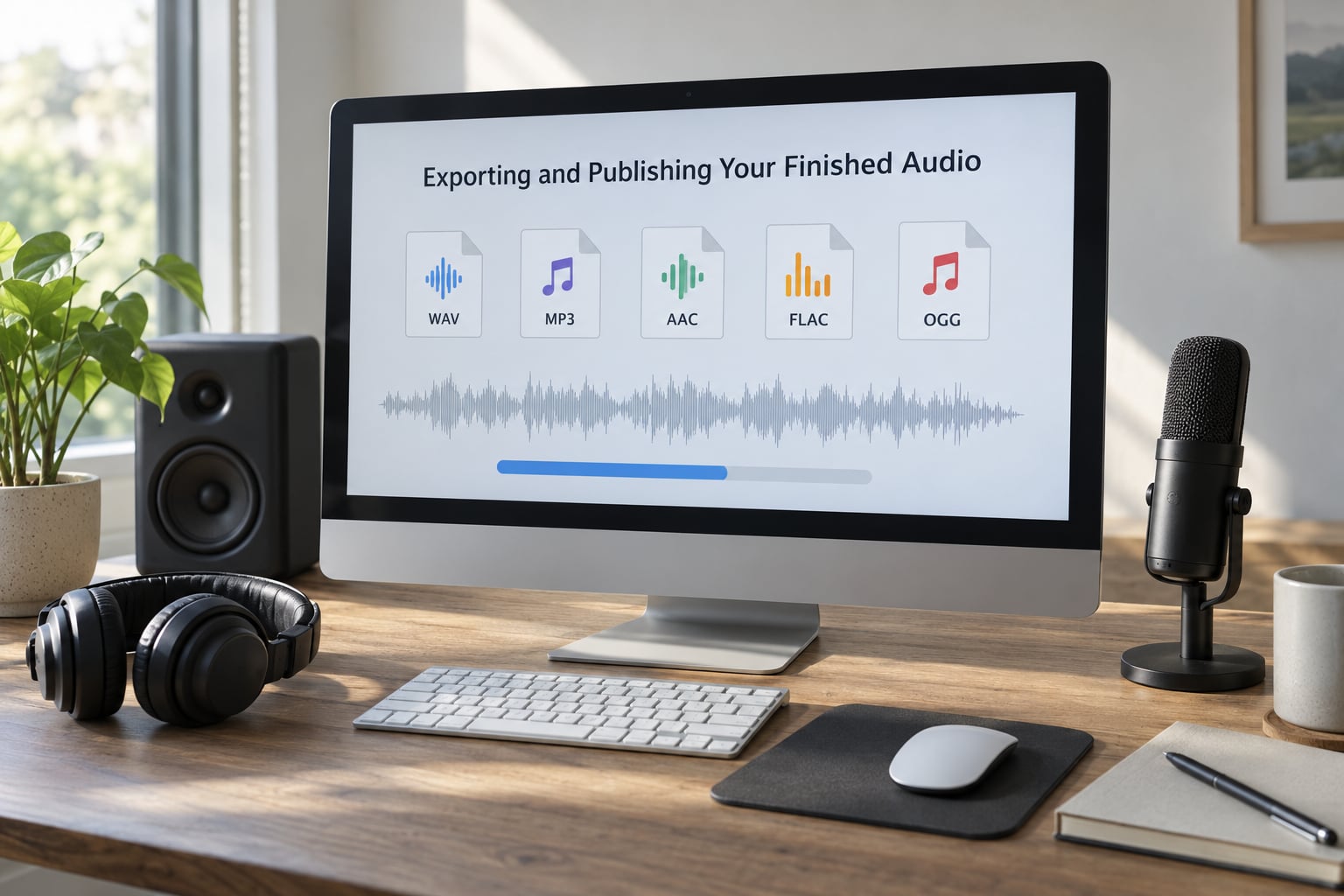
Exporting is the last step and the one with the most settings. Getting them right matters, because the file you publish is the file people hear.
Formats split into lossy and lossless. WAV and AIFF are lossless and large. FLAC is lossless and around half the size. MP3, AAC and OGG are lossy, and any editing you do after compressing them risks another generation of quality loss.
The safe habit is to edit in WAV and export a copy to MP3 or AAC at the end. Cut and level in lossless, then compress once for delivery.
Bitrate is the dial. For spoken word at 128 kbps stereo, or 64 kbps mono, the difference in quality is small and the file is half the size. Music at 192 to 320 kbps keeps far more detail.
Normalisation on export sets the peak level. Peak normalisation pushes the loudest sample to a chosen level, which is simple and predictable. Loudness normalisation targets an average level in LUFS, which is closer to how people actually perceive volume.
Streaming services target roughly minus 14 LUFS, and many podcasts normalise to about minus 16. Broadcast standards sit lower still, around minus 23 LUFS under EBU R128, because a station will be handling audio alongside everything else on the playlist. Free editors report loudness and can normalise to a target, so you can check where you land before submitting.
Metadata is the title, artist, album and genre fields you type in at export. It is what a podcast host, radio playout system or streaming service reads to catalogue the file. Most free editors let you edit it by hand, which matters if your shows have consistent naming conventions.
For radio work specifically, the practical routine is simple. Normalise to the broadcast target, leave a little headroom, export as WAV or high-bitrate MP3, and confirm the levels match the rest of the station’s material before submission.
Which Free Audio Editor Fits Your Project?
Pick by what you are making, not by which program has the longest feature list. Here is how the main free options split.
| Tool | Platforms | Multitrack | Free type | Best for |
|---|---|---|---|---|
| Audacity | Windows, macOS, Linux | Yes | Open source | Podcasts, interview cleanup, noise reduction |
| ocenaudio | Windows, macOS, Linux | Limited | Freeware | Fast single-file edits and spectral work |
| GarageBand | macOS and iOS | Yes | Free with Apple devices | Music, podcasts and mobile recording on a Mac |
| Cakewalk by BandLab | Windows | Yes | Freeware | Full production with MIDI and virtual instruments |
| LMMS | Windows, macOS, Linux | Yes | Open source | Beats, loops and electronic music |
| Tracktion Waveform Free | Windows, macOS, Linux | Yes | Free edition | Recording and arranging music |
| Ardour | Linux, macOS, Windows | Yes | Open source | Recording and multitrack work on Linux |
| KWave, mhWaveEdit | Linux | Varies | Open source | Simple trimming and conversion |
For beginners who want one program that does everything, Audacity is the safe answer. On the r/sounddesign forum, it is the tool most often recommended for trimming and normalising with noise reduction in the box, and r/podcast users reach for the same thing when they want to clean up a voice recording for a video.
If Audacity’s interface puts you off, the fix is not always a different program. Open one file, do one job, close it. The tool is less intimidating once it has a single purpose.
Podcasters split between Audacity and the Fairlight page inside DaVinci Resolve, both of which handle voice well. If you already edit video in Resolve, keeping the audio there saves an export and import.
For music, Cakewalk by BandLab is the closest free equivalent to a commercial DAW, with a full timeline, MIDI and instruments. LMMS is the free answer for making beats and electronic loops. GarageBand covers both, but only on Apple hardware — a limitation that decides the question for a lot of people.
Platform lock-in is the most common regret. GarageBand is Mac-only, Cakewalk by BandLab is Windows-only, and Audacity runs everywhere. If you might change machines, pick the cross-platform one.
Plugin support is the growth path. A free editor that accepts standard VST or AU plugins keeps its value as you learn more, and Audacity and Reaper both load third-party effects once you outgrow the built-ins.
Frequently Asked Questions
Can free audio editing software really edit recordings professionally?
For podcasts, voice-over, interviews and radio clips, yes. Free editors handle cutting, fades, noise reduction, compression, level matching and export to broadcast-ready loudness targets at the same quality as paid software. The gap appears in mastering-grade limiters, surround sound, unlimited tracks and collaboration, none of which most projects need.
Are free audio editors good enough for making a podcast?
They are more than good enough, and they are what most independent podcasters use. Audacity handles silence removal, per-track levelling, music beds and MP3 export without any account. The main free-tier risk is hosted services that move silence removal behind a paid plan, so check the terms before building a workflow around one.
Can I use free software to edit music and make beats?
Yes, though you need a DAW rather than a simple file editor. Cakewalk by BandLab on Windows and LMMS on any platform are free for full music production with MIDI and virtual instruments, and GarageBand covers it on a Mac. For making beats from loops specifically, LMMS is the most direct free answer.
What is the best free audio editor for a beginner on Windows or Mac?
Audacity is the most common recommendation because it runs on Windows, macOS and Linux, records and edits in one program, and includes noise reduction and plugin support. If you own a Mac and only want to record and edit on that device, GarageBand is friendlier and already installed. For very simple trimming, a basic editor is enough.
What can I not do with free audio editing software?
You rarely get unlimited tracks, professional limiters, surround or binaural output, spectral repair at full resolution, real-time collaboration, or a reliable de-reverb. Some free tiers also cap export length, reduce quality or ask for an account. Editing, cleanup, mixing, music production and mastering-lite all remain firmly available for nothing.
Conclusion
Start with trimming. Load one recording, delete the mistakes, add a short fade at each end and normalise it, and you will have finished a real edit inside ten minutes. That single exercise teaches you the waveform view, selection and export, which is most of what every later task needs.
Then move through cleanup, mixing and export in that order, because each stage assumes the one before it is finished. Pick your editor by the project in front of you: a cross-platform editor for voice and podcasts, a full DAW for music, and check the export limits before you commit to a hosted free tier.