You can use radio apps without ads, but you need to know which ads you are actually removing. Most radio apps put banner and video ads on the screen, and a paid tier removes those. The commercials a station broadcasts inside its own live audio are a different thing, and no app setting strips them out. The way to use radio apps without ads is to remove the app’s own advertising, then find stations that carry no commercial breaks at all.
That distinction explains why some people feel stuck. They pay for a premium tier, the banners disappear, and the song still stops halfway through for a car insurance spot. Both halves have to be handled separately, and this guide walks through each one on the platform you already use.
Table of Contents
What You Need
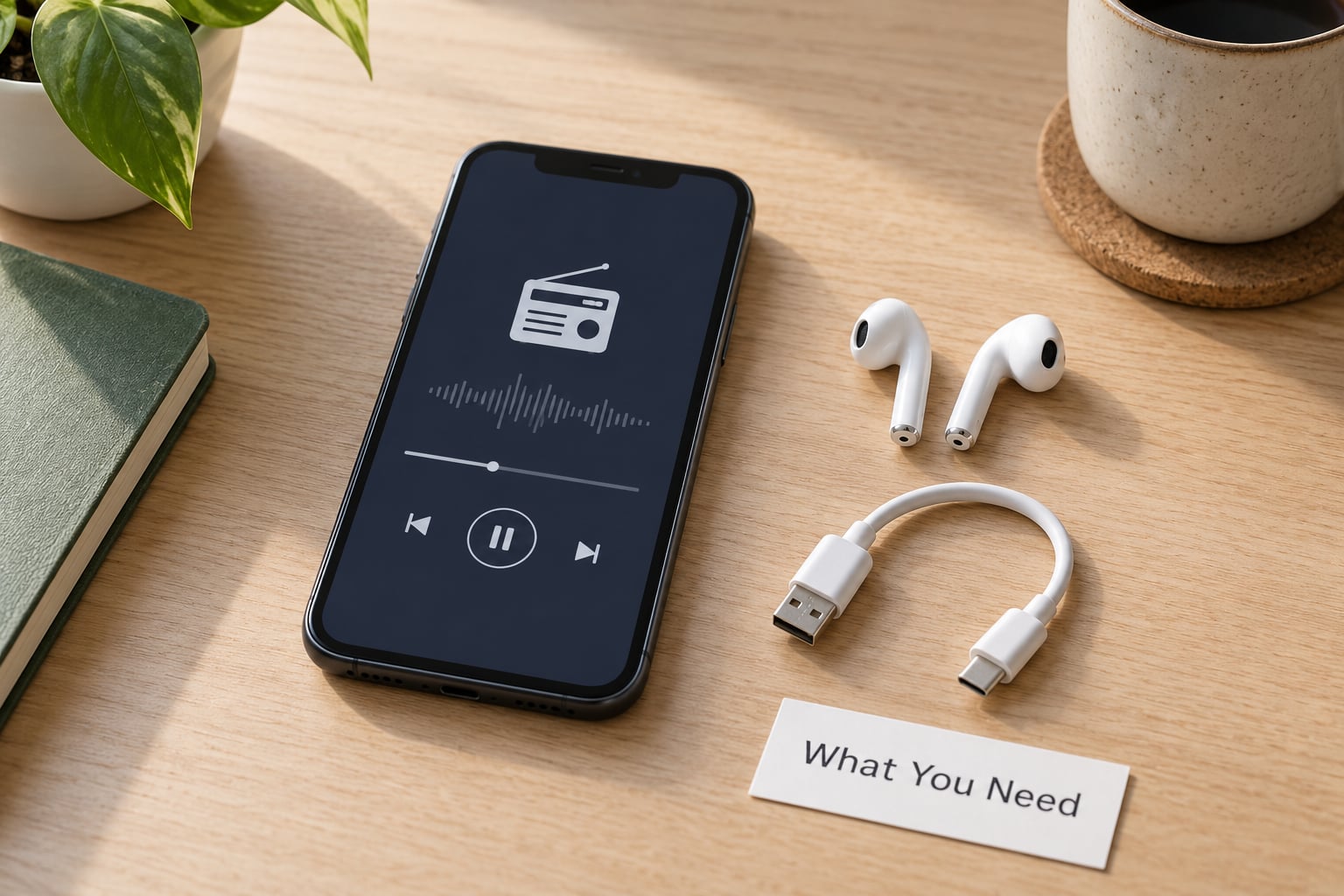
No app can delete advertising that a broadcaster has placed inside its own stream, so your options are about routing around it rather than filtering it.
First, a paid tier on the app you already use. Look for a Remove Ads, Premium or Subscription label in the app’s store listing. This clears the display ads the app controls, and it is the fastest fix if the interruptions you dislike are on-screen banners rather than in the audio.
Second, a station-owned app with a paid tier. Many broadcasters run their own app and sell an ad-free version of it, which also tends to keep local content that aggregators drop.
Third, an open-source or community-developed player. RadioDroid 2 and RadioSquare are the two names that come up most often in Android communities, and both are funded without advertising. That is the route forum users point to when they want no subscription and no tracking at all.
Fourth, an FM tuner built into your phone. Several Android handsets ship with an FM chip, and with a wired headset acting as the antenna you get local stations with no ads, no data use and no internet connection. Phones without the chip cannot do this, so check your specifications first.
Fifth, and simplest of all, stations that do not run commercials. Public, community, subscription-funded and many specialist music services are ad-free by design, and they are the only stations where the audio itself is genuinely uninterrupted.
Step-by-Step: How to Use Radio Apps Without Ads
How to Use Radio Apps Without Ads: Pick the Right Player
Start by working out which kind of advertising is bothering you, because the fix depends entirely on where it comes from. If a banner sits above the play button while a track plays, that is the app and a subscription clears it. If the presenter stops talking to read a sponsor’s message, no purchase in the app will help, and you have to change station or change player.
There are three families of player to choose between, and they behave very differently.
A paid commercial app such as TuneIn, Simple Radio or iHeartRadio gives you a huge station directory, car integration and a paid tier that removes its own display ads. Station advertising inside the stream stays.
An open-source player such as RadioDroid 2 or RadioSquare adds no advertising of any kind because there is no advertiser to fund it. On Android, these are the closest thing to genuinely ad-free radio apps that you do not pay for.
A web player installed as a shortcut does the same job with nothing to install. Open a station’s stream in the browser, then add it to your home screen, and you have an icon that behaves like an app.
One thing worth knowing before you start: an ad blocker cannot reliably remove audio commercials from a live stream. Blockers filter page elements, and broadcaster advertising is baked into the audio feed itself. A blocker may also break the stream outright, which is a problem people hit repeatedly and rarely connect to the blocker they just enabled.
Sign Up for the Premium or Subscription Tier
Once you have chosen an app, the subscription process is the same everywhere. Open the app store listing for the app, look for the in-app purchase or subscription entry, and check the exact wording of the tier before paying.
On Android, open Google Play, tap the app, scroll to the subscription section and follow the prompts. On iPhone, open the App Store, tap the app and look for the subscription or in-app purchase line under the description. The menu wording changes between versions, so if you cannot see it, use the app’s own settings or account screen instead.
Read what the tier actually claims. A label that says it removes display ads is telling you the truth about the banners and nothing more. A tier that mentions ad-free listening, sleep timers, priority support and synced favourites is doing rather more than clearing a banner, and that is usually the better value if you listen daily.
Check the renewal terms on the confirmation screen before you confirm. A recurring monthly charge that you forget about is the single most common complaint in radio app communities, where people repeatedly say they would happily pay once rather than subscribe monthly. If a one-time purchase is offered anywhere in the app, compare it against the subscription before committing.
After payment, force-close the app and reopen it. If the banners are still there, the subscription may not have attached to the account you are signed into, and signing out and back in usually fixes it.
Find a Station That Does Not Insert Commercial Breaks
This is the half of the problem that people skip, and it is the half that actually stops the music stopping. An ad-free player playing a commercial station still gives you commercials every fifteen minutes, so the station choice matters as much as the app.
Use the app’s search and browse tools, and filter for stations described as public, community, non-commercial, student, subscription or listener-supported. Universities, community radio collectives and public broadcasters are almost always ad-free. Specialist internet services covering ambient, jazz, classical or electronic music are usually ad-free too, because they are funded by listeners rather than by spot sales.
The genre and location filters deserve a proper look. Sorting by country helps when you want a station from somewhere other than where you are, and sorting by language does the same job for a specific tongue. Sorting by city or postcode gives you the local stations that carry the adverts you are trying to avoid, which is handy to know even if you skip them.
Save candidates to your favourites rather than judging on ten seconds of audio. Commercial loads usually arrive at a set point in the hour, so a station that seems clean can still break for adverts at the top of the hour.
On regional stations, expect some friction. Some broadcasters restrict their streams to their own licence area, and an overseas listener simply will not get audio. That is a licensing decision, not a fault, and the workaround is to look for the station’s sister services or its official app rather than fighting the block.
Turn Off Notifications and Unwanted Interruptions
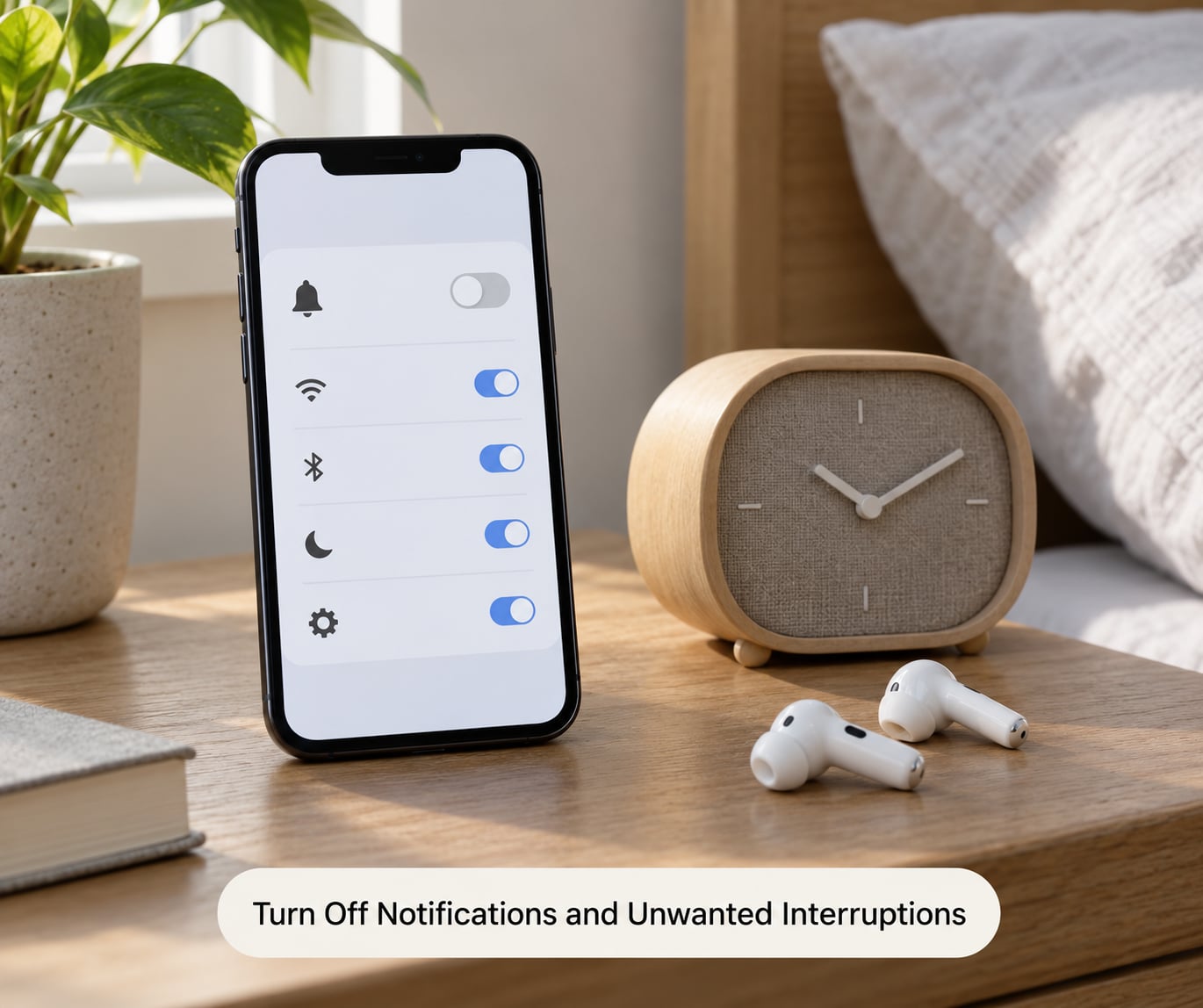
Ad-free audio is only half of an uninterrupted session. A push notification for a station’s programme schedule can cut across a track just as sharply as a commercial, and most radio apps are allowed to send them by default.
In the app itself, open Settings or Preferences and turn off anything labelled push notifications, station alerts, programme reminders, new release alerts or community updates. Keep the playback and data-saver settings on, because those are what you actually want. If the app offers a background playback switch, leave that enabled so the stream survives when the screen locks.
On iPhone, open Settings, scroll to Notifications, tap the radio app and switch off Allow Notifications. You can leave badges on if you like the glanceable count, though most people turn them off too.
On Android, open Settings, then Apps, then the radio app, then Notifications, and turn everything off. Battery optimisation is the second setting to check here. Aggressive battery saving kills background streams, so set the app to Unrestricted if your phone suspends playback after a few minutes of a locked screen.
Also look at autoplay and resume behaviour. An app that restarts the last station the moment you open it can start playing out loud on a train platform, which is its own kind of interruption. Turning off play-on-launch fixes it, and a sleep timer handles the other end of the night.
Test the Stream and Save the Best Settings
Give any station at least ten minutes of continuous listening before you judge it. A well-run ad-free service will not interrupt once in that window, and a commercial one will usually give itself away at the ad break.
While you listen, work out which side the interruptions come from. Display ads that appear over the interface are the app’s doing and respond to a paid tier. A voice reading a sponsor’s details mid-song is the station’s doing and only a different station fixes it. Knowing which one you are dealing with saves you from paying twice for the same problem.
Set the audio quality to match your connection. A standard 128 kbps stream is fine on mobile data and a higher setting sounds better on Wi-Fi or at home, and the higher setting uses noticeably more of your monthly allowance. Listen for ten minutes at each setting before deciding, because the difference is smaller than people expect on phone speakers.
Use the sleep timer for bedtime listening and the alarm feature for waking up, both of which several popular players include in their paid tier. Set the timer before you press play, not after, because the interruption you are trying to avoid is often a stream that keeps running after you have stopped paying attention to it.
Finally, save your station list. Favourites saved in the app keep working when the paid subscription lapses, even though the banners come back, so nothing is lost if you decide to cancel later.
Common Mistakes
The most common mistake is assuming any radio app can remove station-inserted advertising. It cannot. An app controls the screen it draws on your phone, not the audio a broadcaster transmits, so a paid tier that removes banners leaves mid-song commercials completely untouched.
The second mistake is buying a subscription without reading what it covers. App-store listings change wording between versions and updates, so check the tier description on the day you pay rather than trusting what a guide said last year. If a listing promises only that it removes display ads, believe it.
Installing an unfamiliar app from a third-party download page is the third. A large share of the search results for free radio apps are aggregator sites hosting APK files that no app store has vetted, and several are simply older builds carrying advertising the store version removed. Install from the official store and from the developer’s own listing.
Enabling an ad blocker and then blaming the app when the stream will not play is the fourth, and it costs people hours. Blockers filter page requests, and a live stream that depends on a request the blocker strips will simply fail. Turn the blocker off for the radio app or browse without it.
Unstable VPNs come next. A VPN that drops and reconnects kills a live stream, because the audio connection is not designed to resume mid-song. Where a VPN is lawful and appropriate, use a stable one and expect buffering, and note that it does not remove advertising from a stream in any case.
Two smaller mistakes round it off. Misusing a sleep timer by setting it far longer than you intend wastes data and plays audio to an empty room, and assuming a subscription is active when the app is signed into a different account means paying for ads you still see. Both have quick fixes: set the timer to the length you actually want, and sign out and back in after subscribing.
Two things are worth adding on privacy and data. Radio apps that build a listening history to target advertising are tracking you, and an open-source player with no account is the simplest way to avoid that entirely. On data, a 128 kbps stream runs at roughly 57 MB an hour, so a long commute on mobile data adds up faster than most people expect.
Frequently Asked Questions
Can I remove ads from a live radio stream?
Only partly. App display ads, the banners and video panels an app draws over the player, come off when you use a paid tier or an open-source player with no advertising. Commercials that a broadcaster records into its own audio feed are part of the stream and no app can filter them out. The only fix for those is a station that runs no commercial breaks.
What is the best app for listening to radio without ads?
It depends which ads you mean. For no advertising of any kind and no subscription, Android listeners get the most from open-source players such as RadioDroid 2 and RadioSquare. For a large station directory with car and speaker support, a paid commercial app such as TuneIn or Simple Radio removes its own display ads. For audio with no commercials, the station matters more than the app.
Does a VPN block ads on radio apps?
Not reliably. A VPN changes the route your traffic takes, not the content of an audio stream, so commercials inside a station’s broadcast still arrive. It can also break playback entirely if the connection drops and reconnects, because live radio does not resume mid-song. Where a VPN is lawful and appropriate, choose a stable one and expect more buffering than you would without it.
Are free radio apps available without advertising?
Yes, though the options differ by platform. On Android, open-source players such as RadioDroid 2 and RadioSquare carry no advertising because they are funded by donations rather than spot sales, and some commercial apps keep banner ads out of their free tier. On iPhone the choice is thinner, so many listeners pay a one-time fee for a premium tier rather than commit to a recurring subscription.
Can I listen to ad-free radio on a smart speaker?
Yes, as long as the stream you point it at is ad-free. Amazon and Google speakers can play internet radio streams directly, so an open-source or community station works without a phone in the room. The speaker’s own service does carry advertising, which is why people skip it and use a station URL instead. Some speakers also stop playback partway through a track when a commercial-free service reconnects.
What to Do First
Start by checking whether the app you already use sells an ad-free tier, and read the wording before you pay. Then spend ten minutes on a community or public broadcaster that runs no commercial breaks and add it to your favourites. Those two steps between them cover the on-screen advertising and the in-audio advertising, which is more than any single app can do on its own. As 2026 moves on, the open-source players keep getting better, so it is worth rechecking your options every few months.