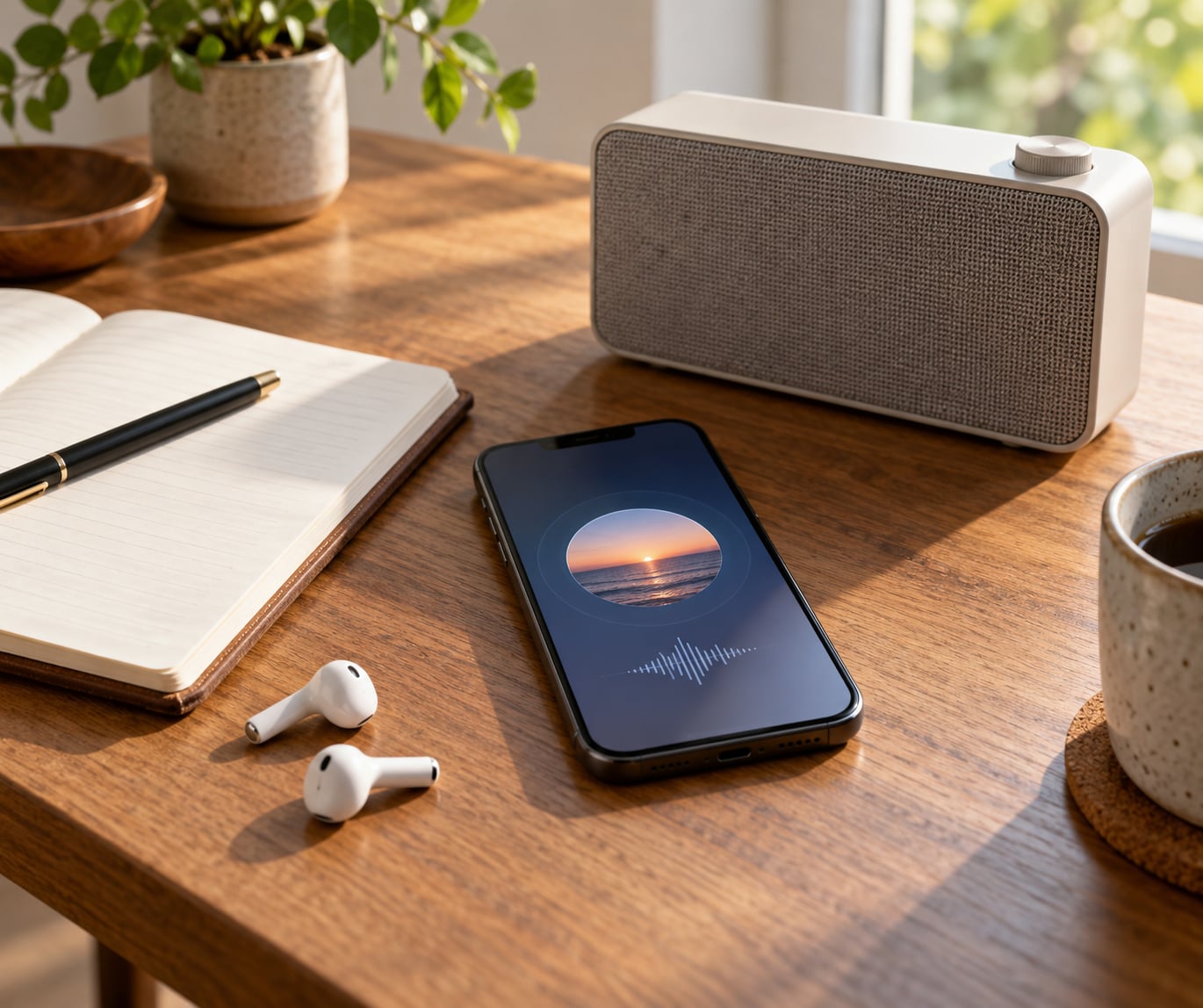
Hear a track on the radio you cannot name? Open a song-identification app like Shazam, tap once while the song is playing, and save the result straight into a playlist in Spotify, Apple Music or YouTube Music. Turn on Shazam’s auto-save setting first and every track you identify lands in one list with no extra taps. Capturing a song takes about three seconds.
This is the listener side of radio, not the broadcaster side. Nobody is scheduling a rotation or buying a music licence here — you are simply stopping songs from disappearing before you can look them up. You will need a phone, one free identification app and a streaming account, which is free too. App screens move around, so the menu paths below were checked in October 2026; if a label has changed on your phone, the setting is usually in the same place.
Table of Contents
What You Need
Everything for this job is free, and one of the tools is already on your phone.
- A phone with a working microphone. Recognition apps listen through the mic, so a case that muffles it is the most common reason a song will not identify. A laptop works as a fallback but a phone is far quicker.
- One song-identification app. Shazam ships on iPhone and Android and is the smoothest for radio audio. SoundHound and Midomi are the usual fallbacks, and Midomi is the one that can match you humming or singing.
- A streaming account. Spotify, Apple Music, YouTube Music and Amazon Music all have free tiers, and you only need the account to hold the playlist — not to subscribe.
- An optional notes app. A phone note is the fastest way to log the station and the date while the song is still fresh.
- Optional for the car. CarPlay, Android Auto or a smart speaker can keep your hands off the phone, though identification still needs the microphone.
Step-by-Step: How to Make a Radio Playlist From Songs You Hear
Step 1: Choose Where You Will Listen and Save Songs
Decide the destination before the first song lands. Most people pick a playlist inside the streaming app they already use, because Shazam saves straight to a linked account. If you are not sure, use a phone note for a session or two, then move the titles into a real playlist once you know the routine sticks.
Give the playlist a name you will recognise in six months, such as the station plus the month. Date-based naming is the reason you can clear old captures out later instead of re-listening to everything.
Step 2: Identify a Song While It Is Playing
Open Shazam and tap the big capture button in the middle of the screen while the music is playing. Hold the phone close to the speaker with the microphone facing the sound, not the screen. A match with the title and artist usually appears in two or three seconds.
If you hear more than one result, the app is showing similar matches — tap the one whose artist and length look right, then confirm the cover artwork. If nothing appears at all, keep listening and try again on the next chorus, where the audio is cleanest. Skip intros and adverts entirely, because the talk over them is what breaks recognition.
SoundHound works the same way and adds continuous listening, so it can catch a track that has already started. Midomi is the fallback when all you have is the melody, since you can hum the hook instead of needing the lyrics.
Step 3: Save the Song to Your Playlist
With the track identified, tap the album artwork to open the song page, then use Add to Playlist. On Spotify, choose your playlist from the list that appears; on Apple Music, the button sits on the song page and you pick a destination or make a new one there and then. YouTube Music and Amazon Music work identically, with a three-dot menu on the track if the Add button is not visible.
The faster route is to switch auto-save on. Open Shazam, go into Settings and connect it to your Spotify or Apple Music account. Identified songs then appear in Shazam’s own match history and land in your library, and you can sweep that history into a playlist whenever you want. DJs on Reddit describe exactly this switch as the fix for the app feeling useless, because without it every capture is a manual save you will forget by the third song.
In the car, ask a voice assistant to identify the song instead of reaching for the phone, then save it when you are stopped. Keep the habit of adding to the playlist at the next junction rather than mid-journey.
Step 4: Add the Songs You Catch Only Partly
Some tracks will not identify, and that is normal rather than a fault. When you only catch a chorus or a piano line, search by what you do have: a handful of lyrics, the vocalist’s name, or the station’s schedule page, which often lists songs per hour on specialist shows.
For station music, the schedule is more reliable than guessing. Check the show page first, then use a search for any title that fits and compare it against the melody. If it is a session track or an unreleased demo, a forum thread or a fan community for that station is often the only place it exists.
Whichever route works, add the details while you remember them. Write the station name and the time in your note; a title in a phone note with a station attached is far easier to find than a title you hoped to remember.
Step 5: Clean Up Your Radio Playlist From Songs You Hear
Review the playlist once a week, not every day. Sort by recently added to find the duplicates, because one chorus often gets captured two or three times, then delete the repeats. Most apps will warn you before adding a track the playlist already holds.
Next, check the versions. Radio plays singles edits, live versions and remixes, and saving the wrong one means a search for the song turns up a version you do not recognise. Replace it with the studio recording and keep live cuts only if that was the version you actually loved. Sort the finished list by artist if you want one name after another, or by date added if you are chasing a discovery trail.
Step 6: Review and Play the Finished Playlist
Play the list top to bottom once. Songs you would skip are the signal that the capture went wrong, so remove those and keep the rest. Availability varies by country, so a track recognised in the app may not be playable where you live — check before you promise the list to anyone.
Then use it properly. Shuffle or repeat handles the playing, download the whole playlist on mobile data before a trip or a long drive, and share it as a link so friends can add their own finds. A collaborative playlist works better than a shared list of titles sent back and forth in a chat.
If you want the music to keep coming rather than stopping at the end, treat your playlist as a seed. Spotify builds a personalised station from a playlist, and Apple Music, YouTube Music and Amazon Music do the same from a set of tracks. That is the difference between a fixed list you assembled and a generated station, and it is worth understanding before you invest an evening in tidying duplicates.
Common Mistakes
Trusting the first match. Recognition apps return the closest fingerprint, not a certainty, and a bass-heavy track can return a remix with the same title. Check the artist name and the length before saving.
Identifying with noise around it. A busy kitchen, an open window or a talking passenger is the most common reason nothing comes back. Hold the phone nearer the speaker and target a chorus or the last thirty seconds of the track.
Saving the wrong version. Radio plays the single edit or a live cut, and saving that means you cannot find the track later. Open the result, check the version in the title, and swap to the studio recording.
Forgetting where it came from. Without a station and a date, a good find is unrecoverable a month later. Add both to a note the moment you identify something, because that habit takes five seconds and saves an evening of searching.
Leaving the playlist untidy. A list built only by saving accumulates duplicates and near-duplicates until it is unlistable. A weekly five-minute review, sorted by recently added, keeps it usable.
Expecting one app to do everything. Shazam identifies, the streaming app stores, and some radio apps show history but do not save. Knowing which job belongs to which app stops you hunting for a button that is not there.
One boundary worth stating plainly: identifying a song is fine, recording the broadcast audio to a file is a different act and is not covered here. Everything above works from recognition, not from capturing the station’s sound.
Frequently Asked Questions
Can you identify a song that is playing on the radio?
Yes. Shazam, SoundHound and Midomi all listen through your phone microphone, match what they hear against a database of track fingerprints, and show the title and artist within a few seconds. Hold the phone close to the speaker and aim at a chorus rather than an intro, because talk and sound effects over the opening are the most common reason recognition fails.
Can Shazam automatically add songs to a playlist?
Nearly. Shazam has no single auto-save switch that writes straight into a playlist, but you can connect it to Spotify or Apple Music in Shazam’s Settings, and every identified track then appears in your match history and library. Sweep that history into a playlist whenever you like, which removes the tap that people forget after a few songs.
Why can’t Shazam identify a song?
It is usually the audio rather than the app. Background noise, a phone case over the microphone, an instrumental intro, a live recording and classical music all make fingerprinting harder. Try a clearer part of the track, remove the case, move closer to the speaker, or fall back to SoundHound for continuous listening and Midomi when you only have the melody to hum.
How do I move a playlist from Spotify to Apple Music?
There is no built-in transfer, so you do it track by track. Search the artist and title in Apple Music and add each song to a playlist of the same name, using a service that converts playlist links to save the searching. Keep the original list until you have compared both, because regional availability means a few titles may not exist on the service you are moving to.
How do I turn a playlist into a continuous station?
Every major streaming service generates a personalised station from a short list. Open the playlist in Spotify and use the station or autoplay option to get tracks based on it, and the same option exists in Apple Music, YouTube Music and Amazon Music. The result keeps playing beyond the tracks you saved, while your playlist stays fixed and editable.
Conclusion
Start with one song. Identify it while it plays, save it into a playlist named after the station and the date, and repeat through the next few tracks. Once you have twenty or thirty in there, spend five minutes a week sorting by recently added and swapping out the versions that are wrong. That habit is the whole difference between radio songs vanishing and a library you can actually play again.