Radio streaming is not expensive per hour, but it adds up. A standard 128 kbps audio stream costs roughly 57.6 MB for every hour you listen, and a 320 kbps stream costs about 144 MB. The lever that matters most is bitrate, and everything else is about stopping those bits from being sent at all. This is how to reduce data use when streaming radio on a phone, tablet, laptop or smart speaker.
Most listeners never touch any of these settings, and then wonder why a month of background radio in the car ate most of their allowance. The fixes below take about ten minutes to set up once.
Table of Contents
What You Need
You need nothing new. Every control that matters is already inside the app you listen with and the settings on the device you listen on.
- The phone, tablet or computer you actually listen on. An old handset with a small data plan is exactly the case this guide is built for.
- The radio app, or the browser tab you use when a station only offers a stream on its website.
- Access to your device settings, so you can turn on a data-saving mode and see the per-app data figures.
- Optional: a data tracking app that logs usage over time, useful if your carrier’s own counter is too coarse to show what changed.
Wi-Fi at home helps, but the savings people notice come from what happens on mobile data during a commute, a road trip or a day when the router is down.
How to Reduce Data Use When Streaming Radio: Step-by-Step
Work through these in order. The first two steps usually cut usage by more than half on their own, and the later steps stop the quiet leaks that keep a stream running after you thought it had stopped.
How to Reduce Data Use When Streaming Radio on a Phone
Phones ship with a data-saving switch that most people never turn on, and both major platforms also let you block mobile data for a single app.
On iPhone, open Settings, then Cellular, then Cellular Data Options, and turn on Low Data Mode. On Android, open Settings, then Network and Internet, then Data Saver. Both do the same job: they tell background activity to hold off and ask apps to use their leanest connection.
You can also cut one app off entirely while leaving the rest of your data plan alone. In iOS Settings, scroll to Cellular Data and switch off the radio app in the per-app list. On Android, open Settings, then Apps, pick the radio app, then Mobile data, and turn off Allow mobile data. Your phone will then use Wi-Fi for that app and nothing else.
Menu names shift between operating system versions, and some radio apps ship their own quality menu under a different name, so look for wording like Low, Normal, Standard, High or Lossless rather than expecting a fixed label.
Set the Stream to a Lower Audio Quality
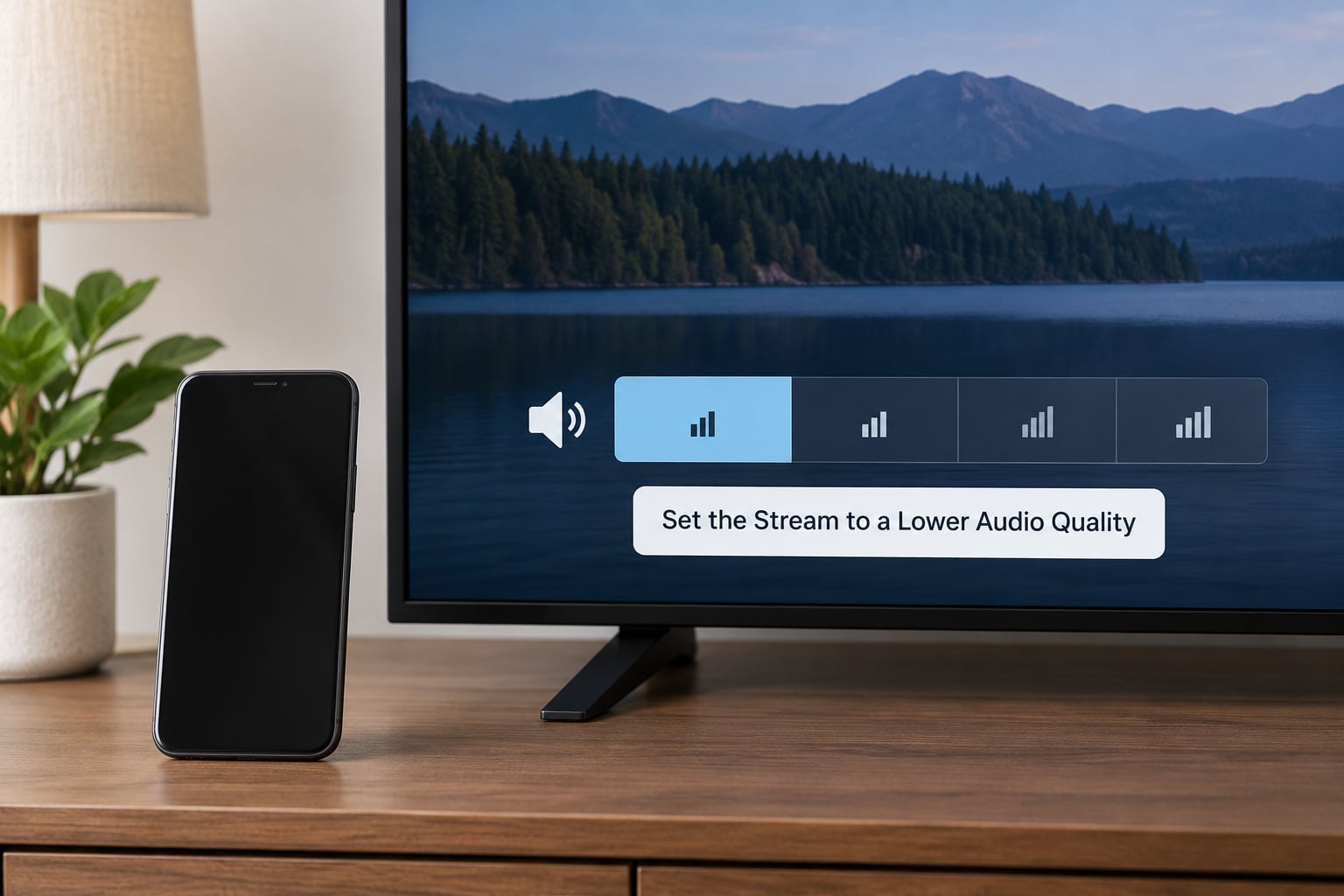
Bitrate is the amount of audio data sent each second, measured in kilobits per second. A 128 kbps stream sends about 57.6 MB an hour; a 64 kbps stream sends about 28.8 MB. Halving the bitrate halves the data, and most spoken-word stations lose very little at the lower setting.
The table below covers the range you will actually meet on internet radio.
| Stream quality | Bitrate | Data per hour | Data per 30-hour month | What you hear |
|---|---|---|---|---|
| Low | 32 kbps | about 14 MB | about 0.43 GB | Thin, noticeably compressed, fine for speech |
| Low to medium | 64 kbps | about 28.8 MB | about 0.86 GB | Acceptable talk radio, soft on music |
| Medium | 96 kbps | about 43.2 MB | about 1.30 GB | Good talk radio, passable music |
| Standard | 128 kbps | about 57.6 MB | about 1.73 GB | The common broadcast default |
| High | 192 kbps | about 86.4 MB | about 2.59 GB | Clean, rarely worth it on mobile data |
| Lossless or video | 320 kbps and up | about 144 MB and far more | about 4.32 GB and up | Hard to justify away from Wi-Fi |
Run that against real habits. At 128 kbps, two hours of listening a day is about 3.5 GB a month. Twelve hours a day, which is closer to someone who leaves a station playing at home all day, works out at roughly 20 GB a month. Community members on radio forums do this arithmetic themselves, and the numbers rarely surprise them twice.
To find the quality setting, look inside the app for a menu such as Settings, Playback, Stream quality or Player. Some apps only expose a toggle for Wi-Fi versus mobile data rather than a raw bitrate number, and some stations publish several stream URLs at different bitrates, so a low-bitrate option sometimes lives on the station’s own website instead of in the app.
One warning about the codec. MP3 and AAC at the same bitrate use the same amount of data, so switching codec changes sound, not cost. Only the bitrate changes your bill.
Limit Radio Playback to Wi-Fi
The most reliable saving is to stop the stream using mobile data entirely, and both operating systems make that a per-app decision.
On iPhone, use the per-app Cellular Data list to turn the radio app off, and turn on Wi-Fi Assist only if you understand it will hand a weak cellular signal back to the app. On Android, set the radio app to mobile data off, and mark your home Wi-Fi as a metered or unmetered network under Wi-Fi preferences so the system knows which connection is unlimited.
On a router or hotspot you control, most admin pages will let you mark a device or set a monthly ceiling. At the app level, background refresh is the other half: iOS keeps it under Settings, then General, then Background App Refresh, and Android keeps it under the app’s Battery and Data usage screens. A station that was buffering in a pocket counts as listening, and it bills the same way.
Stop Hidden and Background Listening
Background playback and autoplay cause more accidental data use than any quality setting, and they are the top complaint on listener forums.
Turn off autoplay and continuous play, then close the app properly instead of swiping it away mid-buffer. Stations that insert adverts or pre-load the next item are still pulling audio while the advert plays, so pausing during adverts helps more than it sounds. Disable notifications for the app if you do not want it waking the phone and restarting a stream, and check whether your app is fetching cover artwork or recommendations in the background.
On iPhone, Background App Refresh is under Settings, then General. On Android, the equivalent controls sit under the app entry in Settings, then Apps, where you can restrict background activity. Reddit threads about unexpected mobile data use almost always trace back to one of these being left on.
Use Offline or Downloaded Radio When Available
Downloaded audio uses no data at all once it is on the device, which makes it the right choice before a long trip or a patchy-coverage area.
Tell caching and downloading apart, because the difference decides whether you can rely on it. Caching is a temporary buffer the app fills and discards; it keeps using the network. A download is a saved file that stays until you delete it. Catch-up services from the BBC Sounds and similar apps, plus podcast episodes in most radio apps, are genuine downloads. A live station stream is almost never downloadable, because it has no end.
Before you travel, open the app on Wi-Fi, download the episodes or shows you want, and confirm they play with the phone in airplane mode. If it plays, it was saved. If it goes silent, it was only cache.
Measure Usage Before and After
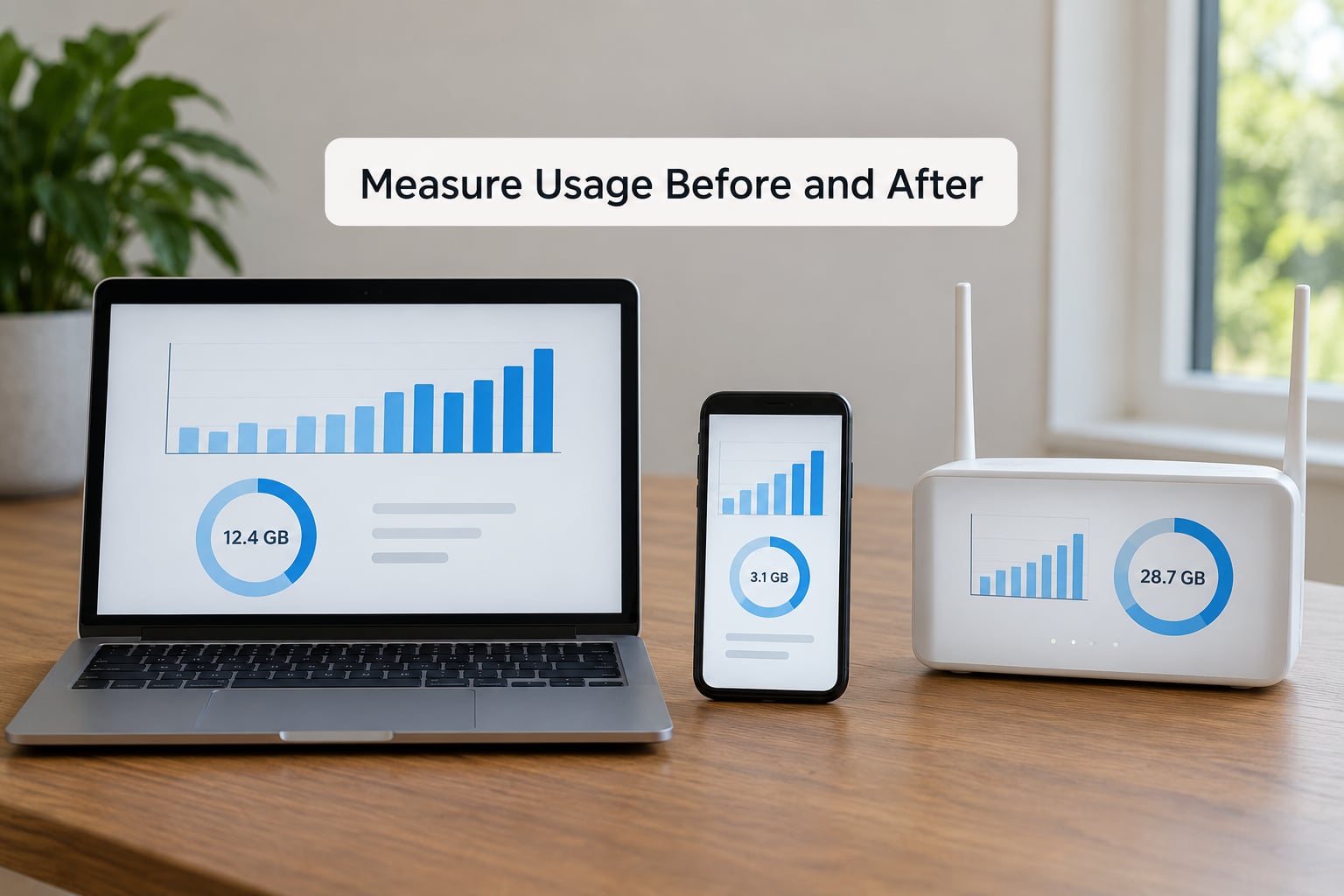
The only way to know whether your settings worked is to measure, and the built-in counters are enough.
On iPhone, open Settings, then Cellular, then Cellular Data Usage, where you can see per-app totals and scroll to the bottom to reset the statistics. On Android, open Settings, then Network and Internet, then Data usage, which lists apps by consumption. Both desktop operating systems have an equivalent network data monitor in system settings.
Then run a fair test. Pick one station, listen for thirty minutes at the old quality, reset the counter, and listen for the same thirty minutes at the new quality. Do the same station for the same length of time, because comparing two different stations tells you nothing.
You can also estimate without measuring. Divide the bitrate by 8 to get kilobytes per second, then multiply by 60 and divide by 1024 for megabytes per minute. At 128 kbps that is roughly 0.94 MB a minute, or 57.6 MB an hour; at 64 kbps, about 0.47 MB a minute and 28.8 MB an hour. Set a plan alert with your carrier as well, so the notification arrives before the overage rather than after it.
Common Mistakes
Each of these looks like a fix and quietly does nothing.
- Assuming Wi-Fi-only mode covers every app. Some players ignore the hint and fall back to cellular on a weak network. The per-app cellular switch in the operating system is the only control that actually holds.
- Treating a cache as a download. A filled buffer is discarded on exit, and the next listen is a fresh download. Test with airplane mode to tell the two apart.
- Changing quality without resetting usage totals. Old data is still sitting in the counter. Reset first, then listen, then read the number.
- Leaving autoplay on. A station that restarts itself in a locked phone can stream for hours without you touching it.
- Expecting every station to offer the same bitrate. Each broadcaster sets its own stream, and many publish several URLs at different bitrates. Check the station page when the app gives you no quality choice.
- Streaming a video simulcast on mobile data. The moving picture version of a station can run into the hundreds of megabytes an hour. Pick the audio-only stream or the app version when you are out of the house.
- Forgetting roaming. Data used abroad is charged by your home plan and can count ten times faster. Lower the quality before you land, not after.
If you only make three changes today, turn autoplay off, set the radio app to Wi-Fi-only, and drop the stream to normal or low quality while you are on mobile data. Those three cost nothing and take about a minute.
Frequently Asked Questions
How much data does streaming radio use?
A standard 128 kbps audio stream uses about 57.6 MB an hour, so two hours a day is roughly 3.5 GB a month. A 64 kbps stream halves that to about 28.8 MB an hour, while a 320 kbps stream costs about 144 MB an hour. That is the whole calculation: bitrate times listening time, with video simulcast streams costing far more than audio.
Does streaming radio use more data than listening to downloaded music?
A downloaded track is a file you already have, so it costs nothing to play again. A live radio stream re-downloads continuously, which means every minute costs about 0.94 MB at 128 kbps. A short downloaded playlist is therefore far cheaper for the same listening time, though live radio is the only way to hear a station play-to-play.
Can I limit a radio app to Wi-Fi only?
Yes, and it is the single most effective change. On iPhone, open Settings, then Cellular, then Cellular Data, and switch the radio app off in the per-app list. On Android, open Settings, then Apps, choose the app, then Mobile data, and turn off Allow mobile data. The app will then use Wi-Fi only.
Does lossless audio use more data for internet radio?
Yes, and considerably more. Lossless formats such as FLAC typically send several times the bitrate of a 128 kbps broadcast stream, and the codec matters too: MP3 and AAC at the same bitrate use identical data, so changing codec changes sound quality without changing cost. On mobile data, a normal 96 or 128 kbps stream is almost always the sensible ceiling.
How can I tell whether my radio settings reduced data use?
Reset the counter, then listen to the same station for the same length of time as before. On iPhone that is Settings, Cellular, Cellular Data Usage, scrolled to the bottom. On Android it is Settings, Network and Internet, Data usage. Compare the two totals; a drop from 57.6 MB to 28.8 MB an hour means the lower quality setting is working.
Conclusion: Make One Change and Test
Start with the stream quality. Drop the radio app to normal or low quality while you are on mobile data, reset the data counter, and listen to the same station for the same thirty minutes you used last time. That single test tells you whether the largest lever is working on your plan.
Then add the two that cost nothing: restrict the app to Wi-Fi, and switch autoplay off so a station cannot keep streaming in a locked phone. When you are heading somewhere with poor coverage or no signal, download the episodes or shows you want beforehand and listen with the phone in airplane mode to prove they are saved rather than cached.
That is how to reduce data use when streaming radio, in three moves. Bitrate sets the cost, permissions decide when the stream is allowed to run, and the counter tells you whether any of it worked.