The short answer: work from a verified backup, give every track consistent embedded metadata (artist, album artist, album, track number, year, genre), remove duplicates by comparing files rather than filenames, and store the result in one predictable Artist/Album/Track folder tree. Most of the “lost tracks” panic in big libraries comes from doing those steps in the wrong order.
Metadata is the part that actually matters. Tags travel inside the file, so they survive switching players, moving drives or rebuilding a system. Folder names do not. A library with tidy tags and a boring folder structure will keep working for a decade; a library organised into genre and BPM subfolders falls apart the moment you change software.
Here is the working order I would use, with the reasoning behind each step.
Table of Contents
- What You Need
- Step-by-Step: How to Organize a Huge Music Library
- 1. Inventory the collection and spot duplicates
- 2. Choose one simple folder structure
- 3. Standardize names without repeatedly renaming files
- 4. Clean up metadata and fix missing information
- 5. Create playlists for listening instead of moving tracks
- 6. Automate library monitoring and backup
- MusicBee on Windows
- MusicPlayer2 on Windows
- foobar2000 on Windows
- Other players and platforms
- Backing up on a schedule
- Common Mistakes
- Frequently Asked Questions
- Should I reorganize my music files by genre?
- How do I find and remove duplicate songs safely?
- Can I organize a music library that includes streaming services?
- What is the best folder structure for a large music collection?
- How often should I back up my music library?
- How do I keep playlists working after renaming files?
- Conclusion
What You Need
Before you move a single file, gather four things. The order of preparation saves more time than the tidying itself.
A current inventory
You need a number before you make changes: how many tracks, in how many formats, spread across how many drives or folders. Most players show a total track count in their library view once you point them at the folders, which is faster than counting files by hand.
A backup you have actually verified
Copy the whole collection to a separate drive and, before you trust it, pull a handful of files back from the backup and play them. A backup you have not opened is a hope, not a copy. Users on music forums repeat the same warning over and over: back up first, then test on a duplicate library, then touch the original.
A tag editor
MusicBee, MusicPlayer2 and foobar2000 all handle basic batch editing and are comfortable with libraries of 10,000 tracks or more. If you want a dedicated tag editor, MusicBrainz Picard does fingerprint lookups against a large public database, and mp3tag is the usual choice for hands-on field editing.
A music player with playlist features
You want saved manual playlists and at least some form of rule-based or smart playlist. Almost every desktop player qualifies; what varies is how well the rules scale to five figures.
Free storage headroom
Have room for the collection plus the copy you are about to make. Tools that move and rewrite files temporarily need space, and running out mid-rewrite is a bad afternoon.
Step-by-Step: How to Organize a Huge Music Library
The workflow below runs in one direction: inventory, structure, naming, metadata, listening views, automation. Each step depends on the one before it. Trying to tag files before you know what you have, or to build playlists before metadata is clean, just creates work you will redo.
1. Inventory the collection and spot duplicates
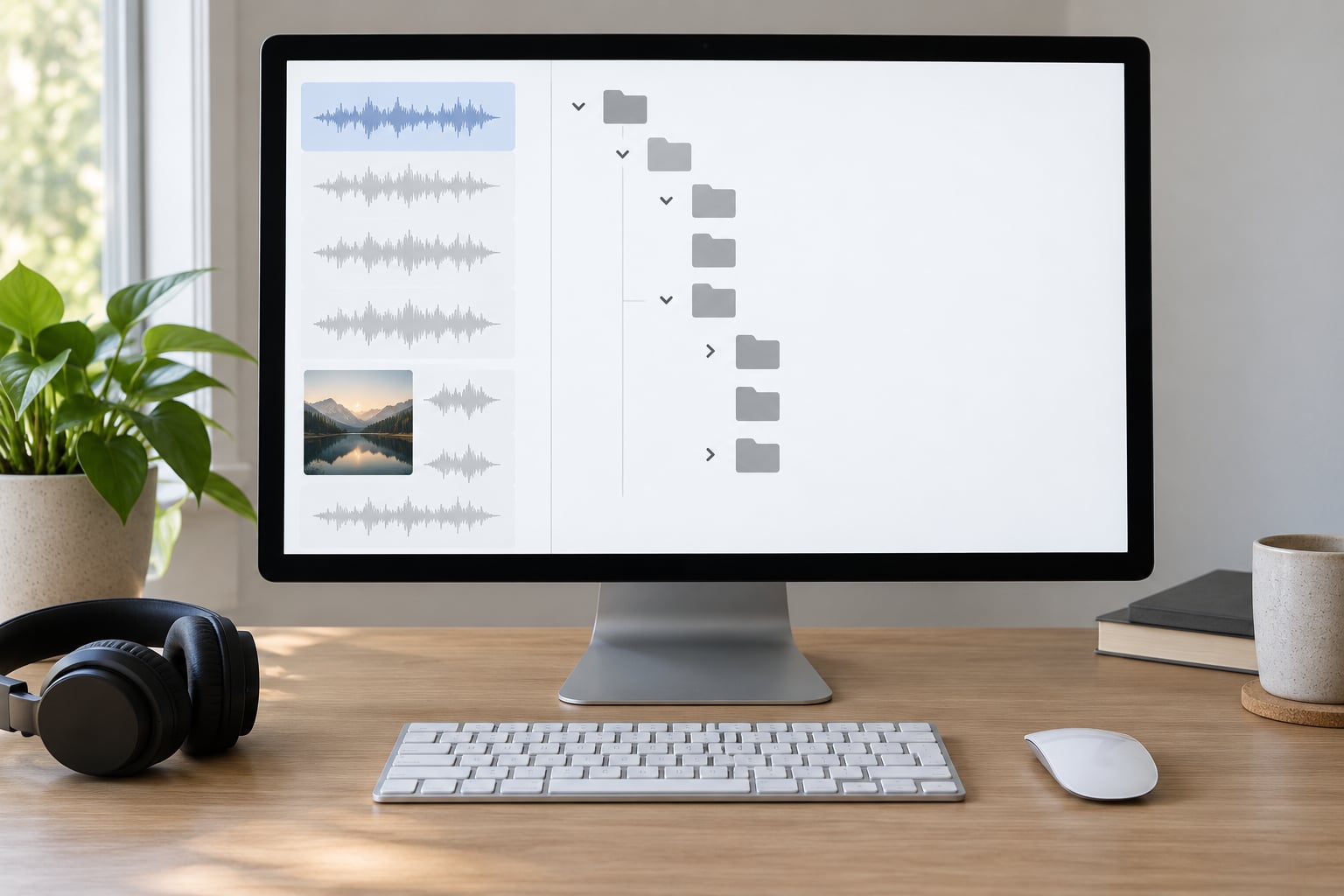
Before you organize a huge music library, you need to know what is in it. Point your player at every folder that holds music and let it count, then separate what you own as files from what is only streamed or sitting on a remote machine. The two need completely different handling: streamed libraries cannot be tagged, moved or deduplicated on your disk at all.
Sort the inventory to surface exact duplicates first. Exact duplicates are identical files by content hash, not by name, and they usually come from the same album being imported from two sources. Check each one’s tags, because the duplicate often carries the emptier metadata.
Do not treat near-duplicates as one thing. Two files with the same title can be a 128 kbps rip and a lossless master, a studio version and a live version, or the same master tagged by two different databases. Decide on a policy before you delete anything: keep the highest-bitrate or lossless copy, prefer the file with complete tags, and only remove the other when you are confident they are the same recording.
Incomplete or corrupted files deserve their own pass. Files that fail a full playback check get moved aside into a quarantine folder rather than deleted, so you can revisit them later without having ruined the main library.
2. Choose one simple folder structure
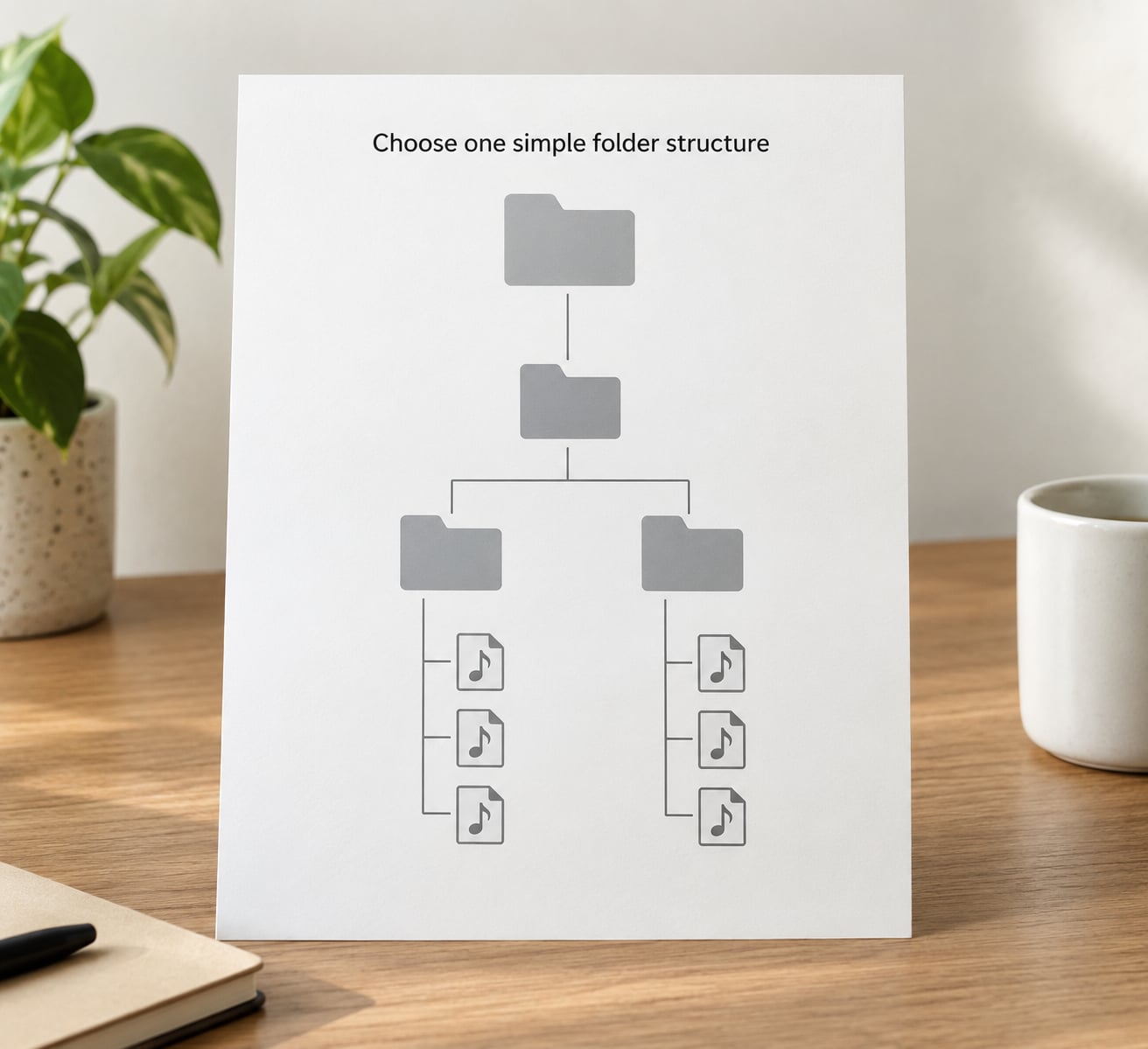
The default that works for almost everyone is Music/Artist/Album/track file. It is boring, it is portable, and every major player understands it without configuration.
Use the album artist value for the artist folder, not the track artist. That single decision is what stops compilations and collaborations from scattering into dozens of one-artist folders.
Special cases have simple homes. Compilations, live albums and soundtracks usually sit under the album artist (Various Artists, the band, or the composer) with the year in the album name when it matters. Singles that never appear on an album can go in a Singles folder or sit in their artist’s folder with a matching album tag. Files with no identifiable artist get an Unknown Artist folder rather than being deleted, since a later fingerprint lookup may recover them.
Before moving anything, confirm your player reads the new path style. Point it at a test folder with ten files in the new layout and check the results view before committing to the whole collection.
3. Standardize names without repeatedly renaming files
Treat metadata as the main organizing layer and filenames as a convenience. That way the library stays readable when a player displays tags, and you avoid the endless rename cycle that happens when a new app wants a different convention.
In MusicBee, MusicPlayer2 or foobar2000, set the results view columns to show artist, album artist, album, track number, year and genre. Group by album artist, then sort by disc number and track number. The library suddenly behaves like a music library rather than a folder listing, and you will rarely touch a filename again.
Continuous renaming has a real cost: playlists, links and scripts that reference paths break every time you change the convention. If you do rename, do it once, from metadata, and then stop.
4. Clean up metadata and fix missing information
This is the longest step and the one that pays off forever. Work through the missing fields in one order, because later fixes depend on earlier ones.
- Artist – who performs the track.
- Album artist – who the album belongs to. Set this separately on compilations; it is the field players use for folder browsing.
- Album and track number – without track numbers, album playback order is alphabetical, which is wrong more often than not.
- Disc number – required for multi-disc box sets, otherwise discs collapse together.
- Year – release year, not year added.
- Genre – normalise spelling so search works.
Batch edit these in your tag editor rather than one file at a time. Sorting by missing field and applying a single change to the whole selection is the difference between a weekend and a month.
Watch genre strings specifically. Drum and Bass, Drum & Bass and DnB are three search terms for one genre, and inconsistent spellings are a top complaint from people with large libraries. Pick one form per genre and write it into a small reference list you keep beside the editor.
Strip tags you do not use, especially embedded software stamps and comment fields, so they do not resurface later.
Test bulk changes on a small group first. Apply to twenty tracks, play them in your player, confirm the tags display correctly, and only then scale up. Undoable history matters here; tools that keep an edit log make a mistake a few clicks to reverse rather than a lost evening.
One warning worth repeating from collector forums: some players and streaming-server scanners silently rewrite tags when they read your library. Check the setting that controls tag writing on scan and turn it off, so the software you listen with is not editing the collection you spent hours cleaning.
5. Create playlists for listening instead of moving tracks
Once metadata is trustworthy, the folder structure stays fixed and playlists carry all the variety. Moving files around to suit a mood is what turns a library into a mess again within a month.
Build a few manual playlists for deliberate things: favourites, tracks you want to hear for a set, records you are researching. Then let rule-based playlists do the repetitive work: everything from a given decade, anything in one genre, instrumental tracks, anything you rated highly but have not played in months.
A discovery rule that pulls tracks you rated three stars or lower is quietly useful, because the library stops being a rotation of the same forty albums. Keep the total number of playlists small; twenty lists nobody opens is the same as having none.
6. Automate library monitoring and backup
Automation is the part that keeps the system from collapsing under new music. Each player handles rescanning differently, so match the instruction to what you actually run.
MusicBee on Windows
Use the library monitor or a scheduled library scan in preferences. Point new music at a dedicated incoming folder so the scan picks it up without you re-adding files by hand.
MusicPlayer2 on Windows
Add an incoming folder to the library configuration and set the folder monitor or a periodic scan so it checks for new files on a schedule you choose.
foobar2000 on Windows
Run a rescan on a schedule, or automate it with a file-change watcher so new files trigger a refresh of the watched folder.
Other players and platforms
Look for a watch-folder option or a rescan command you can schedule. If the player has neither, set a recurring reminder to add the incoming folder manually. It is not elegant, but it is the step most people skip, and skipping it is how a tidy library turns chaotic again.
Backing up on a schedule
Use the 3-2-1 approach: three copies, on two kinds of media, with one copy somewhere else. A working drive, a separate backup drive, and an off-site copy covers the realistic failures, including the drive failure that leaves folders of unidentifiable files with numbered names.
Set the backup to run automatically after your library changes, then schedule a restore test. Once a quarter, copy a handful of files back from the backup to a scratch folder and play them. An untested backup is just storage.
Common Mistakes
Renaming files without checking metadata first. Renaming encodes whatever is currently in the tags, wrong tags included. Fix the fields, then rename from the fields.
Organising only by genre. A genre-first tree looks tidy and fights every player, every playlist export and every device sync. Genre belongs in a tag, where it can be filtered without moving anything.
Going too deep with folders. Artist/Album/Year/Disc/Track and beyond creates paths that break on the first Windows path-length limit or the first player that flattens it. Two levels is nearly always enough.
Deleting suspected duplicates before comparing them. Compare the actual files and check the tags. A 320 kbps MP3 and a lossless master with the same name are not duplicates, and neither is a live cut.
Creating playlists for everything. If you need thirty lists to use the library, the rules are too complicated. Simplify them to a handful you actually open.
Never testing a restore. A backup you have not read from is not verified. Test one restore, then let the schedule do the rest.
One more that quietly costs people: letting a player or media server write tags during a scan. You spent an evening cleaning metadata, and an app undid it on the next scan because a setting was left at its default.
Frequently Asked Questions
Should I reorganize my music files by genre?
No. Genre belongs in the metadata, not the folder path. A genre-first tree forces you to move files every time your taste or your tags change, breaks most players’ grouping, and makes syncing to a phone painful. Keep Artist/Album folders on disk and filter by genre inside the player. You get the same browsing experience without any of the moving, and your collection stays intact when you change software.
How do I find and remove duplicate songs safely?
Compare files by content rather than by filename. Sort by size and duration to surface likely matches, then check the audio properties and tags of each pair. Keep the highest-bitrate or lossless copy, and prefer whichever file has the more complete tags. Treat different recordings, live versions and edits as separate tracks, not duplicates. Move anything ambiguous to a quarantine folder and review it later instead of deleting it.
Can I organize a music library that includes streaming services?
Only partly. Streamed music lives on someone else’s servers, so you cannot tag it, rename it or deduplicate it on your disk. What you can do is separate your local library from streamed items in your player and tag the local files properly. Use streaming for discovery and for background listening, and keep your owned files fully tagged as the collection you manage yourself.
What is the best folder structure for a large music collection?
Artist/Album/track file, with the artist folder taken from the album artist tag. Add a year to the album folder name when you have multiple pressings or releases of the same record. Avoid genre, BPM and key folders, and avoid nesting deeper than necessary. The structure should be short enough that any player can read it without configuration and that it survives the next software change.
How often should I back up my music library?
Automate a backup that runs after each time the library changes, and keep at least one copy off the machine holding your working library. Once your files, tags and folder structure are clean, back up the clean version and stop worrying. Test a restore quarterly by copying a few files back and playing them. A scheduled backup nobody has ever read from is unverified, which is the same as having none.
How do I keep playlists working after renaming files?
Build playlists from metadata rather than from file paths wherever your player allows it, so a rename does not break the reference. If a playlist does point at paths, note the playlist contents somewhere outside the player before you rename anything, since manual playlists stored internally can break when the underlying file moves. Also check the player setting that writes tags on scan, since that is the more common cause of playlists and tags drifting apart.
Conclusion
Start with the boring part: make a backup and open a few files from it to confirm it works. Then inventory the collection, pick one Artist/Album structure, and clean the metadata before you build a single playlist or switch on automatic scans. Everything after that is maintenance, and maintenance is a twenty-minute routine rather than a second project.
Last reviewed October 2026.