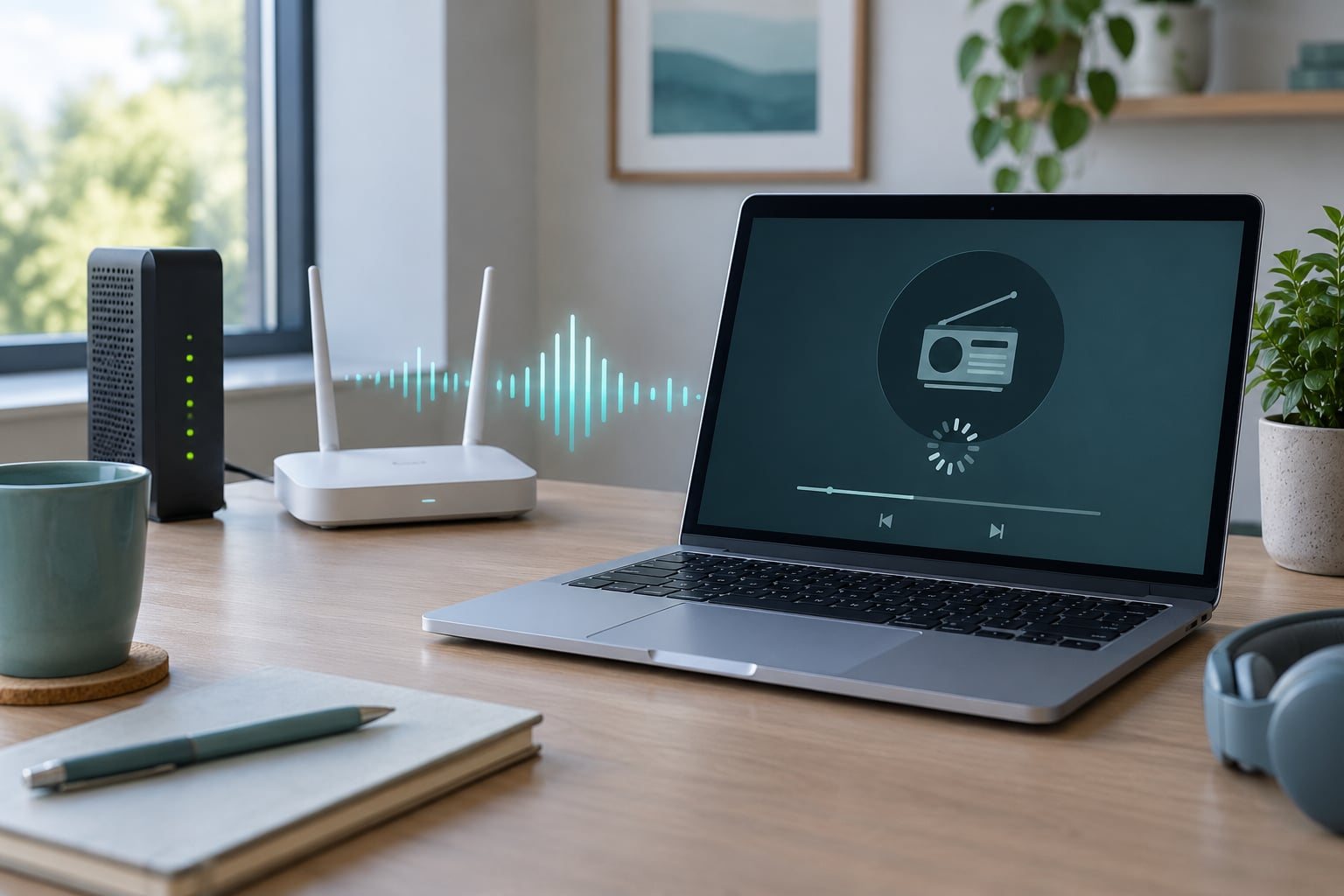
Figuring out why some radio streams buffer constantly starts with one test: if a single station stutters every few seconds while another plays perfectly on the same phone and the same Wi-Fi, your connection is almost certainly fine. The stream itself is the problem: its bitrate, its server and its encoder cannot feed your player fast or evenly enough, so the buffer empties and playback pauses.
That distinction matters, because the fixes are opposites. A weak network wants a better signal or a lower bitrate. An overloaded station wants a different station. Below I walk through the four layers that can fail, how to isolate which one, and the fixes in the order worth trying.
Table of Contents
- What Does It Mean When a Radio Stream Buffers?
- Why Some Radio Streams Buffer Constantly
- Quick Troubleshooting Checklist for a Buffering Radio Stream
- How to Tell Whether the Problem Is Your Connection or the Station
- What Network Problems Cause Constant Radio Buffering?
- Why Do Radio Station Servers and Streams Sometimes Fail?
- Why Does Buffering Happen on Some Devices and Players?
- How to Fix a Radio Stream That Buffers Constantly
- When Should You Contact the Station or Your Internet Provider?
- Frequently Asked Questions
- Does a radio stream buffering mean my internet is too slow?
- Why does one radio station buffer while other streams work?
- Is normal buffering the same as a completely stalled stream?
- Can a VPN cause radio streams to buffer constantly?
- Why does my radio stream buffer only on Wi-Fi?
- Should I contact my internet provider or the radio station?
- Start With the Quickest Fix
What Does It Mean When a Radio Stream Buffers?
Live radio is a firehose of audio that never ends. Your player downloads it slightly faster than real time into a small reserve, called the buffer, and plays from that reserve rather than straight off the network.
Buffer size is usually expressed in seconds of audio held in reserve. A three-second buffer gives the player three seconds of slack to ride out a hiccup before it has to pause. When that reserve runs dry before refilling, you get a buffer underrun, which listeners usually call buffering, a dropout or a stutter.
Buffering is not the same as a slow download. With a podcast or an album, a pause is mildly annoying because nothing is lost. With live radio, a ten-second pause means you miss whatever was playing, and the show does not repeat it for you.
A brief pause at the moment you press play is normal. That is the player filling its buffer. The complaint worth fixing is repeated pauses after playback has already started.
Why Some Radio Streams Buffer Constantly
A stream fails when data arrives more slowly or less evenly than the player consumes it. Bitrate is the amount of data per second the stream needs, measured in kilobits per second: a 128 kbps station needs a steady 128 kbps to stay ahead of playback. Anything that starves it causes a stall.
Four layers sit between the studio and your speaker, and a fault at any one of them produces the same silence.
The station encoder and the stream itself
The station’s software compresses audio and pushes it out continuously. If the encoder is underpowered, running three shows at once, or encoding at a bitrate its uplink cannot sustain, the output stutters at the source before it ever reaches you. No amount of Wi-Fi improvement fixes that.
The station server and CDN
Streams are served from an origin server, often with a CDN in front of it. A single small station may run one modest server with no failover. When listener numbers climb, that server runs out of headroom and the feed to your player arrives late or irregularly.
Your network
Wi-Fi interference, a crowded router, packet loss on a weak signal, VPN routing or an ISP shaping stream traffic all reduce what reaches your device. This is the layer most guides blame first, because it is familiar.
Your player and device
A small buffer, a browser extension fighting the player, battery saver throttling background audio, low free memory, or a flaky Bluetooth link will starve audio even when the download is fine. The player stays in a playing state with no sound, which is the signature of this layer.
The reason some radio streams buffer constantly while others on the identical connection do not is usually that each station is a separate system. Different bitrates, different servers, different encoders, different CDNs. One house, many small stations.
Quick Troubleshooting Checklist for a Buffering Radio Stream
Work down this list in order. Each step costs less than the one below it, and the first three narrow the fault to a layer in about two minutes.
- Switch stations. Play two or three different stations for a minute each. If only one stutters, the fault is station-side.
- Switch connection. Go from Wi-Fi to mobile data, or the reverse. If the stream plays cleanly on one and not the other, the fault is network-side.
- Switch player. Open the same station’s stream in a different app or browser. If it plays cleanly there, the fault is the app or player.
- Lower the quality. Choose a lower bitrate option if the station or player offers one. 96 or 128 kbps will often hold together where 320 kbps stutters.
- Close what you can. Pause downloads, cloud sync, video calls and large file transfers on the same network.
- Pause other traffic on the device. Background video and backup apps compete for the same pipe.
- Update or reinstall the player app, then reopen the correct stream URL.
- Restart the device and the router, then try once more before changing any settings.
This table maps what you see to what it usually means.
| Symptom | Most likely cause | How to confirm it | Fix |
|---|---|---|---|
| One station stutters, others are fine | Station encoder or server at capacity | Same station fails on every device and network | Switch station, report the outage |
| Everything stutters on Wi-Fi, fine on mobile data | Weak or crowded Wi-Fi | Move closer to the router; test on another Wi-Fi network | Improve coverage, move router, use Ethernet |
| Player shows playing, no sound for a few seconds | Buffer underrun on a starved link | Buffer indicator falls to zero, then recovers | Lower bitrate, clear player data, increase buffer size |
| Cuts out only in the car, fine at home | Bluetooth or wireless CarPlay link | Switch to USB, AUX or a wired cable and retest | Use a wired path or a lower bitrate |
| Fine for weeks, then breaks with no local change | Station-side capacity or server change | Other stations on the same setup stay clean | Switch station; check back later |
| Pauses on some devices, clean on others | Player buffer size or app bug | Same stream plays clean in a browser | Change player settings, update or reinstall the app |
How to Tell Whether the Problem Is Your Connection or the Station
Run three comparisons. Together they isolate the layer in a couple of minutes.
First, play the same station on mobile data instead of Wi-Fi. A stutter that disappears on cellular points at your home network. A stutter that follows you onto cellular points at the station.
Second, play three different stations on the connection you suspect. One bad stream among three good ones is a station problem. Everything stuttering at once is a network or device problem.
Third, run a speed test and a network diagnostic. A speed test confirms raw throughput, which for audio is rarely the constraint; even a modest connection carries a 128 kbps stream. A ping or packet-loss diagnostic is more useful, because constant buffering usually means jitter or loss rather than a lack of raw speed.
If the same station fails on your phone, your laptop and your car, on every connection, the answer is settled. Nothing on your side is causing it.
What Network Problems Cause Constant Radio Buffering?
Raw bandwidth is the least interesting culprit. A 128 kbps stream needs a fraction of a normal connection. What actually breaks audio is inconsistency.
Weak Wi-Fi signal is the usual starting point. Walls, floors and distance reduce signal quality, and a marginal signal delivers packets late or not at all. Video often still looks fine because video buffers larger and hides short losses. Audio reveals them immediately.
Latency is delay, and by itself it is harmless. Jitter is variation in that delay, and it is what a small buffer cannot absorb. Packet loss is data that simply never arrives, and a small gap in an audio stream is an audible gap.
A crowded router is a common and underrated cause. Many inexpensive routers handle a dozen connected devices before they start dropping work. Streaming video on another device, a video call, and a cloud backup can quietly consume the headroom your radio needs.
VPN and firewall software sits in the path and sometimes routes stream traffic through a distant server, adding latency and jitter that local listening does not have. Some security suites also inspect traffic in ways that disturb continuous connections.
ISP throttling or traffic shaping targets streaming categories specifically. The speed test looks healthy while stream traffic gets queued or delayed, which explains the common report of a fast connection with constant radio buffering.
Why Do Radio Station Servers and Streams Sometimes Fail?
This is where the word “some” in the question really matters. Stations are independent operations with independent infrastructure, and plenty of them run on tight budgets.
Over-capacity servers are the big one. When a station runs a popular show, its listener count climbs and a single origin server with no redundancy runs out of headroom. The stream does not stop; it just trickles, so the player keeps pausing.
Stream URLs and ports change. Stations rotate them during maintenance or when migrating hosts, and old links that still work intermittently produce exactly the pattern listeners describe as months of perfect playback followed by sudden, constant failure with nothing changed locally.
Unsupported or mismatched codecs cause trouble too. A station encoding in a format your player cannot decode properly may play at first, then stumble on specific tracks or bitrate switches. A player negotiating the wrong codec fallback mid-stream can drop out repeatedly.
Excessive bitrate is the quiet one. A station pushing 320 kbps from a modest uplink has almost no margin, so any small stall at the origin turns into an audible dropout. A station pushing 128 kbps rides through the same stall silently.
Expired HTTPS certificates, DNS misconfiguration and geographic rights blocks all break specific connections rather than all of them. Each looks identical from the listener’s side: silence, then a pause, then a few seconds of audio.
Planned outages and software restarts are worth knowing about. If a station’s feed drops for a minute on the hour every day, that is a schedule, not your router.
Why Does Buffering Happen on Some Devices and Players?
When the stream downloads cleanly and the audio still breaks, the fault is the player or the hardware path.
Buffer size is the biggest user-adjustable lever, and most people never find it. A player reserving three seconds recovers from most jitter; one reserving one second does not. Where the setting lives depends on the app, and on some platforms it is not exposed at all.
Browser extensions are a common hidden cause. Ad blockers, privacy tools and script modifiers sometimes block or rewrite stream requests. A player sitting in a tab that the browser throttles in the background can also starve.
Outdated players and firmware mismatches cause new bugs after an operating system update, with no change on the station’s side. Clearing app data or reinstalling usually resolves this class.
Battery saver and low-memory modes throttle background audio, especially on phones. On desktop network streamers, limited free memory or an overheating unit shows up as the same stutter.
Bluetooth is its own failure mode. The link re-transmits lost packets, which turns a brief network gap into a longer audio gap. Codec choice matters, and a phone sitting in a pocket or a glovebox makes it worse.
| Playback path | Stability | Typical failure mode |
|---|---|---|
| Wired Ethernet or USB | Most stable | Rarely the cause of buffering |
| 5 GHz Wi-Fi | Stable | Congestion from many nearby devices |
| 2.4 GHz Wi-Fi | Reaches further, noisier | Interference from neighbours and appliances |
| Bluetooth | Variable | Dropouts as lost packets are re-sent |
| Smart speaker or network streamer | Depends on internal buffer | Stutter on a small buffer with a brief network gap |
| Mobile data | Variable by coverage | Dead zones and busy-hour congestion |
Menu names for buffer size, cache clearing and quality selection differ by platform and app version. Look under audio quality, stream quality or playback settings rather than a fixed path.
How to Fix a Radio Stream That Buffers Constantly
Start with the least disruptive steps and work down only if the stream still stalls.
- Move closer to the router, or connect the device by Ethernet if you can.
- Switch networks: Wi-Fi to mobile data or mobile data to Wi-Fi.
- Restart the router and the listening device.
- Use a current browser or the station’s official app instead of an old or unsupported one.
- Disable extensions and ad blockers for the tab playing the stream.
- Clear the player’s cache or app data, then reopen the correct stream.
- Choose a lower-quality stream, which is usually the single most effective fix.
- Increase the buffer size if your player exposes the setting.
- Turn off VPN, firewall filtering or data-saving modes for the test.
- Switch to a station with an established streaming setup.
Why Some Radio Streams Buffer Constantly on Mobile Data
Cellular listening fails for its own reasons, not because mobile data is slow. Coverage dead zones, busy-hour congestion on a local cell, data-saving modes that restrict background audio, apps that get suspended when the screen locks, and VPN apps routing traffic through distant servers all produce constant buffering on the move.
Neither connection is always better. A phone on a weak Wi-Fi signal will often outperform the same phone on mobile data with one bar. The useful test is simply to try the other one and see whether the stutter follows you.
When Should You Contact the Station or Your Internet Provider?
Stop troubleshooting and report when the same station fails on every device you own, on both Wi-Fi and mobile data, while other stations play normally. That combination means the station’s stream, and a short report saves everyone time.
Include the station name, the app or player, the device, the time you saw the problem, whether the player showed playing with no sound, and what happened when you switched stations. If you noted gaps at regular intervals, mention that too; a repeating pattern usually points at the station’s schedule rather than your setup.
Contact your internet provider when every stream stalls, when other devices on the same home network show the same trouble, when a diagnostic shows packet loss or jitter well above normal, or when short tests produce consistent errors. Two or three lines of that evidence, plus the wired-versus-Wi-Fi result, makes the call far more productive.
Frequently Asked Questions
Does a radio stream buffering mean my internet is too slow?
Usually not. A 128 kbps audio stream needs very little bandwidth, so raw speed is rarely the constraint. Constant buffering on radio usually means jitter, packet loss or a crowded network, not insufficient speed. Confirm it by playing the same station on mobile data and by checking whether other stations still play cleanly on the same connection.
Why does one radio station buffer while other streams work?
Each station runs its own encoder, server and CDN, so a single weak point at the station is invisible on other stations. A 320 kbps stream from an overloaded single origin server has almost no margin, while a 128 kbps stream from a well-run station rides through the same problems. If one station fails on every device and every connection, the fault is on the station side.
Is normal buffering the same as a completely stalled stream?
No. The brief pause after you press play is the player filling its buffer, and that is expected. A stalled stream is different: the player may show playing while no audio plays for two or three seconds, or the buffer indicator drains and recovers repeatedly. Only the second pattern points to a real fault worth fixing.
Can a VPN cause radio streams to buffer constantly?
Yes. A VPN routes your traffic through a distant server, which adds latency and jitter that a local connection does not have, and some services treat continuous stream traffic specially. Security suites and firewalls can have a similar effect. Turning the VPN off for a minute is a cheap and conclusive test, because if the stream improves immediately the VPN was part of the problem.
Why does my radio stream buffer only on Wi-Fi?
Weak signal, interference and a crowded router all show up on Wi-Fi and not on mobile data. Even a usable signal can drop packets, and audio reveals short losses that video buffers away. Move closer to the router, try the other Wi-Fi band, connect by Ethernet, or switch to mobile data and compare whether the stutter follows you.
Should I contact my internet provider or the radio station?
Contact the station if one station fails everywhere you try it while others play normally. Contact your internet provider if every stream stalls, if other devices on the same home network show the same trouble, or if diagnostics show packet loss or jitter above normal. Note that switching stations and switching connections are the two tests that decide it.
Start With the Quickest Fix
Pause any downloads, switch from Wi-Fi to mobile data or the other way round, then try a second station. Those two switches tell you which layer is at fault in under two minutes.
If only one station stalls, everywhere and on every device, the answer to why some radio streams buffer constantly is that station’s stream and server: they cannot keep up, and no setting on your side will change that. Switching station is a legitimate fix, not a workaround.