Saving favorite stations across devices works the same way every time: create one account in a radio app that supports sync, add your stations to that account, then sign into the same account on your second device. The list is stored on the service’s servers, not on your phone, so it comes back on a new phone, a laptop, or a tablet in seconds. This guide was updated in 2026 — app screens move around, so check the labels against the version you have.
Table of Contents
- What You Need
- Step-by-Step
- Frequently Asked Questions
- Do radio apps automatically sync favorite stations across devices?
- What is the easiest way to save online radio stations on multiple devices?
- Can I save favorite radio stations without creating an account?
- How do I transfer saved stations from my phone to my computer?
- Can I use my saved online radio stations in a car or smart speaker?
- Are DAB radio presets the same as favorite online radio stations?
- Conclusion
What You Need
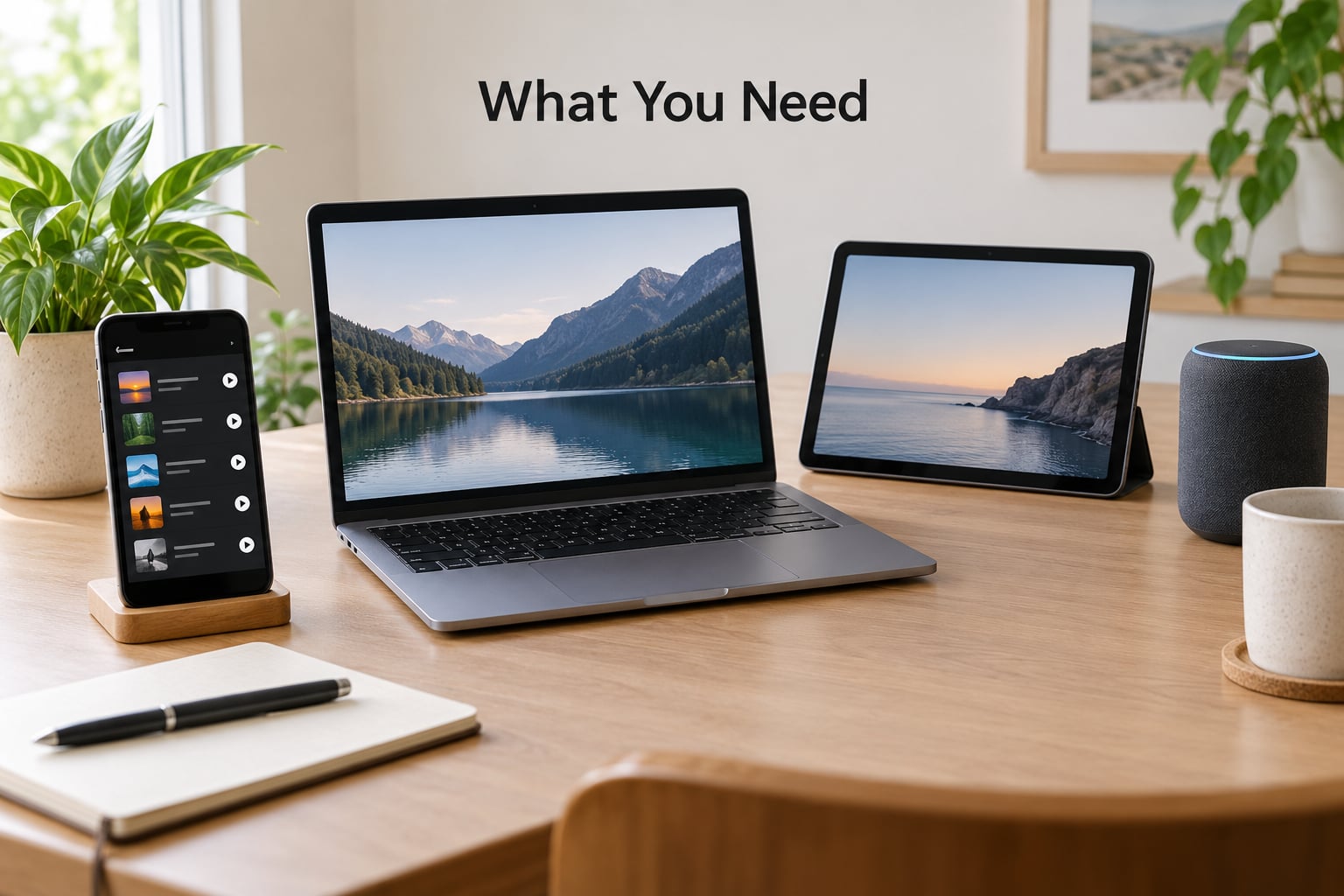
You need three things before anything syncs: a radio app or site with an account system, an account you will actually sign into, and a list of the devices you want connected. That is the whole preparation.
Pick a radio directory or app with real account sync
Plenty of players have a heart icon and no cloud behind it. The ones worth using store favorites against a login. Look for wording like “favorites sync to your account” or “sync between your phone and web version” in the store listing, because that is the feature description, not a guess.
A directory is a browse-only service that lists stations by country and genre; an app is the player you listen through. Some apps bundle both. Either works as long as the favorites save server-side.
Sign in with one account and stick to it
Use the same email address on every device. People most often create a second account by accident on a new phone, then wonder why the list is empty. Once you have picked an account, treat the credentials like any other login you would not want to lose.
Know which devices are in scope
Write down the two or three devices that matter. Broadcast presets on a car DAB head unit are outside this whole system and cannot be moved by any app, so it helps to separate those now rather than discover the gap later.
Step-by-Step
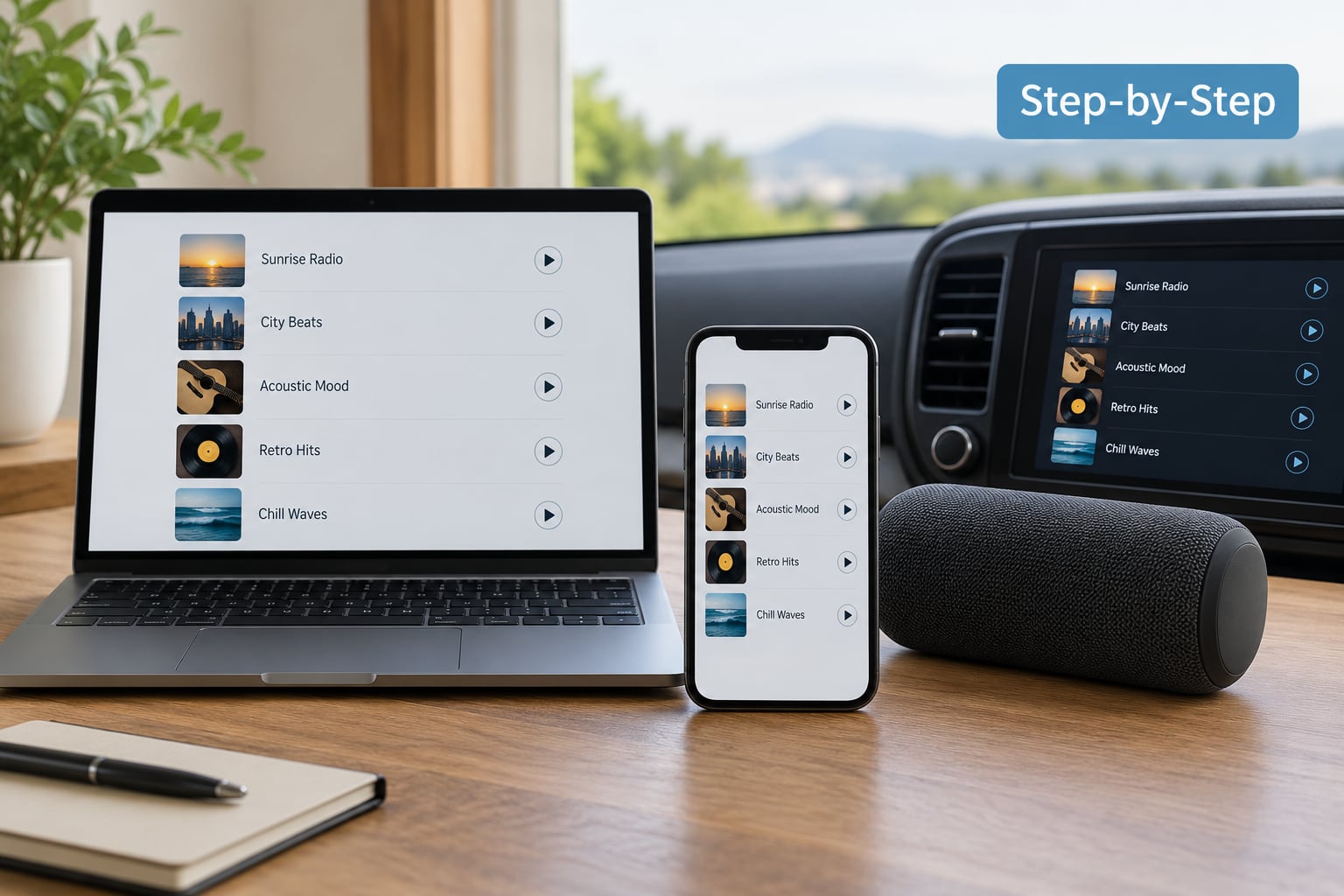
The core method takes under a minute once you have an account.
- Open your radio app and create a free account, or sign in with the one you already have.
- Turn on sync or cloud backup in the app’s account or settings menu.
- Browse to a station and tap the heart icon to add it to favorites.
- On the second device, open the same app and sign in with that exact account.
- Open the favorites tab. Your stations should already be there.
That last step matters more than people expect. Sync is silent — there is usually no pop-up confirming it — so the only way to know your list is safe is to see it on the other device.
How to sync saved stations with a radio app
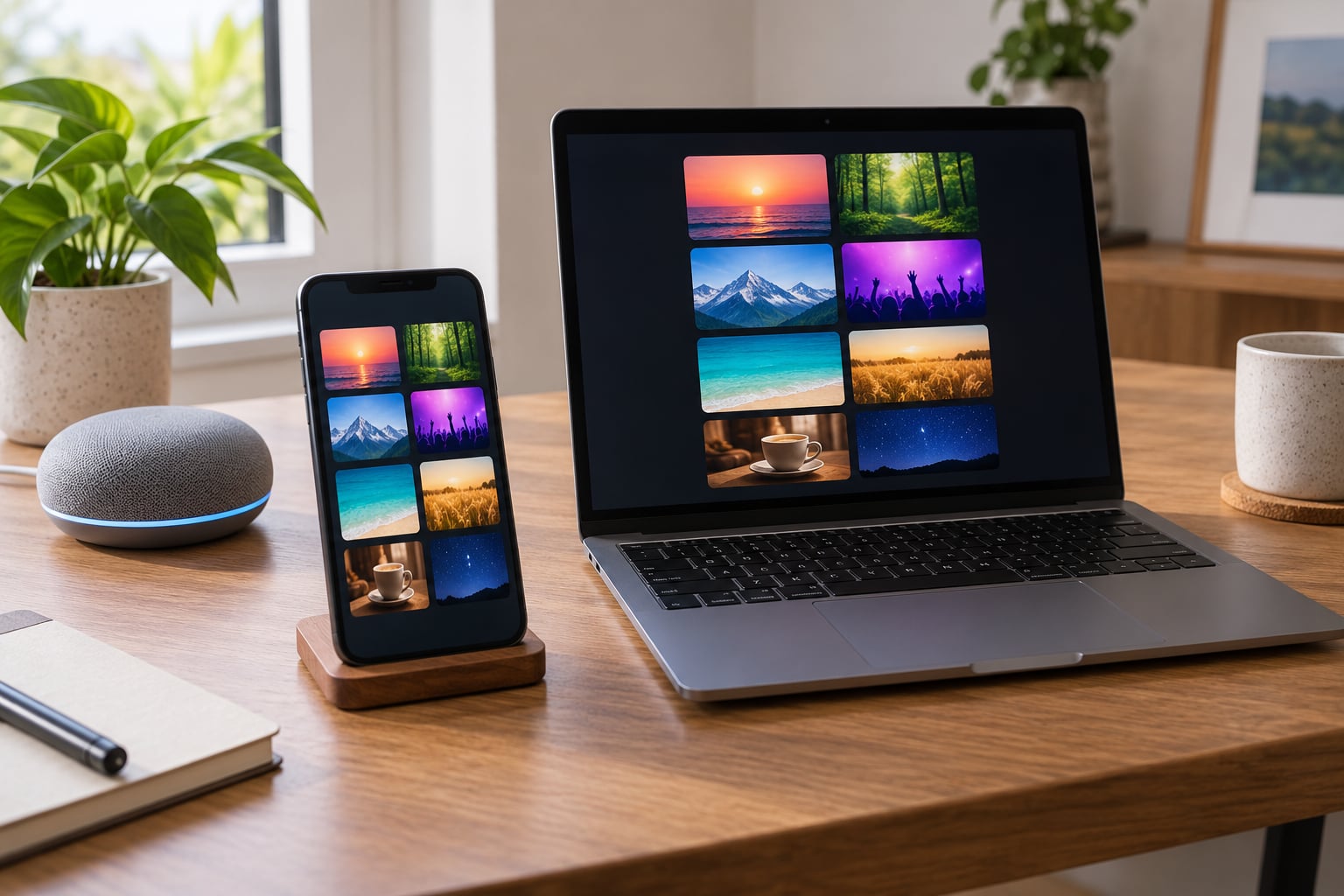
In a radio app, sign in first and favorite second. On iPhone and Android the heart icon is usually on the station page or in the player, and the favorites tab is along the bottom or in the side menu. On the desktop or web version of the same service, sign in through the same menu and the same list appears.
Two things go wrong here more than anything else. The first is saving while signed out — some apps accept the tap but write it to a local list nobody else can see. The second is assuming the list will populate without a sign-in; an unsigned web session often shows an empty favorites tab even when the account has thirty stations on it.
A few limits worth knowing. Most apps store the station reference, not the audio, so favorites appear everywhere but nothing plays without a connection. A handful of stations saved on desktop are marked ineligible for phone sync — iTunes Radio users on Mac have reported dozens of saved streams flagged this way — so if one specific station refuses to appear on your phone, that is the reason, and the station needs saving again from the phone side.
How to use browser bookmarks or a playlist as a backup
Some stations have no account at all, and some apps you like do not sync. In that case, save the station page as a browser bookmark instead. Every directory runs a web version, and the URL for a station page is stable enough to bookmark reliably.
For stations that publish a raw stream link, a playlist file is more flexible. Save the link in a notes app or a playlist service, then paste it into whatever player you have on the device you are moving to. It is more work per station than tapping a heart, which is why it works best as a backup for the five or six stations you would genuinely miss, not for a hundred-station list.
One practical tip: write the station name next to each saved link. A bookmark labelled “Untitled 3” is useless at 7am on a phone screen.
Smart speakers and car systems
Smart speakers take the same account route. Link your radio app inside the Alexa or Google Home app, sign in when prompted, and the service’s stations become available to voice search. The speaker does not hold your favorites list itself; it asks the service, which is why the account has to match.
For cars, CarPlay and Android Auto mirror whatever your phone app can do. Save stations in the radio app first, then they appear in the car’s app list. A DAB or FM preset stored in the head unit is a completely separate thing — it lives in the car, it depends on a working aerial, and no app can push stations into it. Streaming radio through CarPlay also needs a decent phone signal, which is why in-car reception sometimes drops where FM would not.
Common mistakes
Saving while signed out. The heart fills in and then vanishes when you sign in, because it was written to the device. Fix: sign out, sign back in, then re-add. Nothing else matters until you do.
Two different accounts. You signed up with your phone number on the phone and your email on the laptop. The fix is to sign out everywhere, pick one account, and use it on all devices.
Expecting a local-only list to sync. Some players, especially on desktop and in-car systems, have a favorites button that stores presets locally with no account attached. Those genuinely cannot sync, and the app listing will usually say so.
Losing app permissions. After a phone restore or a reinstall, background data and notification permissions can be reset, and some apps stop refreshing lists in the background. Re-grant notifications and background refresh in your phone settings, then reopen the app.
Expecting DAB and internet radio to behave the same. A DAB preset is a frequency in a tuner. An internet station is a stream tied to an account. When a favorite will not load, the two failure modes are different and the fix is different too.
How to keep favorites updated
A list that never gets tidied becomes useless within a year. Rename stations so you can find them by voice later — “Yorkshire accents” beats a call sign with five dots and a bracket. Delete duplicates whenever two entries play the same stream, which happens more than you’d think with mirrored UK stations.
Check for broken streams every few months by playing the first five seconds of each entry. Stations close, move to new stream addresses, or get pulled from the directory, and a dead favorite sits silently in the list until the day you need it.
Keep a written backup. A note or spreadsheet with station name, app, and stream link takes ten minutes and has rescued more than one listener after a list vanished. For context on how often that happens, radio listeners on Reddit report saving lists that disappeared across every device at once after an app update or a change to a paid model, with re-adding each station the only remedy offered.
Frequently Asked Questions
Do radio apps automatically sync favorite stations across devices?
Only when both devices use the same account in the same app. Favorites saved against a login sync; favorites saved while signed out or stored as local presets do not. There is no notification when a sync completes, so sign in on the second device and open the favorites tab to confirm the list arrived.
What is the easiest way to save online radio stations on multiple devices?
Pick one radio app that offers account-based favorites, create an account there, and use it everywhere. Add stations once and they follow you to your phone, tablet, computer and linked smart speaker. A browser bookmark or a saved stream link works as a backup for stations that have no account at all.
Can I save favorite radio stations without creating an account?
Yes, but nothing will sync. Bookmarks, a notes app and saved stream links are all account-free ways to keep a station list, and they follow you only as far as you manually carry them. They suit a short list of stations you cannot lose rather than a large library you want everywhere.
How do I transfer saved stations from my phone to my computer?
Use the account, not a cable. Sign into the same radio service on the computer, then open the favorites tab; your phone’s list appears without any export step. If the list is empty, the two devices are signed into different accounts, or the phone list was built while signed out.
Can I use my saved online radio stations in a car or smart speaker?
Yes, through the phone. CarPlay and Android Auto mirror your phone app, so stations saved there appear in the car once your phone is connected. A smart speaker needs your radio service linked inside the Alexa or Google Home app and signed in with the same account.
Are DAB radio presets the same as favorite online radio stations?
No. A DAB or FM preset is a broadcast frequency stored in the car or tuner, tuned over the air and dependent on a working aerial. An online favorite is a stream reference tied to an account. Apps cannot push stations into a DAB tuner, and a stream that will not load needs a different fix.
Conclusion
Start with one thing: open your radio app, sign in, and add the five stations you would actually miss. Then open the same app on your second device, sign in with that account, and look at the favorites tab. If the list is there, you have a working cross-device setup — and keeping a short written backup costs you nothing the next time an app update does what it likes.