Adding a custom radio stream to a smart speaker works by pointing the speaker at the station’s direct audio URL instead of asking it to look the station up by name. The catch is that Alexa and Google Assistant will not resolve a URL you read out loud, so most people need either a station listed in a directory like TuneIn or an app that accepts a pasted link.
Take ten minutes. You need the stream URL, a player that can test it, and one route that suits your speaker. Here is the order I would do it in.
Table of Contents
What You Need
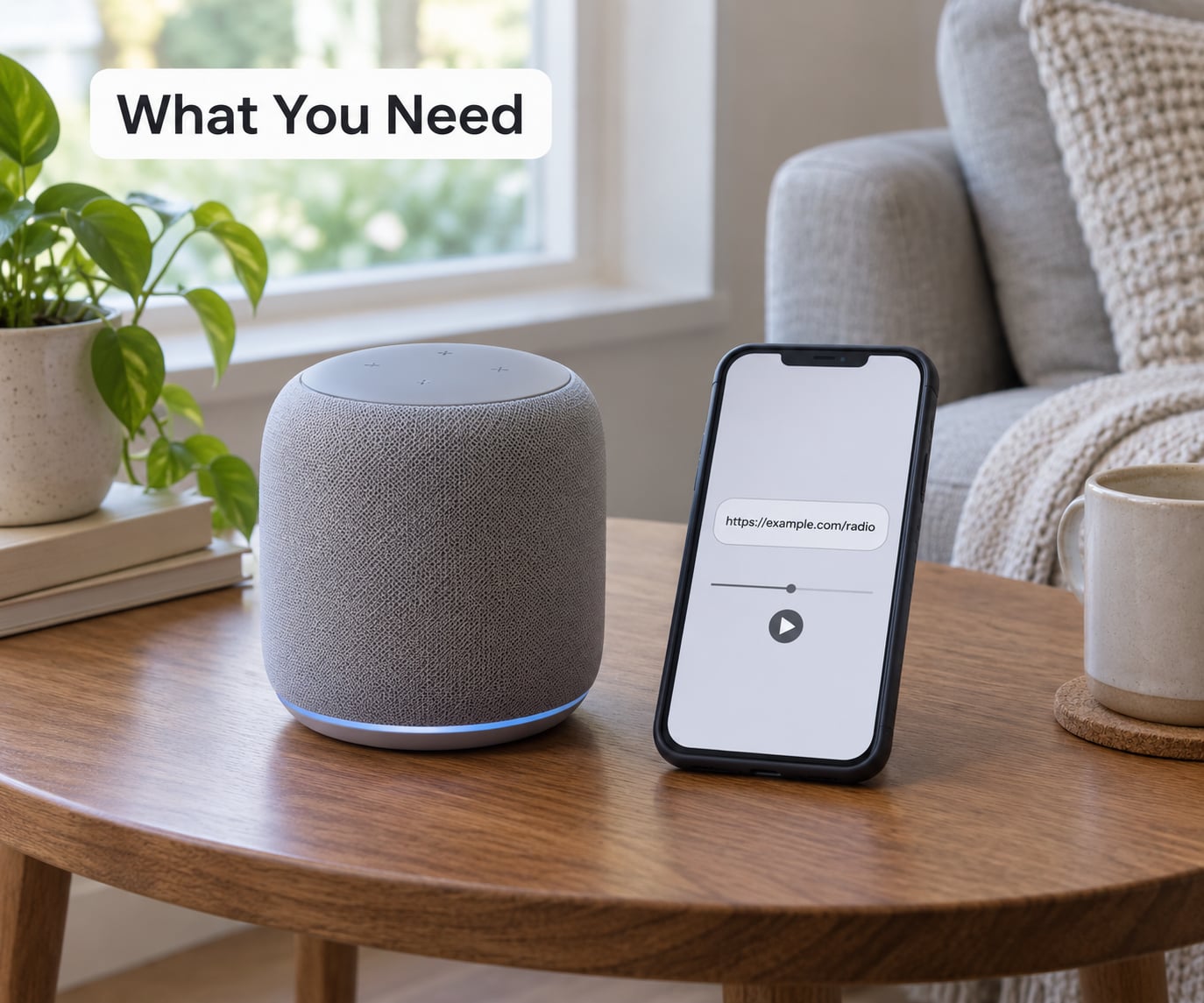
- Your smart speaker and its app on a phone, with the speaker and phone on the same Wi-Fi network.
- The station’s direct stream URL. It ends in something like
.mp3,.aac,.wmaor.pls, not an HTML web player page. - A test player. A desktop browser handles most MP3 and AAC links. VLC handles just about everything, including
.plsand.m3uplaylists. - The station’s name and city, because that is what a voice assistant will recognise once the station is listed.
A phone or laptop for testing is optional but worth having. Testing on the same device that will later run the app separates stream problems from speaker problems, which saves a lot of guessing.
Step-by-Step: How to Add a Custom Radio Stream to a Smart Speaker
1. Find and test the station’s direct stream URL
The stream URL is the single most important piece, and almost every failed setup traces back to grabbing the wrong link. Most station websites run a web player, and the button labelled “Listen Live” points at a player page rather than the audio itself. Right-click that button and choose Copy link address. If the result ends in .html or .aspx, keep digging.
Four places reliably hold the real feed: a “listen live” or “stream” link in the station’s site menu, the page source of the player page, a directory listing that shows the feed under technical details, or a broadcast software panel for stations you run yourself. On a Shoutcast or Icecast server the pattern is usually the host plus /stream, /listen or /;stream.mp3 with a mount or password appended.
Test before you go anywhere near the speaker. Paste the URL into VLC using Media, then Open Network Stream. A working feed starts playing audio within a couple of seconds and the bitrate readout stays steady. If it stalls, asks for credentials, or downloads a file instead of playing, you have the wrong URL or a protected stream.
Here is what the common file types mean and which speakers accept them.
| Format | What it is | Who accepts it |
|---|---|---|
.mp3 | A raw MP3 audio stream, usually 64 to 320 kbps | Almost everything: Alexa via directories, Google Home via directories, Sonos, VLC, most phone apps |
.aac or .m4a | AAC audio, common on commercial station feeds | Sonos, VLC, phone apps; assistants only once the station is listed |
.wma | Windows Media audio | Sonos and most phone apps |
.flac | Lossless audio | VLC and desktop players only; Sonos rejects it and assistants will not list it |
.pls or .m3u | Small playlist files that point at the real stream | VLC and most radio apps; paste the playlist URL, not the audio URL inside it |
One extra detail worth knowing: many stations send their title data using ICY metadata, an old Shoutcast-era block that tells the player the currently playing song. When it is present, displays with a screen often show the station name and track title. When it is missing, the speaker just plays audio silently.
2. Check whether your smart-speaker service supports custom stations
Alexa and Google Assistant resolve station names only through directories they already use, mainly TuneIn, plus partner apps such as iHeartRadio or Radio.com. Say “Alexa, play Yorkshire Radio” and it works because that station sits inside TuneIn’s index. Say “Alexa, play http://stream.example.co.uk/live” and it fails, because the assistant has no way to accept a URL you speak.
That single limitation decides everything else. If your station is listed in a directory your assistant already searches, you are done in a sentence. If it is not, you need a route that bypasses the assistant entirely, which means entering the URL in an app or a player that hands the feed to the speaker directly.
| Speaker | Takes a raw URL? | How a station gets added |
|---|---|---|
| Amazon Echo and Alexa | Not through voice | Say the station name if it is listed in TuneIn or a partner app, or play the station from a phone app that supports Cast or Bluetooth to the Echo |
| Google Home and Google Nest | Not through voice | Say the station name if it is listed, or “play station name on speaker name” once it is a favourite in the Google Home app |
| Sonos | Yes, through the Sonos app | Add Music Services, or paste the direct URL in the Sonos app and save it as a preset |
| Apple HomePod | No, not directly | Play from an app that supports AirPlay 2, or use a listed service such as TuneIn or Radio.com through the Home app |
The HomePod is the strictest of the four. Siri will not take a URL, so a custom station on a HomePod means AirPlay from a phone or a computer, which costs you the hands-free part. If your priority is voice control rather than audio quality, the Echo or a Nest speaker is the better target for an unlisted station.
3. Set up the most reliable compatible option
For any speaker that accepts a URL, the setup is the same shape. Open the speaker’s companion app, find the radio or add-station section, choose something like “Add URL”, “Custom station” or “Add from another source”, paste the link, give the station a name you will recognise, and save.
In the Sonos app that path is the app’s music section, then Add Music Service for a directory, or the station list’s add option for a direct URL. Saved stations become presets you can tap, and presets keep working after the phone goes back in a drawer.
For phone apps, look for Add station, Add URL or New stream. Once the station is saved, most apps offer a cast button for Chromecast devices, an AirPlay button for HomePods and AirPlay speakers, or a Bluetooth pairing option. Bluetooth keeps a phone in the loop and drains its battery, so treat it as the fallback rather than the plan.
Give the station a name that a voice assistant could plausibly understand later, like “Yorkshire Radio” rather than “Test Stream 3”. When the station does eventually get listed, matching the name saves you renaming it twice.
4. Use a skill, shortcut, or voice command when needed
Voice control is the reason most people want this working. There are three ways to get it, and they are not equally reliable.
The cleanest route is a directory listing. Once a station is indexed by TuneIn, a skill or the built-in radio service handles the voice request, and the assistant always knows which room you meant. The Google Home app also accepts voice shortcuts: add the station as a favourite, open Google Assistant, then set a custom phrase such as “kitchen radio” to play it on the kitchen speaker.
The Alexa route is voice routines. In the Alexa app, open Routines, choose Add a routine, set the trigger to “At a specific time” or a voice phrase, pick the action Play and the station, then select the Echo device or group. A 7am alarm that starts your local station is the most common use for this.
Assign the station to the right room and speaker group while you are setting it up. Half of all “it plays in the wrong room” problems are a room assignment mistake rather than a stream problem.
5. Test the station and confirm playback
Run a short verification routine before you trust it. Play the station by voice if you set up voice control, then by tapping the saved preset or favourite. Check that the audio is live rather than a loop: listen for the station’s own idents or a programme clock, not just continuous music.
Set the volume to a mid level and pause for a moment. A stream that has silently failed often returns a cached error tone or nothing at all, so pausing is a decent staleness check.
Then power-cycle the speaker and reconnect it to Wi-Fi before walking away. Streams that only work once and then drop after a router reset usually mean an unstable feed or a too-tight bitrate, not a mis-set-up speaker. If the same URL keeps failing at that point, go to the fixes below.
Common Mistakes and Quick Fixes
Almost every problem reduces to one of nine causes. Match your symptom in the first column and work across.
| Symptom | Likely cause | Fix |
|---|---|---|
| Speaker says “station not found” or “couldn’t find that skill” | The station is not in any directory the assistant searches | Submit it to TuneIn and the Alexa radio directory, or play it through a phone app that can cast or pair |
| Plays a web page announcement or speaks the URL aloud | You pasted the player page, not the audio stream | Find the direct .mp3, .aac or .pls URL and test it in VLC first |
| Works in VLC, silence on the speaker | Unsupported codec, usually FLAC, or a very high bitrate | Ask the station for an MP3 feed at 128 kbps, which every speaker ecosystem accepts |
| Fails only on Sonos | Sonos takes MP3, AAC and WMA only | Request a WMA or AAC alternative stream from the station |
| Refuses to load an HTTPS link | Some older firmware and directory players expect plain HTTP | Ask the station for its HTTP mount, or use a player app that handles HTTPS locally |
| Plays for ten seconds then stops | Geo-blocked feed, or a stream that limits connections per IP | Confirm the URL works on your phone’s mobile data, not just home Wi-Fi |
| Buffering or dropping out constantly | Low bitrate over a weak Wi-Fi link | Move the speaker closer to the router, or lower the station’s bitrate |
| Plays in the kitchen when you asked for the living room | The station is saved to the wrong room or speaker group | Edit the station or routine in the app and pick the room explicitly |
| Two copies of the same station in the list | It was added once as a URL and once by directory search | Delete the URL entry and keep one named station with the name you will say out loud |
Two habits stop most of this happening. Test the URL in VLC before every setup session, and never assume a link that works in your phone’s radio app will work on the speaker, because those apps often use a private proxy feed rather than the station’s public one.
If you would rather skip the debugging entirely, running the station through a local network bridge such as a Raspberry Pi with a UPnP server or a Home Assistant media hub gives you full control over playlists, speaker grouping and scheduled playback. It is a weekend project rather than a five-minute fix.
Frequently Asked Questions
Can I play internet radio on Alexa?
Yes, but only for stations Alexa can resolve by name. Alexa searches directories such as TuneIn and partner radio apps, so any station listed there plays with a simple voice command. A station that is not listed cannot be started by reading out its stream URL, and the assistant will report that it could not find it. For those stations, play the stream from a phone app and cast or pair it to the Echo.
Can Google Home play radio stations?
Yes, through the same directory system as Alexa. Ask Google to play a listed station and name the speaker or room, and it starts. Google Home will not accept a raw stream URL by voice. If the station is missing from the directory, your options are a local network bridge such as a Raspberry Pi with a UPnP server, or a Home Assistant media hub that pushes the feed to the speaker.
Why will my smart speaker not play my station when it works in VLC?
Almost always the codec or the connection rules, not the speaker. Sonos accepts MP3, AAC and WMA and rejects FLAC outright. Older speaker firmware can struggle with HTTPS links, and some stations geo-block or limit the number of connections per IP address, which a desktop player never hits. Ask the station for an MP3 feed at 128 kbps and test it on mobile data before changing anything else.
Do I need a playlist file like PLS or M3U?
Only if the station gives you one. A playlist file is a short text file that points at the real audio stream, and most radio apps and VLC open it without trouble. What you cannot do is paste a playlist URL into a smart speaker that expects audio, because it has no way to follow the redirect. When a station offers both a playlist and a direct link, use the direct one for speaker setups.
Can I listen to internet radio on a Bluetooth speaker?
Yes, but a phone stays in the loop for the whole session. You pair the speaker to your phone, open a radio app or stream URL and leave the phone playing, which drains the battery and interrupts the audio with calls and notifications. A Bluetooth speaker also has no voice control unless it is a hybrid model with a built-in assistant. Casting to a smart speaker or using a network bridge avoids both problems.
Conclusion
Start by getting the station’s direct stream URL and testing it in VLC. Once you know the link works, choose the route that matches your speaker: directory listing for voice control on Alexa and Google Home, direct URL entry on Sonos, AirPlay or a listed service on HomePod, and a local network bridge for anything that refuses to play. That sequence removes almost every failure before it starts.