Smart speaker voice commands for radio work like this: the speaker listens for its wake word, sends your spoken request to cloud speech recognition, matches the station name against a radio directory, and streams live audio straight to the drivers. No app, no remote, no dial. What you actually get is internet radio on a voice-activated box, not an FM signal, and that single distinction explains most of the failures people hit.
Anybody who has used these boxes in kitchens, workshops and small studios sees the same pattern. When the station name resolves on the first attempt, voice control wins outright. When it does not, most people give up on the feature within a week and go back to the app.
Table of Contents
- What Happens When You Ask a Smart Speaker to Play Radio?
- What You Need Before You Start
- How to Set Up Voice-Controlled Radio Listening
- Amazon Alexa Voice Commands for Radio
- Google Assistant Voice Commands for Radio
- Apple Siri Voice Commands for Radio
- How Smart Speaker Voice Commands for Radio Differ by Platform
- Can You Listen to FM, DAB, or Local Stations on a Smart Speaker?
- How to Fix a Smart Speaker That Will Not Play the Right Radio Station
- Privacy, Data, and Voice-Command Controls
- Frequently Asked Questions
- Can a smart speaker play regular FM or DAB radio?
- Do smart speakers need internet access to play radio?
- Why can’t my smart speaker find my local radio station?
- How do I ask a smart speaker to play a specific radio station?
- Can I use one voice command to change stations on a smart speaker?
- Are voice commands for radio private and secure?
- Conclusion
What Happens When You Ask a Smart Speaker to Play Radio?
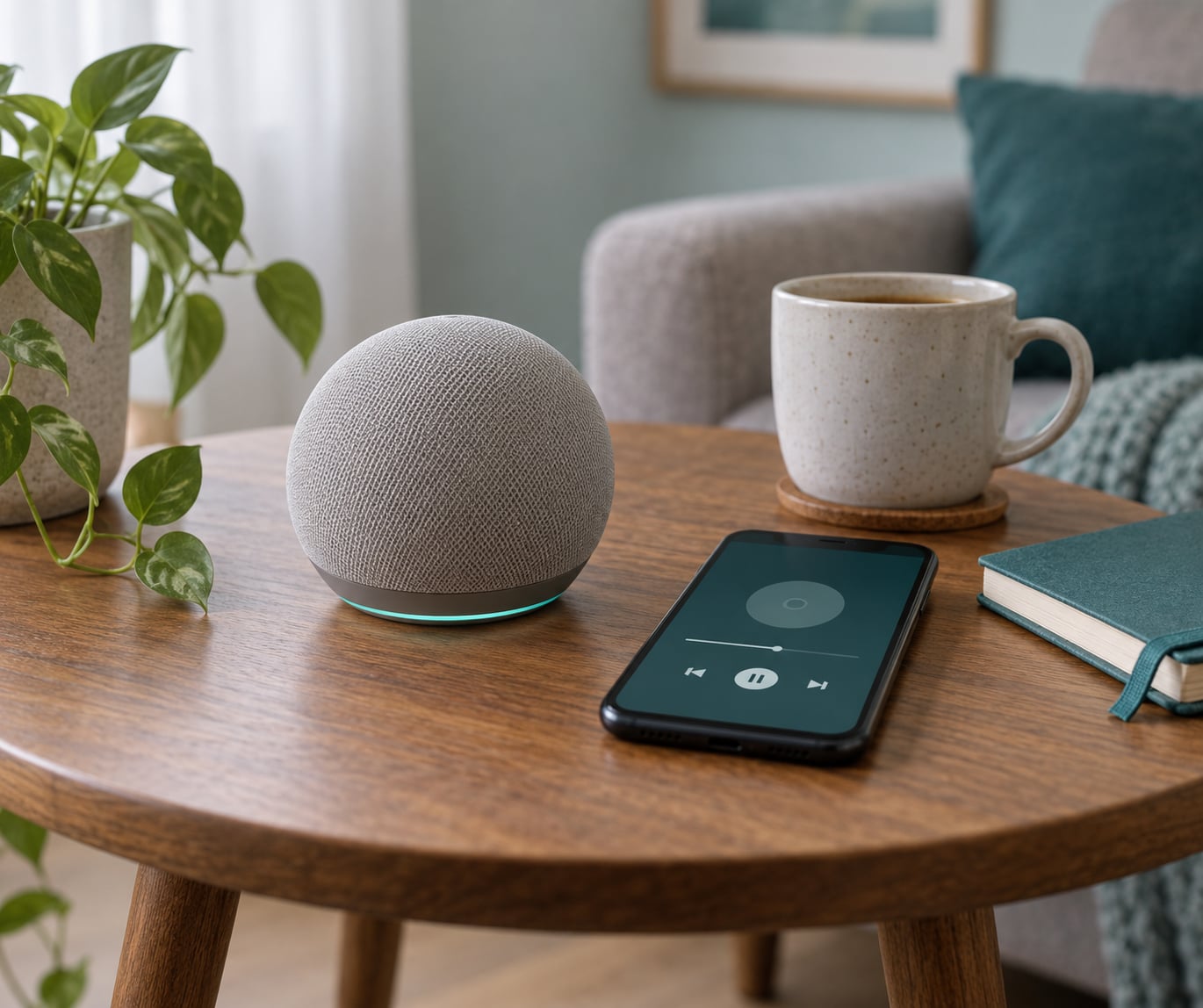
A voice-activated smart speaker does four things in order: it hears a wake word, records your request, converts the audio into text on the provider’s servers, then matches that text to a streaming source and plays it. Here is the chain in more detail.
- Wake word detection. A ring of far-field microphones stays powered up and listens locally for the trigger phrase, usually Alexa, OK Google or Hey Siri. The speaker stays on standby until it catches that phrase, so nothing is sent anywhere until the wake word lands.
- Audio capture. After the wake word, the microphones record your request. Noise suppression and acoustic echo cancellation clean it up so a fan running in the room or the speaker’s own playback does not garble the words.
- Speech-to-text. The recording travels to the provider’s speech recognition service and comes back as text. This is the step that needs internet access, and it is also where misheard words enter.
- Intent matching. The assistant searches the available directory of stations, skills and linked services. If it finds a close match, it opens the stream; if not, it tells you it cannot find the station.
- Stream playback. Audio returns over Wi-Fi and plays through the speaker’s drivers. Volume, pause, skip and next are all handled as further spoken requests rather than button presses.
Two details matter for radio specifically. First, the directory is a list of streams, so what you hear is the station’s own internet feed rather than a broadcast picked up by an aerial. Second, the stream resolves from a directory rather than from a worldwide list of every transmitter on the planet, which is exactly why some local stations never appear.
What You Need Before You Start
Getting a voice command to trigger live radio takes a short list of things in place. Miss any one of them and the speaker will either not hear you or will not recognise the request.
- A voice-activated smart speaker. Amazon Echo, Google Nest Audio, Apple HomePod or a Sonos unit with a built-in microphone. A plain Bluetooth speaker will not do this job.
- Reliable Wi-Fi. The command processing and the audio stream both run over the network, so a weak signal in the kitchen or workshop causes dropped commands and buffering mid-broadcast.
- The manufacturer app on your phone. Alexa app, Google Home app or Apple Home app. Setup, account linking and station sign-in all happen there, not on the speaker.
- Microphone access enabled. If the physical mute switch or software setting is off, the wake word is never detected and the speaker just sits there.
- An active radio service or station directory. Most platforms need an enabled skill or linked provider such as BBC Sounds, TuneIn or iHeartRadio before named stations will resolve.
- A linked account where required. Some services only expose their live stations after you sign in on the phone app.
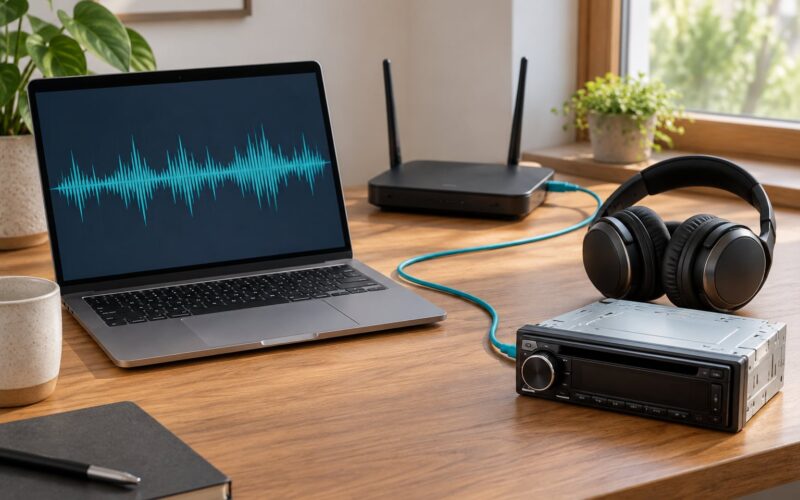
FM, DAB and some internet-only stations are not equally available, and that is worth knowing before you buy anything. A speaker with no tuner in it cannot receive an over-the-air signal. It only plays what the directory exposes, so check that your regular stations have an online stream before you commit to voice control.
How to Set Up Voice-Controlled Radio Listening
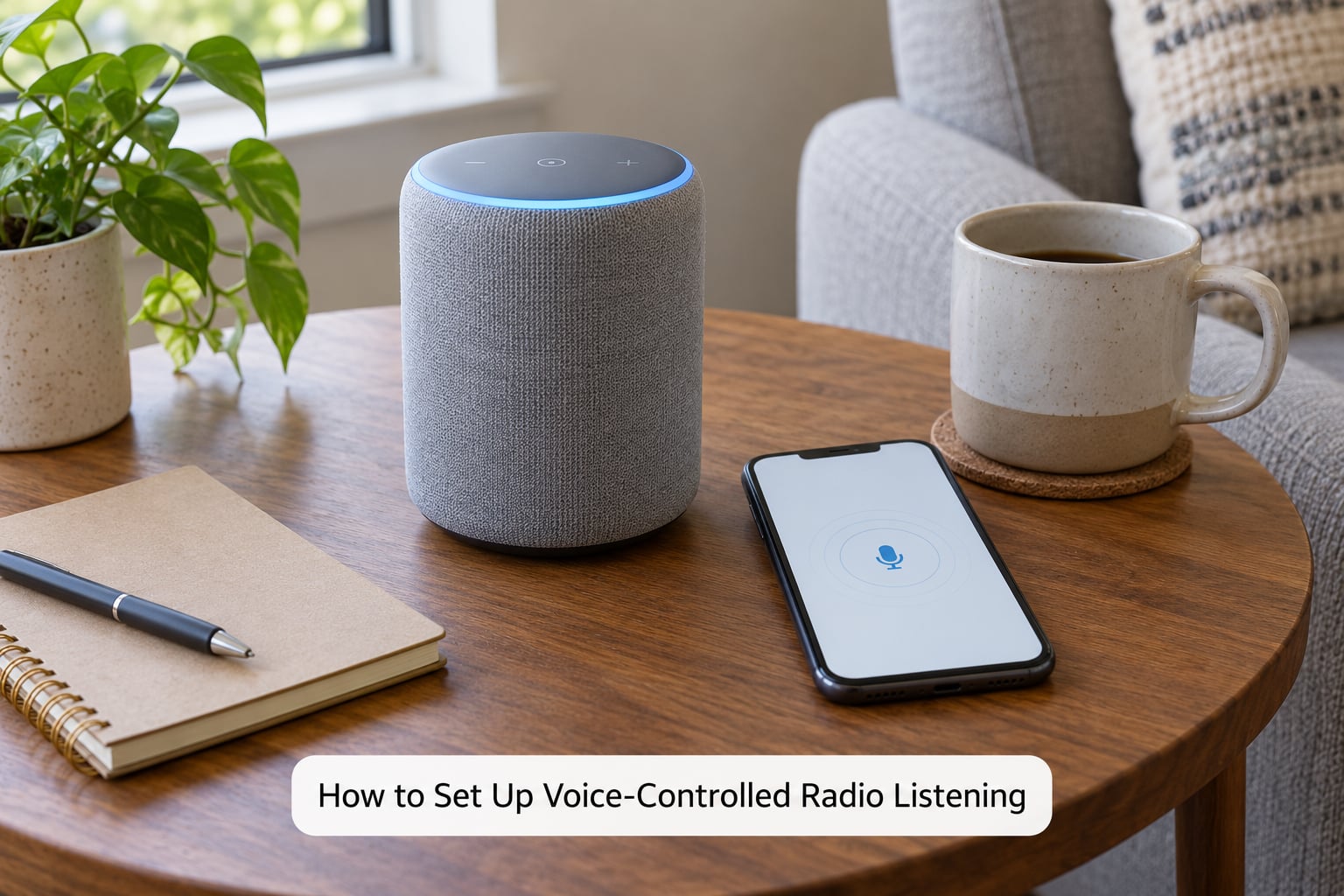
Setup takes about ten minutes per speaker if the phone app is already installed. The order matters more than people expect, because each stage unlocks the next.
- Install the manufacturer app and sign in with the account you will use on the speaker.
- Connect the speaker to Wi-Fi. Choose the 2.4 GHz band first if the app offers both bands, since it is the more reliable of the two at distance.
- Update the software before anything else. Out-of-date firmware is a common cause of the assistant failing to find a station that works perfectly on a newer unit.
- Sign in to your radio service inside the app, or enable the relevant skill. This is the step most people skip.
- Set your region so the directory returns stations available in your country.
- Name each room and speaker carefully. Every command after this uses those names, and a badly named device is the reason a stream lands in the wrong room.
- Test with a precise request such as the full station name and, if needed, the service name after it.
Menu names change between app versions, so the paths below are worth checking against what you actually see on your phone. The logic is the same on every platform.
Setting up in the Alexa app
Open the Alexa app, choose More, then Settings, then Connected Services. From there, enable the radio skill or service you want and sign in to your radio account. Region and language sit under Device Settings rather than the service page, which catches people out.
Setting up in the Google Home app
In the Google Home app, open your device, then Services and Linked Accounts to link a radio provider. Google Assistant media settings live under Settings, Assistant and Voice Match, where you can also add another household member’s voice so the assistant recognises them.
Setting up with Siri on HomePod
On an iPhone, open the Home app, tap your HomePod, then choose an audio source for spoken requests. Siri also needs the media service enabled under Settings, Siri and Search, otherwise station requests fall through to a generic search result.
Why smart speaker voice commands for radio behave differently in each room
Recognition depends on acoustics. A kitchen with an extractor fan, a workshop with a compressor running and a studio with treated walls all give the far-field microphones a different problem to solve. Speakers that hear you fine in a quiet living room can fail badly in a noisy room.
A quick fix that works more often than people expect: raise the voice slightly instead of pushing volume on the device, and keep the speaker off the surface behind it so sound does not bounce straight back into the microphone ring. Voice profiles help too, since a household of regular users gets recognised faster than a room full of guests.
Using voice control for radio work in a studio or newsroom
If your day involves monitoring stations rather than listening for pleasure, the same commands apply with a different target. A speaker placed near the desk can start a competitor’s output stream on cue without anyone touching a screen, which is useful when you are hands-deep in a mixing desk.
Keep monitoring streams on a separate device from your playback speaker where you can, so a talkback mic does not pick up the programme audio. For logging or recording, voice control is not a substitute for a capture route: a voice assistant gives you a stream, not a clean feed, and the slight delay between a live broadcast and a voice-requested stream makes them impossible to time against each other reliably.
Amazon Alexa Voice Commands for Radio
Alexa resolves radio through enabled skills and supported services, which is why the same question can work on one account and fail on another. Phrases that reliably do something useful:
- “Alexa, play BBC Radio 4” — the standard station request.
- “Alexa, play [station name] on [speaker name]” — routes the stream to a specific room.
- “Alexa, resume the radio” and “Alexa, pause” — playback control mid-broadcast.
- “Alexa, stop” — ends the stream entirely.
- “Alexa, volume up” or “volume down” — hands-free level changes while cooking.
- “Alexa, what is playing” — confirms which stream you actually got.
- “Alexa, play jazz radio” — a genre request rather than a named station.
When a station will not play, work through it in this order. Check the relevant skill is enabled and signed in. Check the station has an online stream at all. Check the region setting, since a directory filtered to another country will not list it. Then try adding the service name to the request, which forces the assistant to search a specific provider rather than the general directory.
One recurring complaint on r/sonos is exactly this: owners ask Alexa for Radio 4 and get nothing, even though the same station plays fine from the phone app a moment later. The gap is usually the skill link or the region, not the speaker.
Google Assistant Voice Commands for Radio
Google Assistant tends to cope better with casual phrasing, but it is stricter about what it treats as a station versus a playlist. Useful phrases include:
- “Hey Google, play BBC Radio 6 Music.”
- “Hey Google, play radio on the kitchen speaker” — targeting a room by name.
- “Hey Google, pause the radio” and “resume.”
- “Hey Google, stop.”
- “Hey Google, add BBC Radio 4 to my favourites” — saves it for later.
- “Hey Google, play live radio for 30 minutes” — a timer stops it automatically.
- “Hey Google, what’s playing” — checks the resolved stream.
There is a meaningful difference between a station name, a radio genre and a playlist, and mixing them up is why requests feel unpredictable. A genre request returns whatever matches the mood, a station request should return one stream, and a playlist request comes from a music service rather than a live broadcast.
What Google will not do natively is play an arbitrary Shoutcast or custom stream URL. That gap comes up repeatedly on r/googlehome and r/homeassistant, where the common workaround is a Music Assistant blueprint inside Home Assistant rather than the stock assistant.
Apple Siri Voice Commands for Radio
Siri on HomePod is the most dependent on what you have made available. If no radio service is selected as an audio source, station requests turn into a generic search and you often get the wrong thing.
- “Hey Siri, play BBC Radio 4.”
- “Hey Siri, start BBC Radio 4 on the kitchen HomePod” — room targeting with the device name.
- “Hey Siri, pause” and “resume.”
- “Hey Siri, stop playing.”
- “Hey Siri, what’s playing.”
- “Hey Siri, play BBC Sounds” — opens the service when the station name alone is ambiguous.
When results are ambiguous, use the precise station name and add the provider after it. Siri is more literal than Alexa or Google and will not infer a station from a half-remembered name, so exact wording matters more here than on the other two platforms.
Handoff also matters here in a way it does not elsewhere. A Naim user on the Naim Audio community forum reports that “Hey Google, play WFUV on my Naim Cube” works end to end, waking the amplifier and starting the stream. That is worth testing before you buy a second speaker.
How Smart Speaker Voice Commands for Radio Differ by Platform
These are the exact words worth trying on each platform. If a phrase does nothing, the capability is usually missing rather than the wording being wrong.
| What you want | Alexa | Google Assistant | Siri |
|---|---|---|---|
| Play a named station | Alexa, play BBC Radio 4 | Hey Google, play BBC Radio 4 | Hey Siri, play BBC Radio 4 |
| Target one room | Alexa, play Radio 4 on kitchen Echo | Hey Google, play Radio 4 on kitchen speaker | Hey Siri, play Radio 4 on kitchen HomePod |
| Pause or resume | Alexa, pause / resume | Hey Google, pause / resume | Hey Siri, pause / resume |
| Stop completely | Alexa, stop | Hey Google, stop | Hey Siri, stop playing |
| Check the stream | Alexa, what is playing | Hey Google, what’s playing | Hey Siri, what’s playing |
| Save for later | Add to your Alexa favourites | Hey Google, add to favourites | Say it again later from the app |
Beyond the phrases, the platforms differ in ways that matter more for radio listening than the wording does.
| Factor | Alexa | Google Assistant | Siri |
|---|---|---|---|
| Station discovery | Skills and enabled services | Built-in media search plus linked providers | Selected audio source only |
| Over-the-air local broadcast | No tuner | No tuner | No tuner |
| Third-party services | Wide skill catalogue | Linked accounts | Apps must be installed and set as default |
| Command style | Literal and keyword-led | Loosest, handles rephrasing | Literal, needs exact names |
| Custom stream URLs | Not native | Not native | Not native |
| Typical failure | Skill not linked | Genre result instead of station | No audio source chosen |
| Multi-room targeting | By device name | By device or room name | By HomePod name |
None of the three gives you every station available worldwide. Each works against a directory filtered by region and by the services you have enabled, which is the single most useful thing to understand before blaming the hardware.
Can You Listen to FM, DAB, or Local Stations on a Smart Speaker?
Not directly, unless the speaker contains a tuner. Over-the-air radio and internet radio are different systems: FM and DAB are broadcast signals received by an aerial, while a smart speaker plays a stream fetched over Wi-Fi. Without a tuner in the box, the only path to a local station is an online version of it.
There are three ways a local station reaches a voice-activated speaker. Some speakers ship with an integrated tuner or a partner app that bridges a home network radio. Some listeners run network radios on the home network and expose them as services to the assistant. Others connect an external tuner over the network and let the assistant treat it as a media source.
The catch is usually geography. A small local station may run an online stream that is geo-blocked, rate-limited, or only available inside its own broadcast area, and some independent stations have no public stream at all. Check that your regular stations are online and reachable from your region before you plan around voice control.
How to Fix a Smart Speaker That Will Not Play the Right Radio Station
Work down this list in order. Most failures are one setting, and the order moves from cheapest to most disruptive.
- Confirm the station has an online stream. Try playing it in the service’s own phone app. If it fails there, the problem is not the speaker.
- Check Wi-Fi. Move the speaker closer to the router or test on 2.4 GHz. Buffering and half-heard commands are usually network, not voice.
- Enable the right skill or linked account. A signed-out service often still accepts the command and then plays nothing.
- Check the region setting. The directory is filtered by the account’s country, and a mismatched region hides local stations.
- Update the software. Newer firmware improves both recognition and directory coverage.
- Say the full name, then add the service. “Alexa, play Radio 4” failing and “Alexa, play Radio 4 on TuneIn” working is a common and useful pattern.
- Restart the speaker. Unplug it for a full minute rather than just muting it.
- Re-link the account. Expired logins and duplicated rooms are a frequent cause of devices needing manual re-adding to groups.
If the request works from the phone but not by voice, the assistant is not resolving the name. If it works by voice and drops out mid-broadcast, look at Wi-Fi. If a custom or Shoutcast stream will not play at all, that is a genuine platform limitation rather than a fault, and community forums consistently resolve it with a Home Assistant blueprint or a tuner bridge rather than with the stock assistant.
Privacy, Data, and Voice-Command Controls
Using smart speaker voice commands for radio sends more than the station name. A typical request involves audio recorded after the wake word, a transcript, the account tied to the speaker, the device identifier, and listening activity stored against that account according to the provider’s settings.
Each platform gives you controls, and they are worth a few minutes of setup:
- Review voice history. Every major provider keeps a list of past requests that you can read and delete. Check it periodically rather than assuming it is short.
- Use the physical mute. A hardware switch on top of the speaker cuts the microphone at the circuit level. A red or amber light usually shows the state.
- Manage purchases and linked accounts. Linked services can be removed, and account links are separate from each other, so revoking one does not disturb the others.
- Set a purchase confirmation. Relevant if anyone in the household might trigger paid services by voice.
- Set expectations with guests. Owners of always-listening devices report this being the sore point in shared homes. A visible muted light during conversations settles it faster than any policy document.
Accessibility is a genuine benefit here, particularly for listeners who cannot reach a dial or a screen. The limits are just as real: recognition degrades in noisy rooms, and a speaker with no screen gives limited feedback about what it just understood.
Frequently Asked Questions
Can a smart speaker play regular FM or DAB radio?
Only if it has a tuner built in. Most voice-activated speakers, including Echo, Google Nest Audio and HomePod models, have no tuner and play internet streams only. To hear over-the-air stations you need an integrated tuner, a network radio on your home network, or an external tuner connected over the network.
Do smart speakers need internet access to play radio?
Yes. The wake word is detected on the device, but your request is converted to text on the provider’s servers and the audio arrives as a stream over Wi-Fi. Without a working connection the speaker will hear you, acknowledge you, and then be unable to find or play anything.
Why can’t my smart speaker find my local radio station?
Usually because the station has no public internet stream, its stream is geo-blocked to the broadcast area, or your account region and service links are not set up to include it. Check the station plays in its own phone app, then confirm the relevant service is enabled and signed in.
How do I ask a smart speaker to play a specific radio station?
Say the wake word followed by the full station name, for example Alexa, play BBC Radio 4. If that returns the wrong result or nothing, add the service name after it so the assistant searches one provider instead of the general directory. Naming the room as well sends the stream to that speaker.
Can I use one voice command to change stations on a smart speaker?
Yes, and you do not need to stop the current stream first. Ask for the new station directly and the assistant switches over. To save repeating yourself, save stations to your favourites or a playlist, then play that list by name. Room targeting works in the same sentence.
Are voice commands for radio private and secure?
Not automatically. A request involves recorded audio, a transcript, your account details and listening history held by the provider. You can review and delete that history in the app, revoke linked services, and use the physical mute switch. Check the provider’s current retention settings rather than assuming.
Conclusion
The chain is simple enough to remember: wake word, recording, speech-to-text, directory lookup, stream. Every failure sits somewhere in that chain, and the ones you will hit are almost always the directory lookup rather than the microphone.
Start with three things. Confirm the stations you care about have an online stream that plays in their own app. Enable and sign in the matching service on your speaker, and set your region correctly. Then say the full station name out loud, once, from the room where you will actually listen.
Once those three work, everything else is detail: favourites, routines, multi-room targeting and the privacy controls. Get them right and voice control becomes the way you listen all day, and understanding how smart speaker voice commands for radio work stops being a mystery and becomes a checklist.