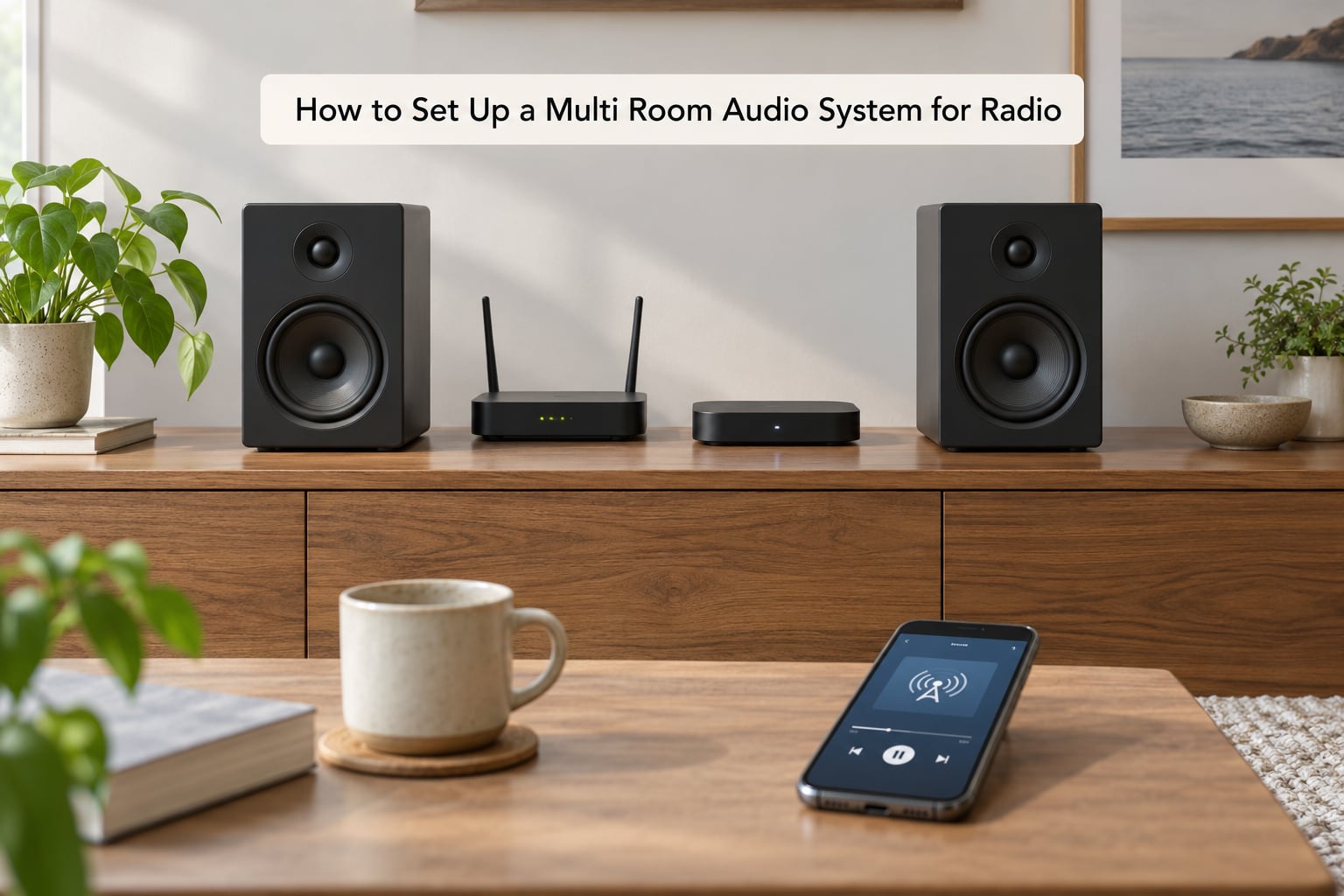
Learning how to set up a multi room audio system for radio comes down to three jobs: pick one streaming source, get that source to every room, and group the rooms so a single app controls the lot. Most systems are built around a network streamer, a set of speakers and an app on your phone. An afternoon is plenty for three or four rooms if you read the next section before you buy anything.
Most guides skip the part that actually causes complaints. Radio is a live stream, not a library of files, so a multi-room setup that struggles with a stored track on a music service often plays a live station perfectly. What does catch people out is latency, the small delay between each room starting the same station.
Listen in two adjoining rooms and a group that is 100 milliseconds apart sounds like a flammed-out echo. You cannot unhear it, so the whole job of choosing hardware is picking a system that keeps that gap small and predictable.
This guide walks through the equipment, the setup order, the sync test and the fixes for the problems people actually hit. I have set these up in houses where the kitchen is two floors from the router and where the only source was a 128 kbps stream from a small community station, and the fix is nearly always the same: fewer hops between the stream and the speaker.
Table of Contents
- What You Need
- Step-by-Step: How to Set Up a Multi Room Audio System for Radio
- Tips for Better Multi-Room Radio Listening
- Frequently Asked Questions
- Do I need one amplifier per room or a multi-zone amplifier?
- Can I play the same radio station in every room at the same time?
- Why do my rooms drift out of sync when grouped?
- How do I get an internet radio station onto speakers with no radio app?
- Is wireless good enough or do I need to run speaker cable?
- What is the 83% rule for speakers?
What You Need
Before anything else, write down the rooms you want covered. A kitchen and living room is a beginner job. Kitchen, living room, garden, hallway and upstairs landing is a whole-home job, and the two need very different gear.
Here is the full checklist for a simple wireless setup:
- A network streamer or radio source. A box that plays internet radio and can send audio to other devices, or an app-based speaker that has the station built in.
- One speaker per zone. Active speakers have an amplifier built in. Passive speakers are cheaper but need an amplifier, which is where most beginners get stuck.
- A phone or tablet with the manufacturer’s app. Every grouping, volume and preset lives here.
- A decent Wi-Fi network. A modern dual-band or tri-band router, ideally with mesh nodes cabled back to it.
- Power for each speaker. Every speaker needs a socket within a couple of metres of where it stands.
That covers the simple case. For a whole-home install you add a multi-zone amplifier, in-ceiling or in-wall speakers, and speaker cable run during any renovation. Speakers run on Cat6 or a proper two-core speaker cable, and the amplifier either sits in a rack or in a cupboard where you can reach the cables.
If you already own a multi-zone amplifier, check what it does with sources. Many four-zone units can play four different streams at once, which is ideal. The cheaper ones play one stream and split it, which is fine for radio everywhere but stops you having the kitchen on one station and the garden on another.
Step-by-Step: How to Set Up a Multi Room Audio System for Radio
Step 1: Choose a Radio Source
Your source is the station feed itself. National and local stations usually publish a live stream address on their website, often behind a Listen Live button, and a station finder app gives you thousands more. What matters is whether the source can reach more than one room at a time.
Three routes cover almost everyone:
- An app with built-in multi-room. Tap Play once and the app hands the stream to every speaker you have grouped. This is the least fiddly option.
- A station stream URL. Copy the address the station gives you and paste it into a player or a streamer that accepts URLs. You can also build an M3U playlist, which is just a text list of stream addresses, and load all your stations into one source.
- Your own server. A Raspberry Pi running a player can serve stations to every room and give you one central place to edit the playlist. Enthusiast forums recommend this route for people who like control, with Snapcast named more often than PulseAudio because it corrects room delay far better.
Test the source before you spend anything. Play it for ten minutes on your phone and notice whether it ever stutters. Station feeds are usually AAC or MP3 at 64 to 128 kbps, and higher bitrates from smaller stations are the ones that buffer on weak Wi-Fi.
Step 2: Plan the Rooms and Speaker Layout
A zone is just one room you can control on its own. Decide which ones need sound and which do not. Bathrooms and garages are easy to add later; the living room is the one worth getting right first, because everything else is measured against it.
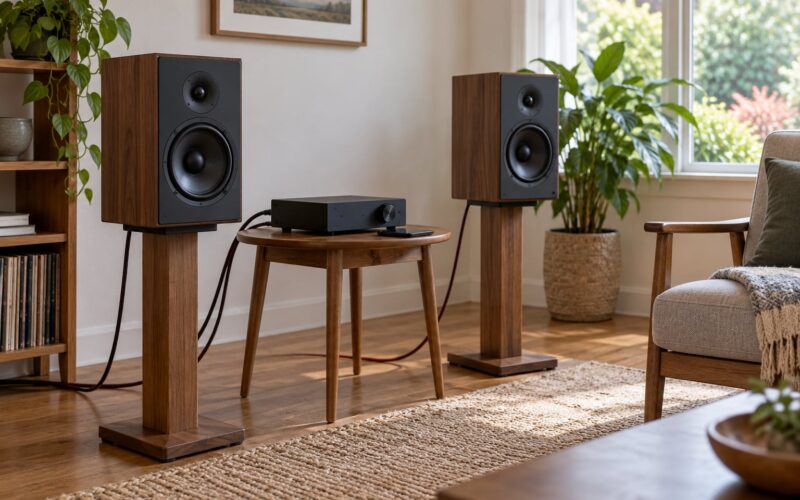
Placement matters more than people expect. Put bookshelf speakers at roughly ear height when you are seated, about a foot off the back wall and away from corners, because corners add boom you cannot EQ away. The old rule of thumb is to sit about 83% of the way between the speakers and the rear wall, which leaves breathing room behind you.
Room size decides the volume you actually need. A kitchen can carry a small speaker at a low level all day. A vaulted living room wants a bigger driver or a second pair, and the outdoor zones need weather-rated speakers that are physically separate from indoor ones because rain will find any gap you leave.
Decide where amplification happens as you go. Active speakers handle it themselves. Passive speakers need either their own small amplifier in each room or one multi-zone amplifier feeding several rooms from line-level output.
Step 3: Connect and Assign the Speakers
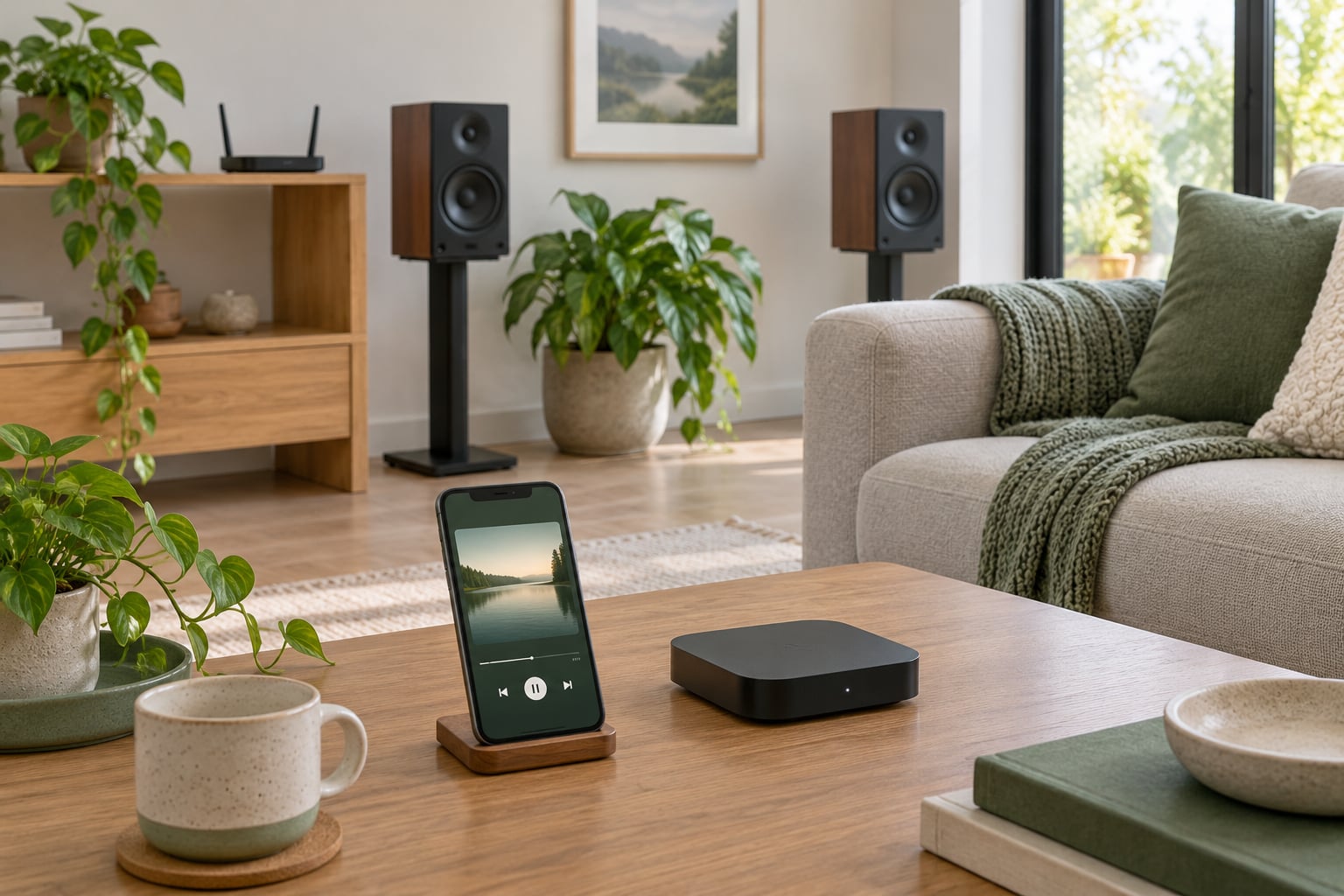
Every speaker is set up through its app the same way. Plug it in, put your phone on the same Wi-Fi network as the speaker, and open the app. Add a new device, and the speaker will usually announce itself or appear on a list within about thirty seconds.
Name each room at this stage, not later. Kitchen, Living Room and Garden take five seconds now and save a lot of confusion when you are grouping at 11pm trying to work out which of two identical white boxes is which. Then check the room list and confirm every speaker shows as online.
If a speaker will not appear, move it closer to the router and pair again. Most first-time setup failures are the device sitting in a room the Wi-Fi barely reaches, not a fault with the speaker.
Step 4: Start Radio Playback and Tune the Sound
Start the station and let it play in the rooms you grouped. Then listen in each room one at a time and adjust its individual volume. Per-room volume is what makes multi-room work in practice: the kitchen can sit low while the living room stays where you can hold a conversation over it.
Set the bass and treble once, on a mid-volume setting, and leave them there. Louder volume exaggerates the tonal differences between rooms, so a fixed EQ is what stops the garden speaker sounding like a different station to the kitchen one.
Watch the volume on small in-ceiling and in-wall speakers. They have far less headroom than a bookshelf speaker and clip long before they sound loud, which is why an amplifier with a per-zone limiter or DSP settings is worth having once you go past three rooms.
Step 5: Test Synchronization and Save the Setup
Grouped playback means the same station in every room at once, and your system lines the rooms up for you. Ungrouped playback means you control each room separately, which is what you want when the kitchen wants one station and the study wants another.
Test the grouping by putting a talk station on, standing in a doorway between two rooms and listening for echo. A short lag you take in stride is normal. Distinctly separate words, like a second voice trailing the first, means the rooms are drifting and you need to tighten the network or lower the latency mode.
Useful numbers to keep in mind: Bluetooth adds roughly 100 to 200 milliseconds per hop, which is why a house of Bluetooth speakers always echoes. Grouped AirPlay 2 and Chromecast setups land somewhere around 30 to 100 milliseconds, and software like Snapcast can get down near 20 to 40 milliseconds in a low-latency mode, at the cost of the occasional dropout.
When it works, save it as a named preset. A Morning Radio preset grouped across kitchen and living room saves you rebuilding it every day, and you can add a Bedtime preset later that only wakes the two bedrooms.
Common Mistakes
Rooms drift out of sync. Almost always network latency rather than a fault in the speakers. Move the weak room closer to a mesh node, use the low-latency mode where your system has one, and stop trying to group rooms that sit on opposite sides of the house on separate access points.
Buffering or dropouts. The stream is starving, not the speakers. Test the same station on Wi-Fi alone in the affected room. If it holds there, the router or the source is the problem, and a cabled mesh node fixes it more reliably than a Wi-Fi extender, which often halves the bandwidth it appears to add.
A zone will not appear in the app. Check the speaker is plugged in and on the same network, then re-add it from a phone connected to the 5 GHz band. Rename it as soon as it appears, because identical default names are the reason people ungroup the wrong room.
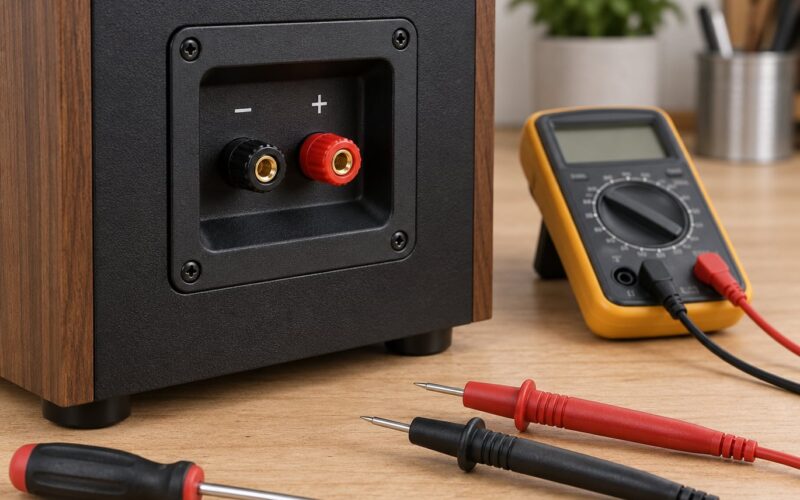
The sound is far too loud in one room. Turn that room down, not the others up. If a small speaker is straining, lower its volume a further notch rather than relying on the amplifier, and check you have not connected speakers below the amplifier’s impedance rating.
The station will not play at all. Some feeds are blocked by app permissions or use a format the streamer cannot decode. Play the stream URL in a desktop player first. If it works there, the problem is the app, not the station.
Tips for Better Multi-Room Radio Listening
Cut the number of hops. Every extra step between the stream and the speaker adds delay. A speaker receiving audio directly from the streamer is faster than one receiving it from another speaker, which is the usual reason grouped rooms at opposite ends of a house drift apart.
Give the network a wired backbone. Mesh nodes cabled back to the router with Ethernet behave very differently from nodes talking to each other over radio. It is the single biggest improvement most people can make without touching the speakers.
Wire the rooms you care about. Wireless is genuinely good inside a room. Across floors, through walls or out to a garden, cable is still more reliable and more evenly timed, so a new build is the moment to run it.
Plan for the zone you will want later. Pick hardware with a spare zone or a line-level output on a multi-zone amplifier. Adding a room later is far less painful when the amplifier was not chosen at the absolute limit of its zone count.
Pick a station that suits the connection. A 128 kbps community station is fine for speech and background listening. If you want detail at volume, choose a higher-bitrate feed and give it a stronger Wi-Fi signal rather than turning everything up.
Leave Bluetooth out of it. Bluetooth is fine for a phone and one speaker. It is the single worst choice for a synchronised house, because it adds the largest delay of any common method.
Frequently Asked Questions
Do I need one amplifier per room or a multi-zone amplifier?
One multi-zone amplifier is usually enough, and it is cheaper per room than separate amplifiers. The catch is what it can do with sources: many four-zone units split a single stream to every zone, which is perfect for the same station everywhere but not for different stations per room. If you want the kitchen and garden on separate stations, check the unit supports independent sources per zone, or run a small amplifier in any room needing its own feed.
Can I play the same radio station in every room at the same time?
Yes, and that is the easiest version of this setup. Group the rooms in the app, press play once, and the streamer sends the same station to all of them. The only thing to expect is a short delay between rooms, usually a few tens of milliseconds. Stand between two adjacent rooms when you start to hear an echo, and if the words clearly overlap you need a tighter network rather than different settings.
Why do my rooms drift out of sync when grouped?
The rooms are not drifting for a technical reason you can see; each one is receiving the stream slightly later than the last. Bluetooth is the worst offender at 100 to 200 milliseconds per hop, while grouped AirPlay 2 and Chromecast systems sit nearer 30 to 100 milliseconds. Cabled mesh nodes, a shorter path from streamer to speaker, and avoiding Bluetooth all narrow the gap. Grouping fewer rooms at once also helps.
How do I get an internet radio station onto speakers with no radio app?
Copy the stream address from the station’s website, usually behind a Listen Live button, and paste it into any streamer that accepts a URL. Collecting several stations in one list is done with an M3U playlist, a plain text file of stream addresses that most players can open. This is also the route that suits Raspberry Pi or Home Assistant setups, where a small player serves every room from one box.
Is wireless good enough or do I need to run speaker cable?
Wireless is good enough for a flat and for rooms close to the router, and it saves the disruption of chasing cable through walls. Cable wins across floors, through thick walls and out to a garden, where wireless both drops out more often and arrives at each room later. If you are renovating, run cable to the rooms you care most about and use wireless for the rest.
What is the 83% rule for speakers?
It is a seating guideline that puts the listening position about 83% of the way between the speakers and the back wall rather than right up against the wall. It leaves space behind you for the sound to develop, and it works because speakers pushed into corners pile on bass that sounds like the room is broken. It matters more in a dedicated listening room than in a kitchen, but the placement habit is a good one.
Start with one streamer, two active speakers and the station you actually listen to. Get those playing in two rooms, grouped and in step, before anything else goes in the box. Every extra zone is much easier to add once that first pair is behaving.