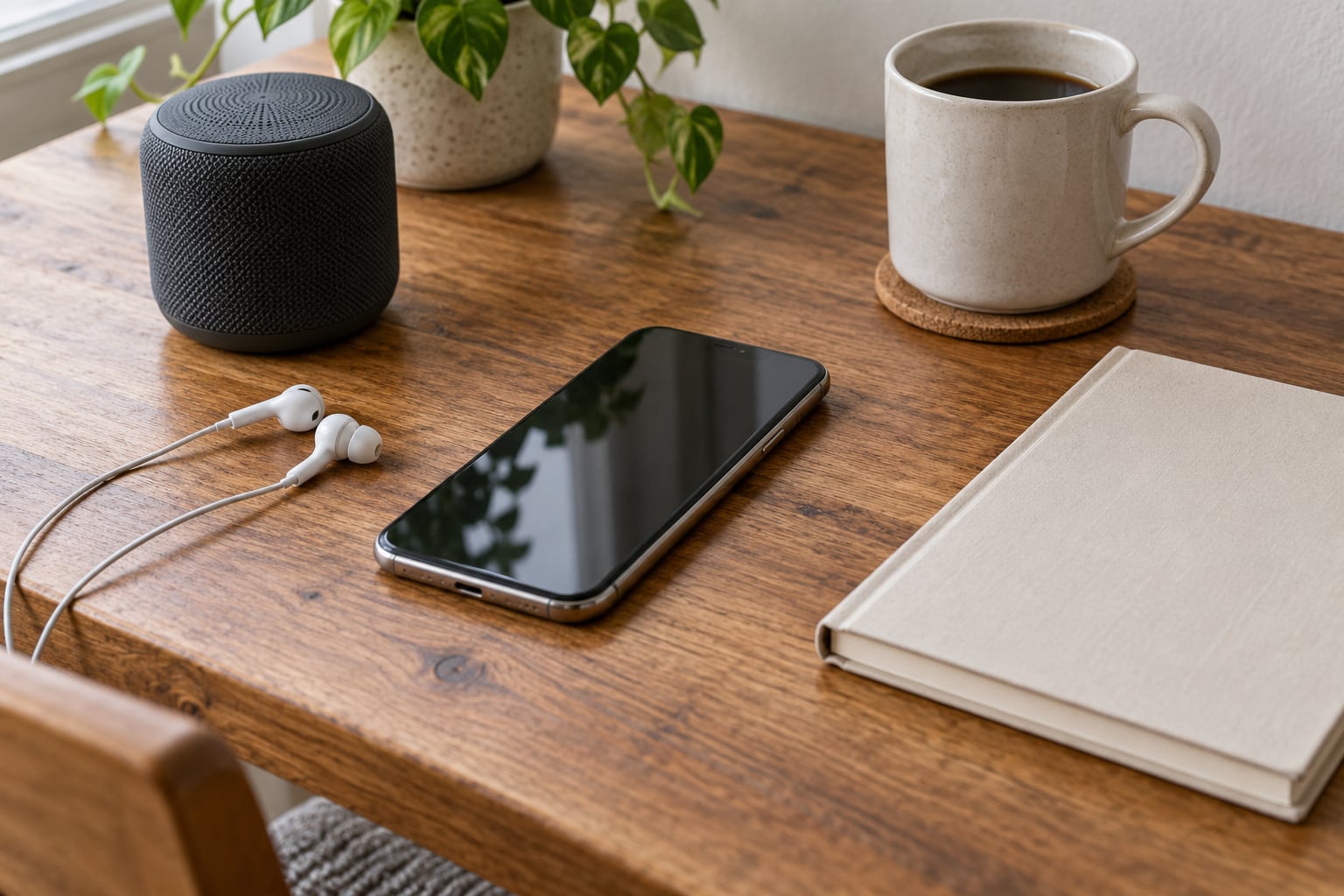
To stream radio stations on your phone, open the station’s website or install a radio app from your store, search for the station, and press play. The audio arrives over Wi-Fi or mobile data, so no FM tuner is needed. You get the live broadcast with a few seconds of delay, on any phone.
That is genuinely the whole job. It takes about two minutes and costs nothing beyond the data your plan already includes.
Most phones sold since the mid-2010s have no FM receiver built in, so tuning a local frequency is not an option. What you are really doing is playing the station’s online audio feed, the same audio their website uses. 2026 has made that feed the normal way most people listen, whether they are in Leeds, Lyon or Lima.
Below are the methods that actually work, in the order I would try them, plus a fix ladder for when a station refuses to play.
What You Need
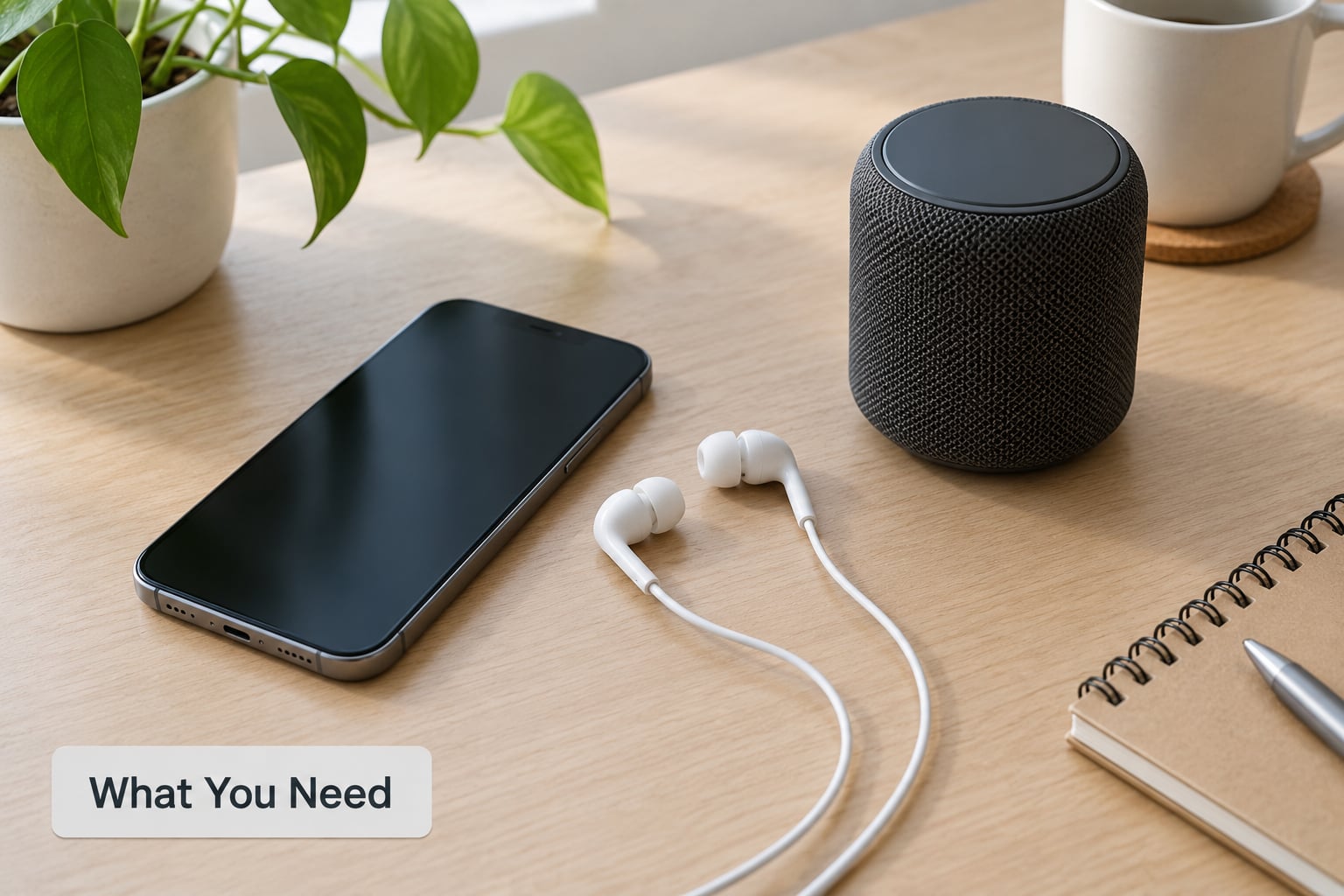
Almost nothing. That is worth saying plainly, because most guides bury it.
- An internet-connected iPhone or Android phone. Any recent model is fine.
- Access to the station. Either the station’s official app, a radio directory app, or the stream itself.
- An Apple Account or Google Account only if the store asks you to create one, which it will during the download.
- Headphones, a speaker or a car system for listening. The phone speaker works, but not for long.
Wi-Fi and mobile data are not interchangeable here. On Wi-Fi, the stream runs at full quality and your mobile allowance stays untouched. On mobile data, it eats into the allowance, and it will not work at all on a plan with the data switched off.
One thing to know before you start: some live streams are geo-restricted. A station may be blocked outside its home country, which matters if the whole point is listening to local radio while you are abroad. I will come back to that in the troubleshooting section.
Step-by-Step
Choose a streaming method
There are three ways in, and the right one depends on whether you want one station or thousands.
| Method | Best for | Sign-up |
|---|---|---|
| Station’s own website in your browser | A single known station, no install | None |
| Station’s official app | On-demand replays and extras from one broadcaster | Usually optional |
| Radio directory app such as TuneIn, Radio.net, Radio.co or Simple Radio | Many stations, saved favourites, genre browsing | Varies; most work without one |
For local stations I start with the website, because it always exists and it never breaks. For browsing, the directory apps are the better tool. BBC Sounds covers the national UK stations and their catch-up programmes; for a Yorkshire audience, Radio Garden is a globe you spin to find any station in the world by city.
Find the station’s official stream
Search for the station on the broadcaster’s own website rather than following a link someone posted in a forum. If you land on a page with a working Listen Live button, you are in the right place.
On a directory app, search by station name or by city. Searching by name is more reliable than scanning a list, because stations append their frequency and region: “Signal 2 Sheffield” rather than plain “Signal”.
Learn to spot a live feed rather than an on-demand one. A live stream shows a play button and usually a listener count or a now-playing title that changes every few seconds. A replay or podcast feed shows a fixed episode list. Both work, but a replay will not follow the schedule.
Fan-made stream links are the ones to avoid. Some are simply dead, and a few carry injected advertising or push you towards things you did not ask for. The station’s own domain is the only source I would trust with an install.
Install the app or open the stream
On iPhone, open Safari and go to the station’s website, or open the App Store and tap Get. On Android, open Chrome and go to the station’s website, or open Google Play and tap Install. App labels and versions shift regularly, so treat these as current-practice instructions rather than fixed menu paths.
When the app asks for permissions, be selective. Location is occasionally used to sort nearby stations, which is useful, and easy to decline if you would rather search by name. Microphone access is not needed to play radio, so decline it. Notifications are optional and control only the favourites and alerts.
You do not need an account to listen in most directory apps. If one app demands an email address before playback, that is a choice by that developer, not a requirement of streaming.
Start playback and confirm it is working
Raise the media volume with the side buttons first, then the phone volume. Phone and media volume are separate on both platforms, and it is the usual reason people think a stream is silent.
Tap play, wait a second or two for the buffer to fill, and listen for the current programme. Confirm the stream matches the station’s published schedule. If you hear yesterday’s phone-in show mid-morning, you are on a replay feed and need the live one.
A delay of three to ten seconds against a broadcast on the radio or television is normal. It is the buffer doing its job, and no amount of waiting will remove it.
Save favourites and control playback
Save the first handful of stations properly. Most apps have a heart, a plus, or a star on the station screen; tap it and the station sits in a favourites list you can open without searching again. You can also add a website player to your Home Screen or bookmarks so it launches like an app.
Playback keeps running when the screen locks, provided the app is happy to run in the background. Lock screen and notification shade controls give you play, pause and skip in most directory apps.
Sleep timers exist in some apps and are worth knowing about if you listen to overnight stations. CarPlay and Android Auto support is patchy across radio apps, so check before you rely on it for a drive. Bluetooth pairing itself is straightforward: pair the speaker or car in the normal Bluetooth settings, press play on the phone, and the audio follows.
Limit data use and check the connection
The maths is simple enough to do in your head. Audio streaming uses roughly the bitrate multiplied by the time, and radio is nowhere near as heavy as video.
| Stream quality | About per hour | Realistic use |
|---|---|---|
| Low, roughly 64 kbps | around 28-30 MB | Small data allowance, roaming, patchy signal |
| Normal, roughly 128 kbps | around 55-60 MB | Everyday listening on mobile data |
| High, roughly 320 kbps | around 140-150 MB | Best on Wi-Fi or an unlimited plan |
Two hours of normal-quality radio is roughly 120 MB. That is about three or four video clips, and far less than most people assume.
Several apps expose a low-data or audio-only mode that forces the smaller stream. Turning it on is the single most effective thing you can do if you are roaming. Where an app does not offer it, staying on Wi-Fi is the equivalent.
Run a quick connection test before a journey rather than at the station itself. On iPhone, Settings gives you a network diagnostic; on Android, the same idea is in the Wi-Fi and mobile network menus. A brief buffering burst every few minutes points at a weak signal rather than a broken app.
Common Mistakes
Fix silence or buffering
Work down this list in order and stop when the audio comes back.
- Play a different station. If that one works, the problem is the station, not your phone.
- Close other apps running in the background, especially video and maps.
- Reconnect to Wi-Fi properly, or toggle mobile data off and on to force a fresh connection.
- Force-close the app and reopen it. On iPhone, swipe up from the app switcher; on Android, open the recent apps view and swipe the card away. This fixes a specific and common fault: individual saved stations that stay silent until the app is restarted, while other favourites in the same list play fine.
- Update the app and your phone’s operating system.
- Clear the app’s cache if it offers that option in its storage settings.
- Switch off any VPN temporarily to isolate the cause. A VPN that blocks the stream looks exactly like a dead station.
- On iPhone only, reset the network itself: Settings, General, Reset, Reset Network Settings. You will need to rejoin Wi-Fi networks afterwards, and it fixes the cases that survive everything else.
Fix station or region errors
If the app plays some stations and not others, the app is fine. Check whether the station is actually on air right now, because a station that closes its transmitter overnight takes its stream down with it.
Make sure you are on the live feed rather than a video or on-demand stream. Some stations split their audio into separate feeds, and a video feed may be region-locked or simply heavier than your connection can carry.
A geo-block shows up as an error message or immediate silence while the same station plays on Wi-Fi at home. The honest answer is that you cannot fix this on your phone. The broadcaster has licensed that feed to specific territories, and working around it breaks both their licence and, in some places, the law. You can usually still listen to that broadcaster’s app on a global feed or catch up on programmes later.
Old cached web pages cause their own confusion. If the Listen Live button does nothing, pull down to refresh, or open the page in a private window to bypass whatever the browser stored.
Reduce data use and improve reliability
Switch the app to low data or audio-only quality, use Wi-Fi whenever you can, and set a screen-time or cellular data limit so a runaway stream cannot quietly eat an allowance. Keeping the app updated matters more here than in most apps, because stations change stream addresses fairly often.
Free storage also affects playback. When a phone is close to full, an app can lose its buffer and stall. Anything above a few gigabytes of free space is plenty.
High-quality audio needs a steadier connection than spoken-word radio. If your data signal is marginal, a 128 kbps stream will hold together where 320 kbps cuts out every few seconds.
On battery, expect streaming to cost more than playing downloaded music, because the radio transmitter never fully powers down. A ten-minute sleep timer is the easy fix for overnight listening.
One honest limit worth repeating: streaming needs a connection. A phone cannot receive live radio with no internet at all, because the audio is arriving over the network rather than from a tuner. If you need a radio signal that survives a network outage, that takes DAB or FM tuner hardware, not an app.
Frequently Asked Questions
Can I listen to radio for free on my phone?
Yes, and you will not need to pay for anything. Directory apps such as TuneIn, Radio.net, Radio.co and Simple Radio play thousands of live stations at no cost, and most let you listen without creating an account. The station’s own website and BBC Sounds are free too. You are only spending mobile data, unless you opt into a premium tier for extras like offline listening or ad-free playback.
How much mobile data does streaming radio use?
Far less than most people expect. Normal-quality audio at about 128 kbps uses roughly 55-60 MB an hour, low quality at 64 kbps about 28-30 MB, and high quality at 320 kbps around 140-150 MB. Two hours of ordinary listening is about 120 MB. Set the app to low or audio-only quality when you are on mobile data or roaming to cut that further.
Why does my radio stream stop when I lock the phone?
Usually it has not stopped. iOS and Android keep audio playing in the background while the screen is off, and the media volume continues to control it. If audio really does stop, the operating system may have frozen the app to save battery, which happens more often with weak signal. Reconnect to a better network, keep the app in recent apps rather than swiping it away, and use a sleep timer rather than leaving it playing all night.
How do I listen to radio on a phone with Bluetooth?
Pair the speaker, car or headset the way you would any other Bluetooth device: open Bluetooth settings on your phone, select the device, confirm it is paired, then press play in your radio app. Audio follows automatically. Some streaming apps also appear inside CarPlay or Android Auto, which lets you browse stations from the dashboard, but support varies, so check whether your app appears there before planning a long drive around it.
Why can’t I hear a local radio station on the app?
Three causes cover almost every case. The station’s live stream may be off air, particularly overnight, or the app may be showing you an on-demand replay rather than the live feed. Third, the stream may be geo-restricted to its home territory, which makes it silent or error out while you are abroad. Confirm the station is broadcasting, select the live feed, and test the same station on Wi-Fi at home to separate a dead stream from a blocked one.
Conclusion
Start with the station’s own website. Open it in Safari or Chrome, tap Listen Live, and check the audio before you install anything. If you want to browse and keep several stations, download one directory app and use it as your default player from then on.
Once it plays, save two or three favourites, switch the app to low data if you mostly listen on mobile, and turn up the media volume rather than the ringtone. That is the whole routine.