To stream the same station in every room, you group your speakers in one app and play a single live audio stream to that group. Every room plays the same moment of radio at once, and you control the whole thing from your phone. The method that works best is the one where every speaker sits on the same Wi-Fi network.
That is the whole idea, but the details decide whether it actually works. Grouping Bluetooth speakers gives you a lag between rooms. Casting to several devices usually gives you near-perfect alignment, because they all receive the same stream at the same time. Whether you use Wi-Fi speakers, a streaming box plugged into an old hi-fi, or a phone and some speakers you already own, the setup comes down to the same five steps.
There is one wrinkle worth understanding early. Most multi-room complaints come from people expecting a music streaming service and getting a live radio stream instead. Radio is a live, always-on feed. It never ends, so the group never moves to the next track, and it is far more exposed to a brief Wi-Fi wobble than a buffered music file.
Getting it right takes about half an hour on a quiet evening, and the skill level is low. You are tapping through menus, not running cables.
Table of Contents
What You Need
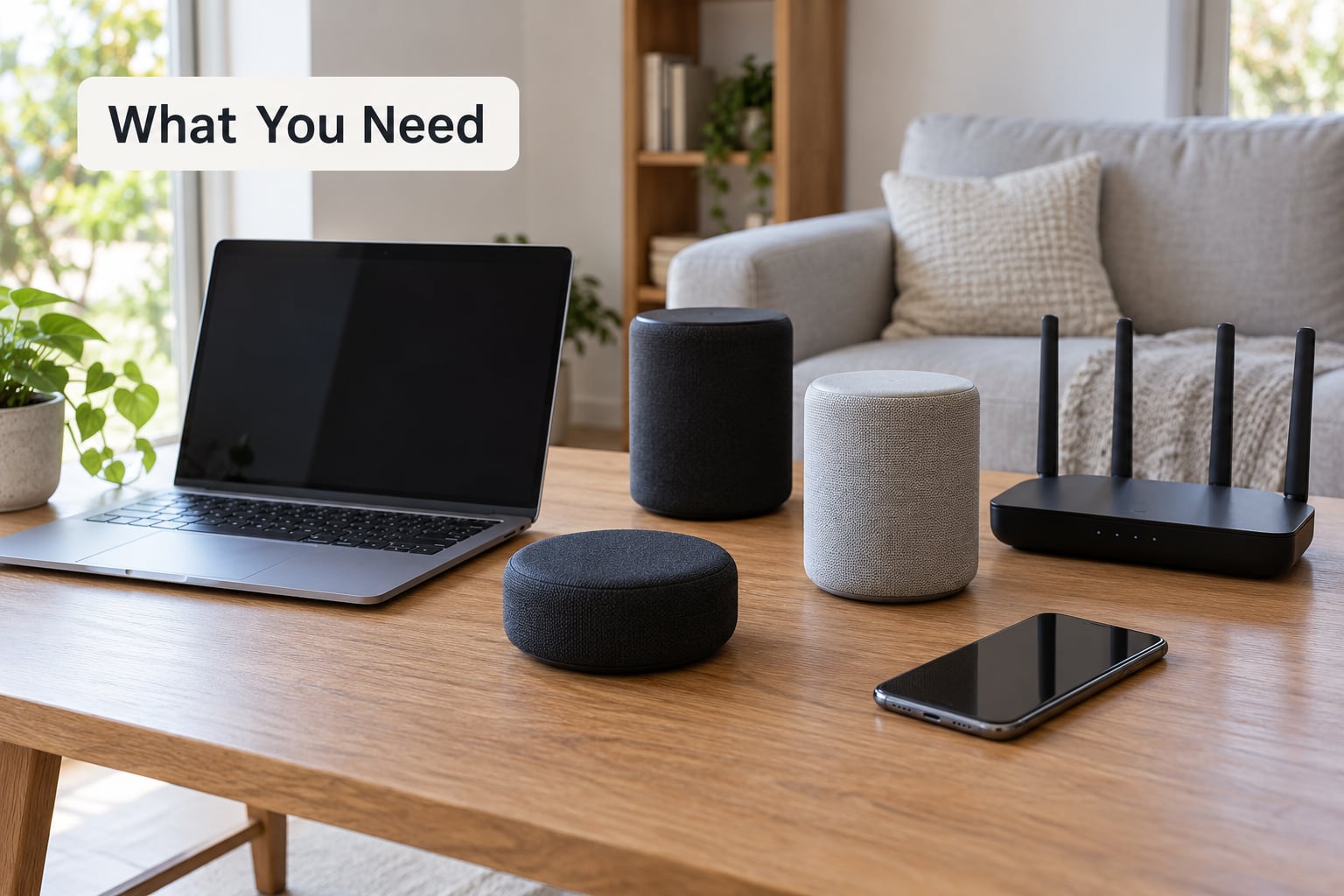
Four things, and the first one does most of the work. You need an internet connection that holds steady, one speaker or playback device in each room, a way to reach the station, and one app that controls all of them.
A reliable connection matters more than speed. Most home broadband is far quicker than a radio stream needs. What matters is consistency, because a two-second stall shows up as a stutter you hear in every room at once.
For each room, you need something that can play audio. Wi-Fi speakers are the easiest option because they join a group directly. If you already own powered speakers or a hi-fi setup, a small streamer box that connects to your Wi-Fi and outputs to a line-in or optical input does the same job.
You also need access to the station itself. That could be the station’s own listening app, a directory app such as TuneIn or airable, or the station’s direct stream address, which is simply the link the player uses. Using the direct address removes the directory app from the chain and gives you the cleanest connection.
Last, you need central control. Every mainstream approach groups through an app on your phone, so you can start the station once and adjust each room afterwards. If your speakers all sit on separate Wi-Fi networks, nothing will group properly, and fixing that is the first troubleshooting step in most cases.
Step-by-Step: How to Stream the Same Station in Every Room
Choose a Reliable Station and Connection
Start with one station and get it playing cleanly in a single room before you add any others. Test it for five minutes without touching anything. If it survives that, the stream and your connection are both sound, and any later problem is in the grouping rather than the station.
Use the station’s own app where it has one, because those tend to be tuned to the broadcaster’s current server. If you would rather go direct, open the station’s website and look for a listen link. That gives you a stream address you can paste into any player that accepts one.
Watch for buffering during the test. A buffer is a small cache of audio ahead of playback, and it protects you from small network hiccups. If the sound stalls repeatedly on a strong connection, the station’s server may be the weak link rather than your router.
One thing to check early is whether the station limits simultaneous connections per account. Most do not, but a few limit listeners per IP address. If your single-room test worked and a second room instantly fails, that limit is worth ruling out before you change any hardware.
Connect Speakers or Devices in Each Room
There are five practical routes, and they are not equally good for this job.
Bluetooth speakers are the cheapest and the least synchronised. Each speaker pairs to your phone separately, and pairing takes a moment to complete, so rooms end up offset from each other by up to a second or two. Fine for background listening in a kitchen, poor for anything where you notice the delay.
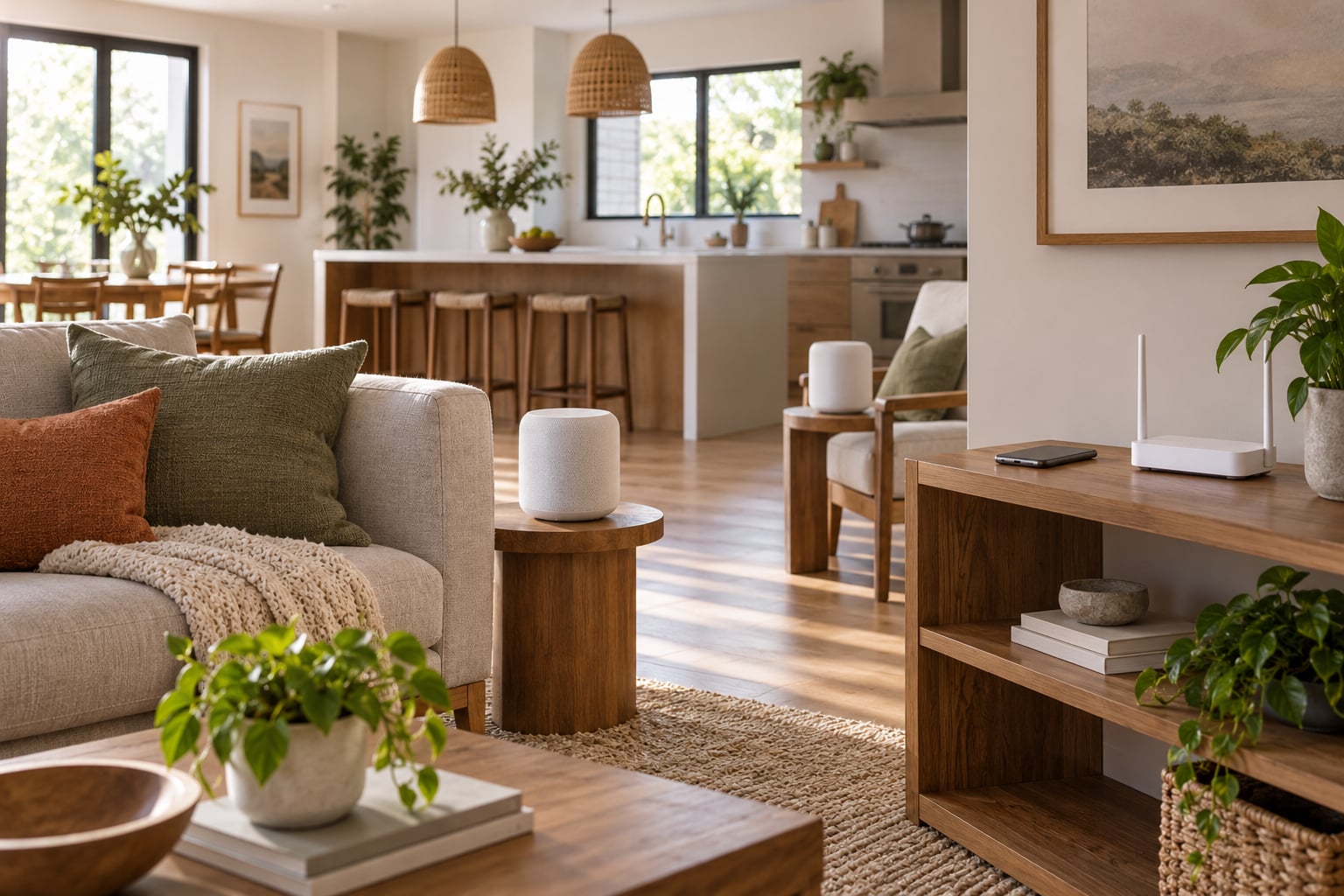
Wi-Fi speakers receive their audio over the network directly, which is why they stay together. Any speaker that supports multi-room grouping on the same network will work here, regardless of whether it is a small portable unit, a larger living-room speaker, or a soundbar.
A phone or laptop feeding powered speakers keeps the delay problem because the phone is the one device doing the grouping. It is a good stopgap while you decide what to buy.
A streamer box is the underrated option for anyone with existing speakers. Small boxes plug into your Wi-Fi and offer an analogue line-in, an optical output, or HDMI. One in each room turns a pair of old bookshelf speakers into part of a wireless group.
Casting devices such as a streaming stick or smart display can also join an audio group, so a television in the lounge can play the station alongside speakers in the kitchen and bedroom.
For the least delay, favour speakers on Wi-Fi and devices that receive the stream themselves rather than devices that relay audio from your phone.
Group the Rooms for Simultaneous Playback
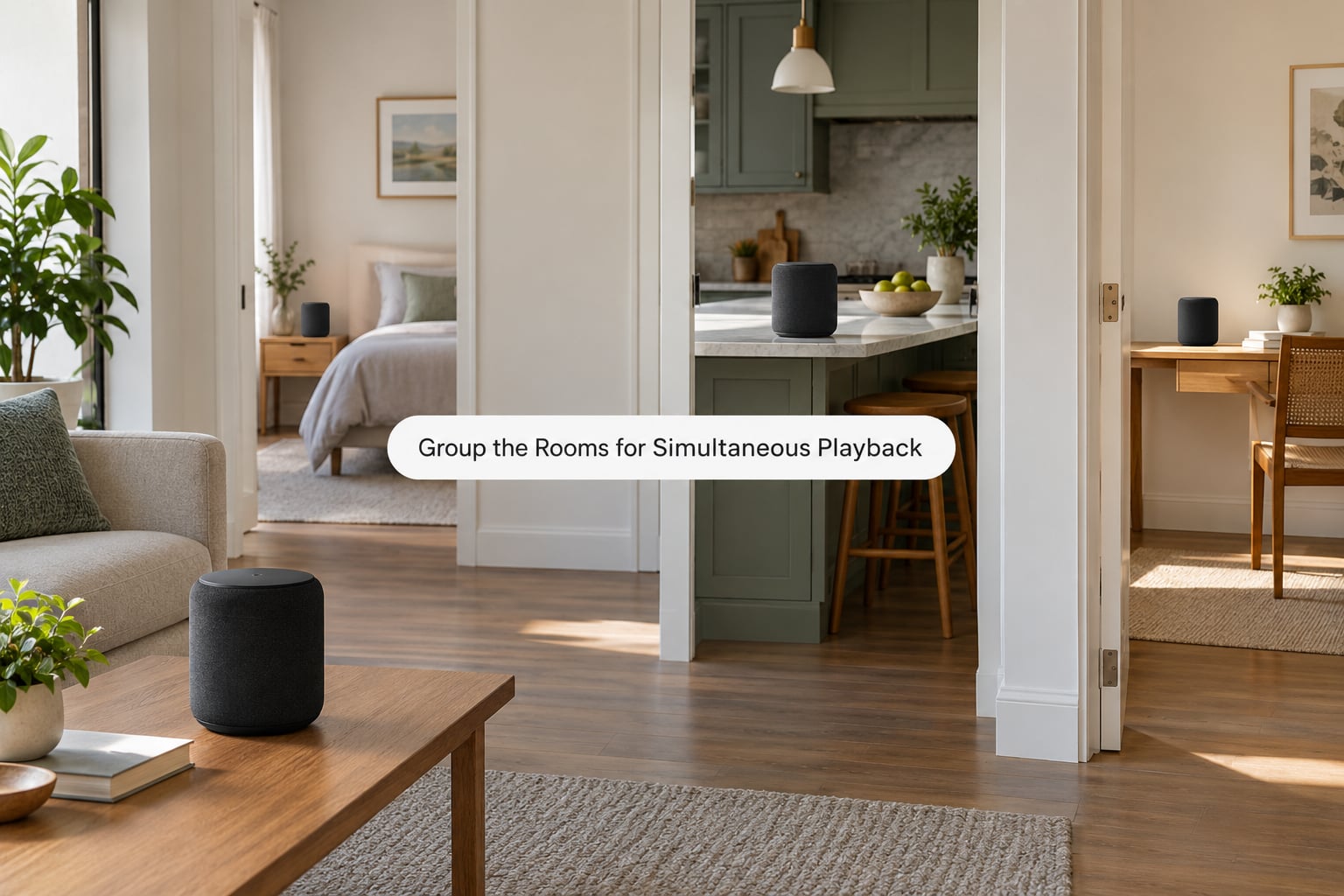
Grouping is where the audio stops being five separate players and becomes one group. The wording changes between manufacturers, but the actions are the same every time.
Open the manufacturer’s app and find the speaker you want as the main one. Look for an option along the lines of add speaker, group, or multi-room, then either drag the other speakers into that group or tap each one and add it. Name the group after the rooms it covers, something like Downstairs, so you are not guessing at 7am.
Some ecosystems group through a voice assistant instead of the audio app, which is where Sonos-style and Alexa-style setups differ. In those systems you ask the assistant to play the station on a named set of speakers, then confirm the group. The idea is identical even though the buttons are in a different place.
Once the group exists, start the station once rather than starting it in each room. One stream goes out and every speaker plays it. That single point matters, because five separately started streams can drift apart and even play slightly different moments of the same broadcast.
You will see the group appear in the app as a single row with one volume slider. That is your confirmation that grouping worked.
Set Individual Volume Levels
Grouped playback does not mean every room has to be equally loud. A group plays the same audio, and each room keeps its own volume control, so you can drop the bedroom to a quarter of the living room level without affecting anything else.
Adjust volumes from the app after playback has started. The relative settings stick for the rest of the session, so you set them once and move on.
Two habits help. Set the quietest room first and work upward, since lowering the loudest room is often more disruptive than raising the quiet one. And check your levels at the time of day you will actually listen, because a station that feels right at breakfast can be far too much at midnight.
If you use a voice assistant, volume limits are worth setting there too. A per-device limit stops a bedroom speaker waking the whole house if something sets it too high.
Test the Setup and Save a Reliable Preset
Walk the house and stand in each room while the station plays. Listen for two things: the audio is present, and it lines up with the room next door. You can make this easier by clapping once near one speaker and checking the other rooms react at the same moment.
If a room is silent or clearly behind, note it now. Having the faulty room identified before you start changing settings saves a lot of guesswork later.
Now save the station. Most apps let you favourite the stream or add it to a shortcut on your home screen, so starting the group is two taps rather than a search. If your app supports it, save the group with the station already loaded.
After a power cut or a router restart, the speakers usually reconnect on their own but the group may need re-selecting. Getting into the habit of starting playback from the group rather than from the speaker means one tap fixes everything.
If you have a room with different hardware, for example a streamer box feeding an old hi-fi, test that room on its own first. Mixed setups usually work, but an analogue input can drift slightly behind a networked speaker, so check it before you trust the group.
Common Mistakes
Only one room plays the station. The speakers are almost certainly on different networks. Many routers split 2.4 GHz and 5 GHz into separate names, and a speaker that joined one will not group with a speaker on the other. Put everything on the same network, then restart the router and the speakers.
Rooms are out of step. Bluetooth is the usual cause. It pairs sequentially, so each room can sit up to a second or two behind. Using Wi-Fi speakers, or a casting group, removes almost all of it.
The audio stutters or stops briefly. Weak coverage in the far room is the first suspect, especially through thick walls. Move the router, add a mesh unit in the middle of the house, or run a cable to a switch. A signal strength check in the app, if the manufacturer offers one, tells you which room is struggling.
The group stops playing on its own. A station that ends its stream, or a sleep timer set on one speaker, will take the group down with it. Check the timers, then restart playback from the group rather than from a single device.
It works in two rooms but not three. Some stations cap the number of simultaneous connections per account, and some home routers struggle with several streams at once. Test the same group with a music source to see whether the station or the network is the limit.
A voice assistant cuts in mid-broadcast. Assistant mics hear the station and misfire. Turn on its wake-word detection, or lower the volume of the bedroom unit, and the interruptions mostly stop.
One speaker starts playing something different. A leftover queue or an autoplay setting on that device usually causes it. Clear the queue, turn autoplay off, then re-cast to the group.
A general rule that fixes most of these: one network, one app, one stream. The moment you introduce a second network, a relay device or five separate playback sessions, sync problems follow.
Frequently Asked Questions
Can you stream the same radio station on multiple speakers at once?
Yes. Group your speakers in the manufacturer’s app or cast to a named speaker group, then start the station once. The app sends a single audio stream that every speaker plays, so each room hears the same moment of the broadcast. Grouped Wi-Fi speakers stay tightly together, while Bluetooth speakers usually lag behind each other by a second or two.
Does Bluetooth work for playing radio in every room?
It works, but it is the weakest option for this job. Bluetooth pairing takes a moment to complete for each speaker, so rooms end up offset from each other and the delay is often audible between adjacent rooms. It is fine for background listening in one extra room. For several rooms playing together, use Wi-Fi speakers or a casting group instead.
How do I control the volume in each room separately?
Adjust each room from the app after the group is playing. The group controls playback together but keeps individual volume per room, so you can turn the bedroom down without touching the living room. Set the quietest room first and work upward, then check the levels at the time of day you will normally listen.
Why do my speakers fall out of sync when playing radio?
Weak or split Wi-Fi is the usual cause. Routers that publish 2.4 GHz and 5 GHz as separate network names will not group speakers sitting on different ones, and thin walls weaken the signal in far rooms. Put every speaker on the same network, add a mesh unit between router and speakers if needed, and restart the router before changing anything else.
Can I mix Sonos and Google Home speakers in one group?
Not directly. The two systems run separate control apps and will not accept each other’s devices into the same group. If you own a mixture, the workable route is casting or AirPlay 2, which are open protocols that let supported speakers from different brands play the same source. Check that each speaker carries AirPlay 2 or casting support before you buy for a mixed house.
Conclusion
Pick the station first and confirm it plays cleanly in one room. Then put every speaker on the same Wi-Fi network, group them in the app, name the group after your rooms, and start playback once from that group.
That single stream is what keeps every room together. Wi-Fi speakers and casting groups deliver the most reliable synchronised result, because each device receives the stream itself. Bluetooth is the option to use for one extra room rather than the whole house.
If a room falls behind or drops out after you have it running, the fix is nearly always the network rather than the audio. One router, one network name, one app.