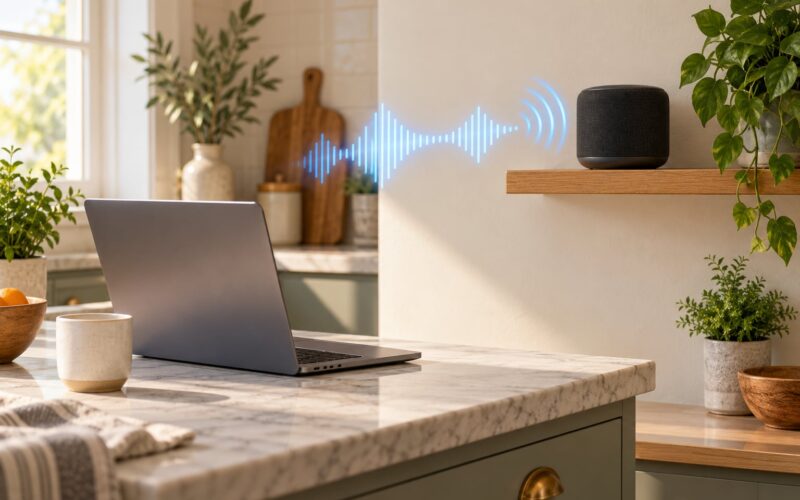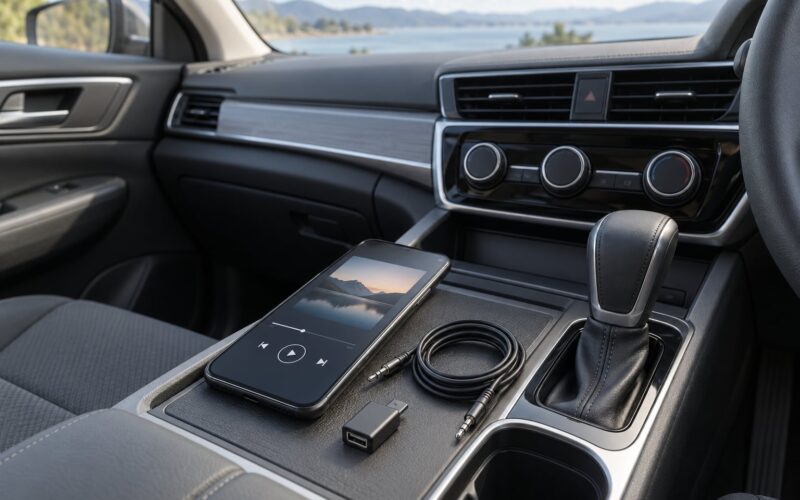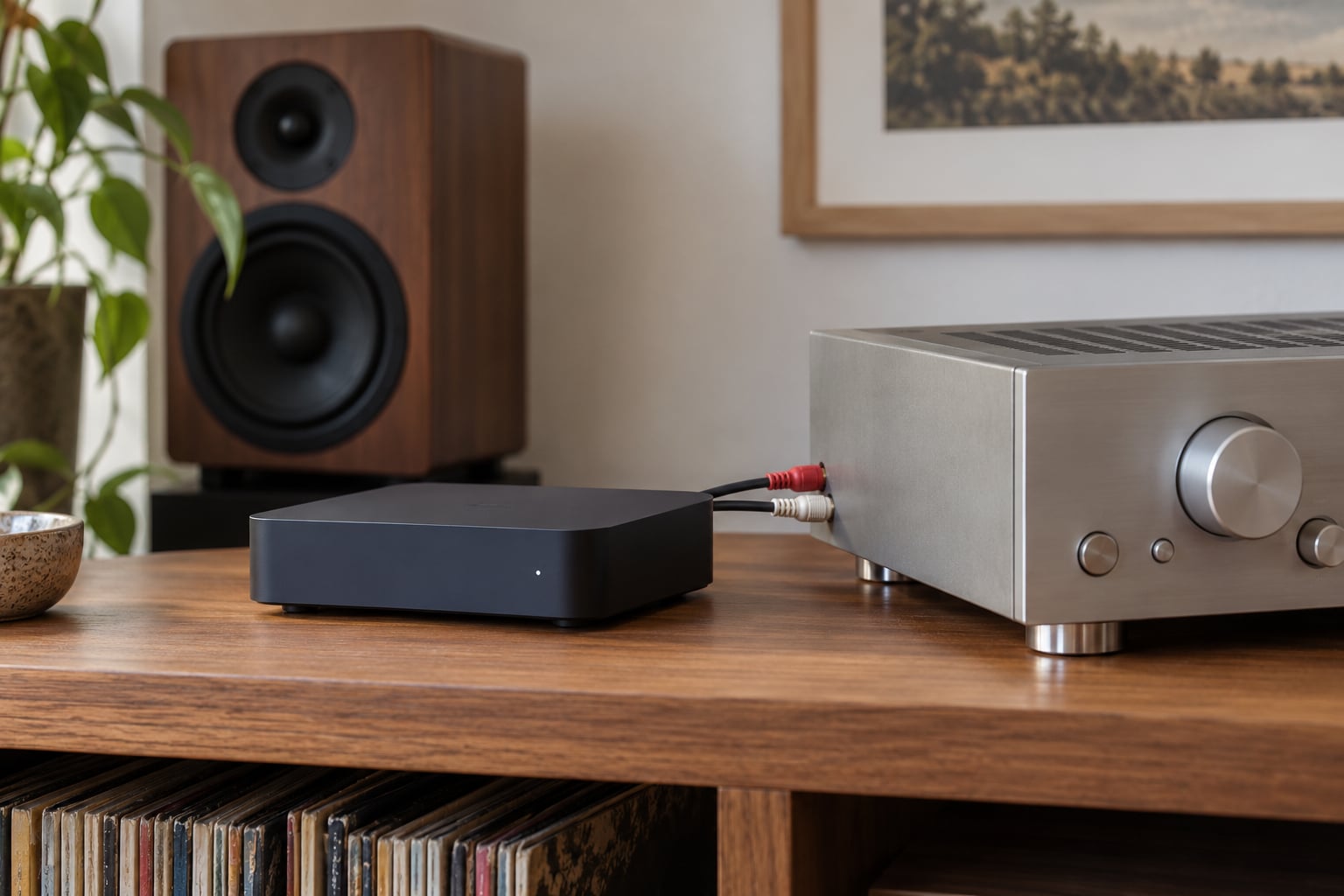
The quickest way to play internet radio through a stereo system is to feed your amplifier’s line-level input from a device that pulls the stream, either a phone or laptop over an auxiliary cable, or a small Wi-Fi network streamer wired in with RCA cables. Either route takes about ten minutes and both work with the stereo and speakers you already own.
Sound quality sits somewhere between a laptop and a dedicated hi-fi component, mostly because stations broadcast at modest bitrates. Anything from 64kbps to 320kbps is normal for internet radio, and no cable or amplifier will change that. Pick the method that matches how much attention you pay to your system and you will be happy.
Table of Contents
- What You Need to Play Internet Radio
- Step-by-Step
- Common Mistakes
- Frequently Asked Questions
- Do I need Wi-Fi to play internet radio through a stereo system?
- What is the easiest way to play internet radio on a stereo?
- Can I connect internet radio to a stereo with Bluetooth?
- Which cable connects a computer to a stereo system?
- Why does my internet radio station work on my phone but not on the stereo?
- Do I need a dedicated internet radio streamer?
- Conclusion
What You Need to Play Internet Radio
Everything depends on which source device you already have. The cheapest route uses gear that is probably sitting on your desk right now.
For the phone or tablet route: a 3.5mm to RCA stereo cable, or a Bluetooth receiver with RCA outputs if your stereo has no auxiliary jack. Many modern amps and powered speakers have a Bluetooth receiver built in, so check the front panel before buying anything.
For the computer route: a 3.5mm to RCA cable, a USB audio adapter if the laptop jack is gone, or an HDMI cable when your amplifier has an HDMI input. A computer also handles the widest range of station directories and lets you type in a raw stream URL.
For the permanent route: a Wi-Fi network streamer or internet radio tuner with RCA, optical, coaxial or HDMI output, plus the matching cable. Add an Ethernet cable if the device sits far from your router.
Whichever method you pick, you still need broadband and a way to open the station. Most streamers ship with a directory app such as TuneIn, iHeartRadio or the manufacturer’s own, and most of those directories are free. The paid tiers exist, but a free directory already covers tens of thousands of stations.
Which Stereo Input Should You Use
Use a line-level input: AUX, CD, Line In, Tape or Video. On a vintage receiver these are usually labelled with a tape deck symbol or an audio-in name, and any of them will do the job.
Stay away from the PHONO input. It has no built-in preamp, so a line-level signal arrives weak and thin, which is the single most common complaint from people plugging a phone straight into a turntable input. Headphone outputs and speaker terminals are wrong too. Headphone output alone needs a small amplifier, and driving speakers directly from a phone risks damage.
One more thing worth checking: the input you pick often has its own level trim. On a Marantz, Yamaha or Pioneer faceplate the selector may include an “AUX IN” with a small gain control. Turn it up if the sound is quiet, and never push it past the point where the music starts to distort.
Step-by-Step
Pick one of the three routes below and follow it top to bottom. Each ends with the same test, so you will know it worked when sound comes out of your speakers at a normal listening level.
Connect a Computer or Laptop Directly
This is the most flexible option for trying things out, and the only one that gives you access to every web-based player.
First, open a station in the browser on the laptop. Chrome and Edge play most online radio streams without extra software, while some directory apps require a player.
Next, plug a 3.5mm to RCA cable into the laptop’s headphone socket, then run the red and white plugs into an AUX or CD input on the amplifier. Turn the amplifier volume down to a low position before you connect anything.
Then set the output. On Windows, right-click the speaker icon in the taskbar, choose Sound settings and pick the headphone or USB adapter you just plugged into. On a Mac, open System Settings, then Sound, then Output.
Play something and raise the volume on the laptop, not the amplifier, until the sound is comfortably low. If nothing comes out, check the input selector on the amp and confirm the cable reaches the headphone socket rather than a microphone port, which looks identical.
If your laptop has no headphone jack, a USB audio adapter gives you a real output, and an HDMI cable is worth trying when the amplifier has an HDMI input labelled ARC or eARC. Both behave like a normal output once the laptop’s display settings are pointed at the right device.
A Bluetooth receiver plugs into an RCA input on the amplifier and reappears to your laptop as a speaker, which saves hunting for a jack. It is one more thing to pair, and it adds a layer of compression, so I would use the cable when one is available.
Use a Phone or Tablet With Bluetooth
This is the fastest route of all: no cables, about two minutes from opening the app to hearing music.
Open your radio app and start a station so the phone is actively playing audio. Then on the stereo, switch on the Bluetooth receiver and put it into pairing mode. Most Bluetooth receivers need the button held for three to five seconds until the light blinks rapidly.
On the phone, open Settings, then Bluetooth, and pick the receiver or amplifier from the list of available devices. Once it shows connected, play the station again.
If the sound comes out of the phone’s own speaker instead, a media app is holding the audio. Close every other app that plays sound, then press play in the radio app again.
Two things to expect from this method. First, the Bluetooth codec compresses the audio, and phone-over-Bluetooth usually sounds flatter than a wired feed on a decent pair of speakers. It is a fair trade for zero wiring.
Second, some older Bluetooth receivers only handle phone calls and stereo playback as a separate mode, so if pairing fails, hold the pair button until the indicator flashes fast, then try again. Turning the volume up on the phone before pairing also helps with older receivers.
Connect a Dedicated Internet Radio Streamer
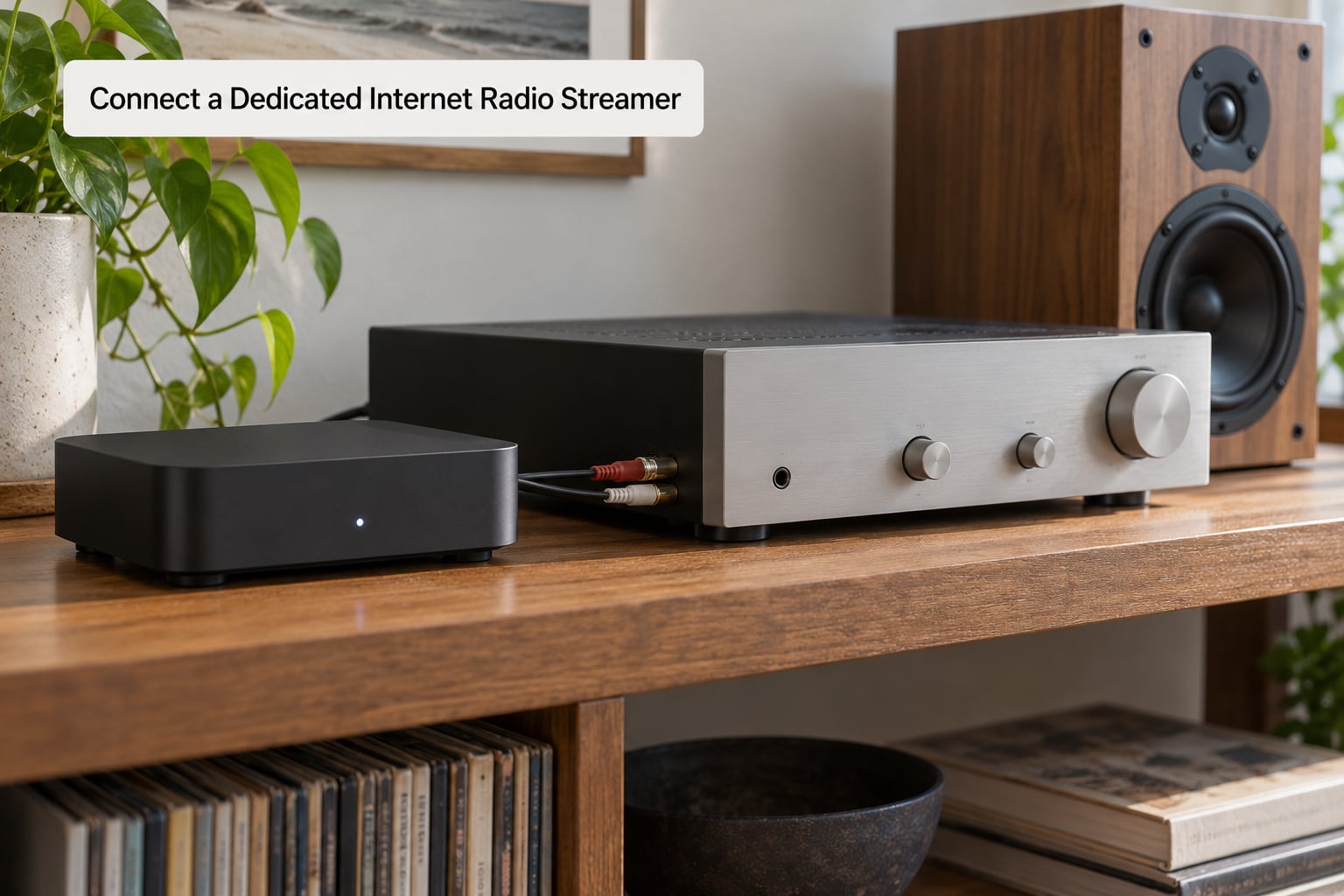
This is the method most people end up on, because it keeps working when the phone is in another room and the sound quality stops being a compromise.
Plug the streamer into the amplifier first. Push the red and white RCA plugs from the streamer’s analog output into the same AUX or CD input on the amp, matching red to red and white to white. Set the amp volume low, turn the input selector to the one you just used and raise the volume slowly.
Power the streamer and join it to your Wi-Fi. Most units show an on-screen keyboard or use an app on your phone, and the whole process takes about a minute on a 2.4GHz network. Ethernet is worth using whenever the streamer sits more than one room from the router, because a wired connection removes the buffering questions entirely.
Connect your speakers next. Streamers with speaker terminals accept bare wires, so run the left and right leads to the passive bookshelf speakers or floorstanders you already own. Strip about half an inch of insulation, twist the strands and check the polarity marks match plus to plus. A streamer with RCA outputs needs your amplifier to drive the speakers instead.
Browse for stations once it is online. Search by country, genre or city, save favourites to the presets, and check what bitrate each station uses before blaming the hardware. Optical and coaxial digital outputs are there if your amplifier has matching digital inputs, though the improvement over a good analog output is small at these stream rates.
If your favourite station is missing from the directory, you can add it by hand. Open the station’s own player in a browser, look for the audio file in the page source, copy the stream URL and paste it into the manual URL or “add station” field on the streamer. Worth knowing that directories such as TuneIn and vTuner change their listings without warning, so a manual entry is often the fix for a station that vanished overnight.
Before you buy, check that the streamer still receives firmware updates. Some older networked speakers are left with working hardware and no cloud service, and they stop playing stations entirely when the platform behind them shuts down.
Common Mistakes
Plugged into the PHONO input. The sound is thin and quiet because there is no preamp. Move the cable to AUX, CD or Line In. This one catches people with decades-old receivers because the labels have faded.
Wrong output on the computer. The browser plays and the laptop speaker works, but the amplifier is silent. Check the output device in the sound settings, then confirm the amplifier’s input selector matches the socket you used.
Muted or paused media app. The phone is paired correctly but no sound appears on the stereo. A paused app or an active phone call grabs the audio before Bluetooth does. Close it and press play in the radio app.
Bluetooth latency and dropouts. Microwaves, cordless phones and a crowded 2.4GHz band all interrupt Bluetooth audio. Move the receiver away from the router, or switch to a wired feed.
Buffering and stalling. Weak Wi-Fi causes internet radio to pause and refill its buffer. Move the streamer closer to the router, connect by Ethernet, or split a crowded band between 2.4GHz and 5GHz.
Audio feedback or howl. A phone on speaker mode next to a microphone causes squealing. Keep the phone out of the room, or disconnect the mic, and the noise stops.
Expecting a DAC to fix the sound. An external digital-to-analogue converter cannot restore detail that a station never broadcast. In practice the DAC built into a modest streamer sounds much the same as a costly external one on a 128kbps stream, and switching to a higher bitrate station changes the sound far more than any hardware swap. Low resolution stays low resolution.
Wiring the speakers to a streamer with no amplifier. Only models with speaker terminals can drive speakers directly. Everything with RCA outputs needs an amplifier between it and the speakers.
Frequently Asked Questions
Do I need Wi-Fi to play internet radio through a stereo system?
Yes, a working internet connection is required, and Wi-Fi is the easiest way to deliver it to a streamer or tuner. Bluetooth does not carry the internet connection, it only moves audio from your phone, which still needs Wi-Fi or mobile data. A wired Ethernet connection to the streamer is more reliable than Wi-Fi and eliminates buffering entirely, so it is worth using in a listening room far from the router.
What is the easiest way to play internet radio on a stereo?
Open your station in a phone app, connect the phone to the amplifier with a 3.5mm to RCA cable, and select the AUX or CD input on the stereo. That takes two minutes and costs nothing. Bluetooth works too and skips the cable, but the audio is compressed. Both routes let you keep the stereo and speakers you already own.
Can I connect internet radio to a stereo with Bluetooth?
Yes, and it is the simplest wireless option. Pair your phone or tablet with the amplifier’s built-in Bluetooth receiver or with a Bluetooth receiver that has RCA outputs, then play the station from a radio app. Expect a small quality loss compared with a cable, and make sure the app is actively playing before you pair, or the sound stays on the phone.
Which cable connects a computer to a stereo system?
A 3.5mm to RCA stereo cable is the usual choice, with the small jack in the laptop headphone socket and the red and white plugs in an AUX or CD input on the amplifier. A USB audio adapter works if the laptop has no headphone jack. If the amplifier has an HDMI input, an HDMI cable is another clean option once the laptop display settings are changed.
Why does my internet radio station work on my phone but not on the stereo?
The station is fine, so the problem sits between the app and the amplifier. Check that the correct output device is selected in your computer or phone sound settings, that the amplifier input selector matches the socket you plugged into, and that no other app or a phone call has grabbed the audio. Switching to a high bitrate station also rules out a dead stream.
Do I need a dedicated internet radio streamer?
Not to get started. A phone or laptop covers it while you work out which stations you actually listen to. A dedicated streamer is worth adding once you want sound that does not depend on a phone screen, presets for your stations, and a connection that stays up when the computer is asleep. It also avoids the compression that Bluetooth adds.
Conclusion
Start with what you own. Play the station on your phone, run a 3.5mm to RCA cable into an AUX or CD input, and you will know in minutes whether internet radio suits your room. Skip the phono input, and turn the amp volume down before you connect anything.
When you want the phone to go back in your pocket, move up to a Wi-Fi network streamer wired into the same input. It keeps your speakers and amplifier, adds presets and a stable signal, and it is the setup most listeners settle on. If your stereo already has Wi-Fi built in, you can skip that step entirely.