To connect a phone to a car stereo for radio, you have five options: Bluetooth, a 3.5mm AUX cable, a USB cable, Apple CarPlay or Android Auto, or an FM transmitter. Bluetooth suits most cars built after about 2015, AUX and USB suit older ones, and CarPlay or Android Auto gives you navigation and podcast apps as well as music. Pick the method your head unit actually supports, then set the stereo to that input as its audio source.
Two words get mixed up constantly, so let’s clear them up first. Your car radio is the tuner that receives FM and AM broadcast stations through the roof antenna. Your car stereo is the whole head unit, the box in the dashboard that plays the radio, your own music, and phone calls. When your phone pairs with the car but nothing comes out of the speakers, the radio is fine and the stereo is on the wrong input.
Last updated October 2026.
Table of Contents
- What You Need
- Step-by-Step
- Common Mistakes
- Frequently Asked Questions
- Can I connect my phone to my car stereo for FM radio?
- What is the easiest way to connect a phone to a car stereo?
- Why does my phone connect to the car stereo but play no sound?
- Can I listen to internet radio through my car stereo?
- How do I switch the car stereo from Bluetooth to FM?
- Do I need an app or adapter to listen to radio in my car?
- What to Do First
What You Need
Before you touch any menus, check what you are working with. Most of the frustration with this task comes from trying a method the car was never built for.
- Your phone. Any iPhone from the last several years, or any recent Android phone, has the Bluetooth needed here. Older handsets may only manage hands-free calling.
- The car stereo. Check the manual or the settings screen for Bluetooth, an AUX input, or a USB port. Note whether the USB port is inside the glovebox or on the dash, because plenty of cars hide it.
- A cable or adapter. A 3.5mm AUX cable, a USB cable that carries data rather than power only, or an FM transmitter for cars with neither port.
- A radio app or station. For streaming internet radio, install the station’s app or note its web player address. For FM and AM stations, nothing extra is needed because the antenna already does that job.
That last point matters more than people expect. A phone cannot pick up a broadcast FM signal on its own, because most phones dropped the FM receiver years ago. When people ask about listening to the car radio through a phone connection, they usually mean one of two things: streaming a station from the internet, which needs an app or a browser, or playing an audio file through the stereo, which needs a cable. Actual over-the-air FM comes from the car’s antenna into the head unit, not from the phone.
Ignition position matters too. Leave the car in Park with the parking brake on for a first pairing. A head unit mid-drive, or a locked phone, will refuse the handshake more often than not.
Step-by-Step
The whole task follows the same six beats regardless of method. Check what the stereo supports, pick a method, connect the two devices, select the right audio source on the head unit, start something playing, and confirm the sound comes out of the dashboard speakers.
- Check the stereo for a Bluetooth menu, an AUX socket, or a USB port. Only the ports your car physically has will work.
- Turn Bluetooth on at both ends if you are pairing, or plug the cable into the correct socket.
- Pair the phone with the stereo and confirm the passkey, or push the plug fully into the jack until it clicks.
- On the head unit, change the audio source or media input from Radio to Bluetooth, AUX, or USB. This is the step people skip.
- Open a radio app, a podcast, or your music library and press play.
- Turn the volume up using the volume knob or steering wheel buttons, not the phone, then listen for audio from the dashboard speakers.
If the sound is coming out of the phone instead of the car, the stereo is still on the wrong input. That one symptom tells you everything.
How to Connect a Phone to a Car Stereo for Radio With Bluetooth
Bluetooth is the default answer for a modern car and takes about two minutes. Start with the car, because the stereo has to be searching before the phone can see it.
On an iPhone: open Settings, tap Bluetooth at the top of the list, and switch it on. Your phone is now discoverable, though iOS only shows you as visible to other devices for about two minutes from the moment you enter that screen. If pairing fails the first time, go back into Settings and tap Bluetooth again to restart the window.
On Android: swipe down for the quick settings panel and tap the Bluetooth icon, or open Settings and go to Connected devices, then Bluetooth, then Pair new device. Menus shift slightly between Samsung, Pixel and other makers, so look for Connected devices or Connection preferences.
On the car stereo: find the phone, Bluetooth or connectivity menu. Depending on the vehicle it lives under Settings, Audio, Phone, or a pair of phone icons on the faceplate. Choose Add device, Search for device, or Phone Setup, and the head unit will show a short code. Most cars also hunt automatically and list your phone within a few seconds, so you may not need to touch anything beyond opening that menu.
Confirm that the six-digit passkey on the car screen matches the one on your phone, then accept on both. Many head units default to 1234 or 1111 and simply ask you to press yes. On a used car the code may have been changed, and your owner’s manual or the dealer will have the right one. If the phone never appears at all, check whether a previous owner left the head unit’s saved-device list full, which blocks new pairings.
Once it says Connected, do not stop there. Turn the source knob or press the Source button until the display reads Bluetooth audio rather than FM, then play something. Steering wheel controls work at this point, and so does voice assistant activation on most cars. Pairing separately registers two profiles: one for hands-free calls and one for media playback. A phone can show as connected while media is switched off on the car side, which is exactly the no-sound case covered later.
How to connect a phone to a car stereo for radio with Bluetooth really comes down to two confirmations: the pairing handshake, and the source switch. Get both right and everything else follows.
How to Connect a Phone to a Car Stereo for Radio With USB or AUX
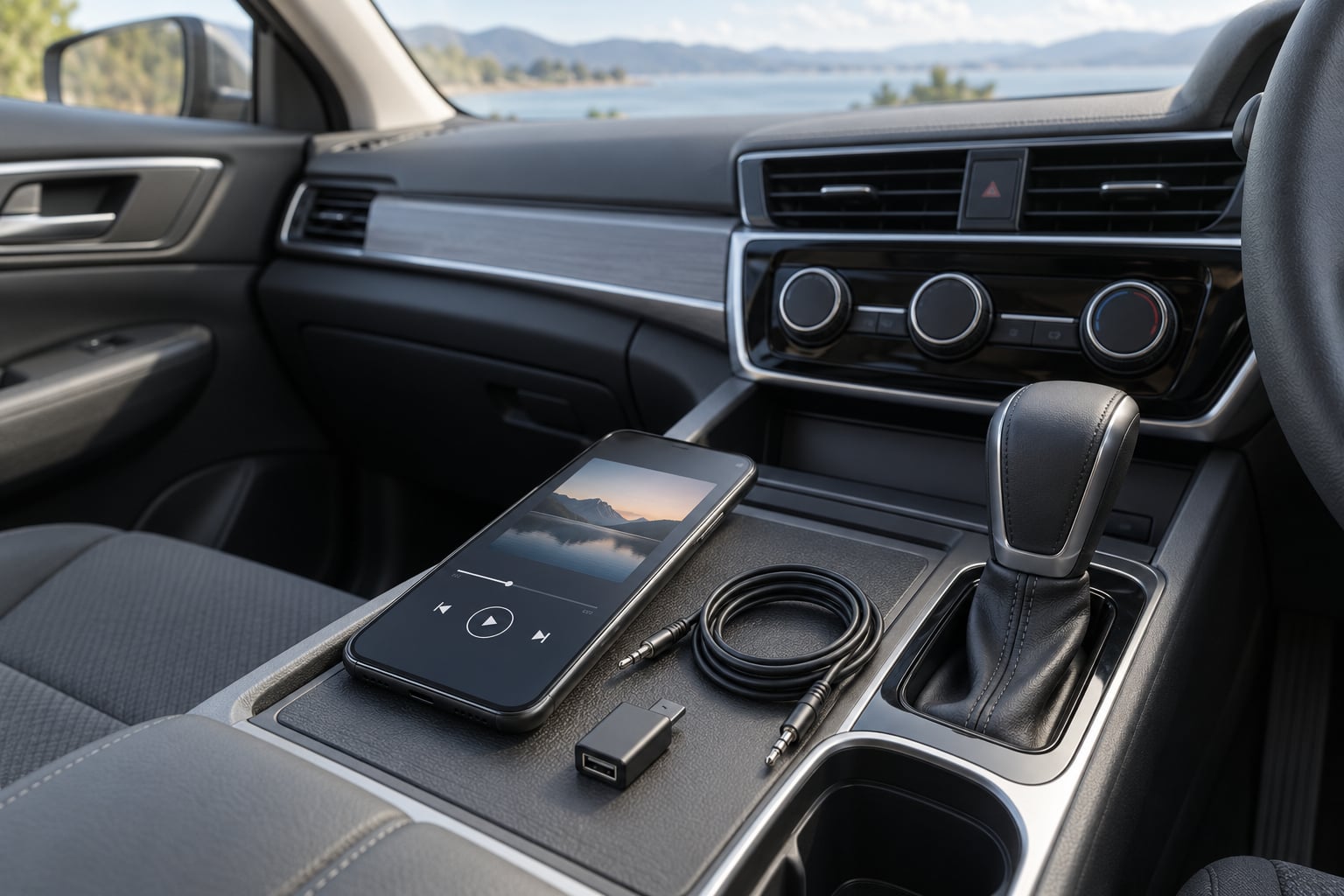
Use AUX when your car has a 3.5mm jack and you want zero pairing drama. Plug one end into the phone’s headphone socket or USB-C adapter and the other into the car, press the source button until the display shows AUX, and set playback going from the phone. Steering wheel volume buttons usually still work, though track skipping depends on the head unit.
USB does more than play audio. Many head units charge the phone and read the music library, and some display album art and track names. Here are the traps: a charge-only cable will not carry data, so the phone will not appear at all, and plenty of cars only read audio files from a USB stick while refusing a connected phone entirely. If the phone never shows up, try a different cable before assuming the port is dead.
A USB stick is the most reliable option in older cars, format it to FAT32 with MP3 or WMA files, plug it in, and the stereo usually indexes the tracks automatically. Give it a minute or two on first insert. Some cars are fussier and need the folder structure kept flat rather than nested deep.
Neither cable guarantees control parity with Bluetooth. Volume, source switching and track order all depend on the head unit. And when a phone has no headphone jack, the USB-C to 3.5mm dongle is the bridge, though some cars will not charge the phone at the same time through it.
Common Mistakes
The phone pairs but nothing plays. This is the big one, and it accounts for most failed attempts. The stereo is still set to FM or Radio. Switch the source to Bluetooth, or for AUX move the source slider on the head unit itself, since the steering wheel and dash button usually only cycle presets.
Calls work, music does not. The head unit has the hands-free profile active and the media profile disabled. Delete the car from your phone’s Bluetooth list, restart the phone, then pair again and pick the car when it asks which profile to use.
Pairing failed or the phone never appears. Check the passkey matches, try the retry, because one device often times out before the other is ready. Clear the saved-device list on the head unit if it is full, and make sure the phone is unlocked while in Park.
The connection dies mid-drive. Cycling the ignition usually restores it. A phone software update can also silently break a working car connection, so if it started straight after an update, test on the previous version and check your car maker’s release notes.
USB shows no device. Almost always a charge-only cable. You need one sold as a data cable.
The radio app refuses to play. Some apps block playback on unknown audio routes, or need the car-specific profile switched on inside the app. Restart the app with the stereo already on the right source.
FM reception is noisy or drops out. An FM transmitter works by broadcasting to an unused local frequency, and metal roofs and chargers feeding interference weaken it. Reposition the transmitter, move the antenna cable away from the charger, and try a different empty frequency.
Sound is distorted or thin. Phone EQ settings and low-bitrate streams fight each other. Turn off any EQ on the phone, use a higher stream quality, and turn phone volume to about three quarters so the head unit does the controlling.
Audio plays without you pressing play. Some cars resume the last track automatically when they reconnect. Clear that behaviour in the stereo’s settings, or stop the stream before you leave.
On aftermarket Android head units, Bluetooth or AUX may be switched off behind a hardware button combination documented only in the unit’s manual. If a modern-looking unit shows no Bluetooth option at all, check there before you buy anything.
Frequently Asked Questions
Can I connect my phone to my car stereo for FM radio?
Only in the sense that most phones no longer have an FM receiver. If you want live broadcast stations, the car antenna feeds the head unit directly and no phone is involved. If you want those same stations on your phone, you need the station’s streaming app or a web player, then route that audio to the car over Bluetooth, USB or AUX. An FM transmitter is a different thing: it rebroadcasts your phone’s audio onto an unused local frequency.
What is the easiest way to connect a phone to a car stereo?
Bluetooth, if your car has it. It takes about two minutes and needs no cable to buy. Turn Bluetooth on in your phone settings, open the phone or Bluetooth menu on the head unit, confirm the six-digit passkey on both screens, then change the audio source to Bluetooth and press play. If your car has an AUX jack but no Bluetooth at all, a 3.5mm cable is easier still and rarely fails.
Why does my phone connect to the car stereo but play no sound?
Because pairing and playback are two separate things. The head unit has linked to your phone for calls, but it is still set to FM or Radio as its audio source. Press the source button or turn the source knob until the display reads Bluetooth audio, then start playback again. If it still fails, delete the car from your phone’s Bluetooth list, restart the phone and pair a second time so both the calls and media profiles register.
Can I listen to internet radio through my car stereo?
Yes, through any of the phone connections. Install the station’s app or open its web player on your phone, connect the phone by Bluetooth, USB, AUX or CarPlay, and the audio plays through the dashboard speakers. You need a mobile data connection for streaming, so check your data allowance before a long drive. Many stations also publish a listening URL you can paste into any player.
How do I switch the car stereo from Bluetooth to FM?
Press the Source, SRC or Mode button on the head unit, or turn the source knob, until the display shows FM, then tune with the up and down buttons or the steering wheel controls. On some cars the button is labelled with stacked radio waves instead. If the button only seems to cycle between presets, look for a small A or B knob, or a track skip button held down, which usually changes input. Check the manual for the exact label.
Do I need an app or adapter to listen to radio in my car?
For broadcast FM and AM, no. The head unit and roof antenna handle it, with no phone, app or cable involved. For internet radio stations you need the station’s app or a web player, plus one connection method to reach the speakers. For a car with neither Bluetooth nor an aux jack, you need hardware: an FM transmitter, a Bluetooth receiver plugged into an aux socket, or an aux input retrofit fitted by a specialist.
What to Do First
Start with Bluetooth if your car has it, and give yourself three minutes: settings, passkey, then the source switch. That last one fixes more failures than every other tip combined. If the car has an aux jack but no Bluetooth, buy a cable and skip the pairing entirely. And if it has neither, an FM transmitter gets your phone’s audio onto the dashboard speakers in under a minute, antenna quality aside.