You can listen to radio on a tablet offline, but only if the audio is stored on the device first. A live internet stream cannot be saved, because it is data arriving second by second rather than a finished file. What works offline is shows and podcast episodes you download ahead, recordings saved as audio files, and — on some Android tablets — a built-in FM or DAB+ tuner that needs no internet at all. Setup takes about ten minutes per trip.
The confusing part is that plenty of radio apps look like they play offline and then stop dead in a tunnel. That’s usually temporary buffering, not a download. Here’s how to tell the difference and set up something that genuinely keeps playing.
Table of Contents
What You Need
Four things, and only one of them is optional.
- A tablet with space. Around 1 GB free covers a long flight of speech radio at standard quality.
- An app that offers a real download. Look for a download arrow or a “Make available offline” option, not just a play button.
- Headphones or a speaker. Bluetooth speakers work fine and don’t need internet either.
- A connection for the initial download. You cannot fetch files that aren’t being transmitted.
That second item is where most people get stuck. Apps that cache live streams throw a temporary buffer into your storage so playback starts fast, then clear it. That buffer does nothing for airplane mode. A permanent download sits in the app’s own library with a visible saved state, and it survives until you delete it.
One more thing worth checking before you start: whether your tablet has a radio tuner. Some Android tablets include an FM receiver, and a few include DAB+. Apple’s iPads have no tuner hardware at all, so no app can give one to them.
How to Listen to Radio on a Tablet Offline: Step-by-Step
1. Choose a Service That Supports Offline Playback
Start by confirming the app genuinely supports offline playback rather than assuming it does. Most radio apps do not. Podcast and on-demand apps do, almost without exception, because their content is produced in advance.
On iPad, Apple Podcasts and Overcast both download cleanly. Overcast is the better fit if you want per-podcast settings such as auto-download on Wi-Fi only. On Android, Overcast, AntennaPod and Podbean all work, and AntennaPod is free and ad-free.
For spoken-word stations rather than podcasts, Audacy carries a lot of US stations and offers on-demand shows. Calm Radio is one of the few streaming services with genuine offline support for its ambient channels.
Samsung and Amazon Fire tablets run Android, so anything in the Play Store works, though Amazon’s appstore restricts which apps install easily.
2. Download the Station, Show, or Episodes
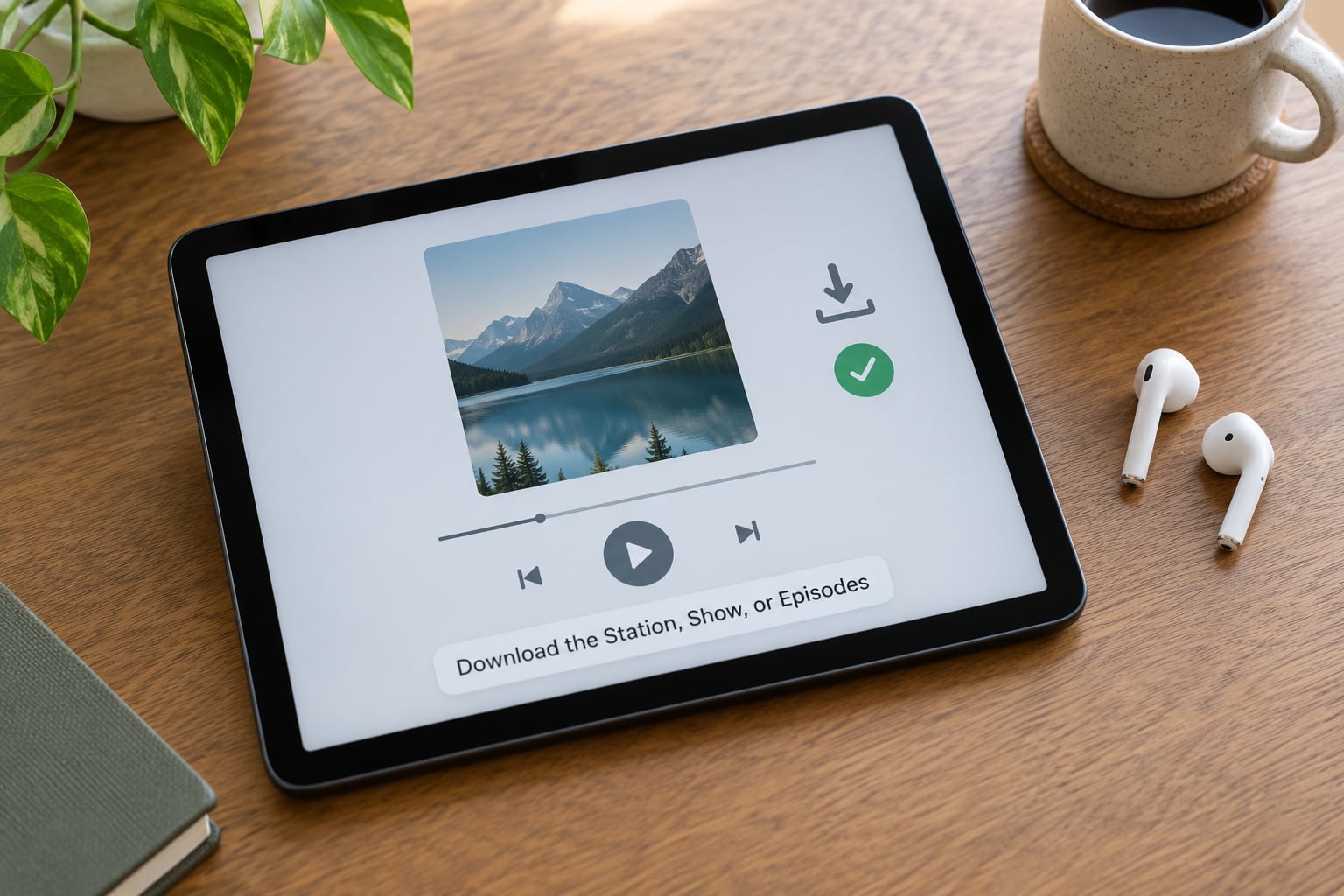
On iPad in Apple Podcasts: open the show, scroll to an episode, tap the ellipsis next to its title, then tap “Download Episode.” Saved episodes show a small downward arrow beside them. To grab everything automatically, open the show, tap the three-dot menu at the top, then toggle on “Automatic Downloads.”
On iPad in Overcast: find the episode, tap the circle with a downward arrow to its right, and choose Standard, Better or Best quality. Overcast lists the file size for each option before you commit, which makes budgeting easy. The downloads live under the Playback tab.
On Android with AntennaPod: tap the download icon on an episode to save it right away, or set Auto-download to “Files or Wi-Fi” in the settings. That option is worth using on a phone data plan, since it stops the app quietly pulling 40 MB an episode over mobile data.
When no download control appears anywhere, the content is a live broadcast rather than an on-demand item. There is no menu path that will change that. Move to a different item, usually a show or a podcast series with dated episodes.
For size planning, speech audio at 128 kbps works out at roughly 57 MB per hour, and a 192 kbps setting lands near 86 MB per hour. Two hours of a talk show is about 120 MB to 175 MB. Music at 320 kbps is roughly 140 MB per hour.
3. How to Listen to Radio on a Tablet Offline Before You Go
Open the app’s downloads section while you’re still connected and run through the whole control set. This is the point where a missing file gets noticed, not at 30,000 feet.
Play three or four seconds of each saved item. If it plays, it is really downloaded. Then check the app’s sleep timer, which is usually under Playback or Now Playing, and set it to 30 or 60 minutes if you use it as a sleep aid.
Set the volume with your normal speaker or headphones connected, then note roughly where it sat. Level matching matters more than people expect when moving between earbuds and a Bluetooth speaker.
One habit worth building: never clear app storage for a radio or podcast app between trips. On both iPadOS and Android, clearing storage wipes saved audio along with cached files. If a tablet feels full, delete finished shows first and only then touch app data.
4. Test the Download in Airplane Mode
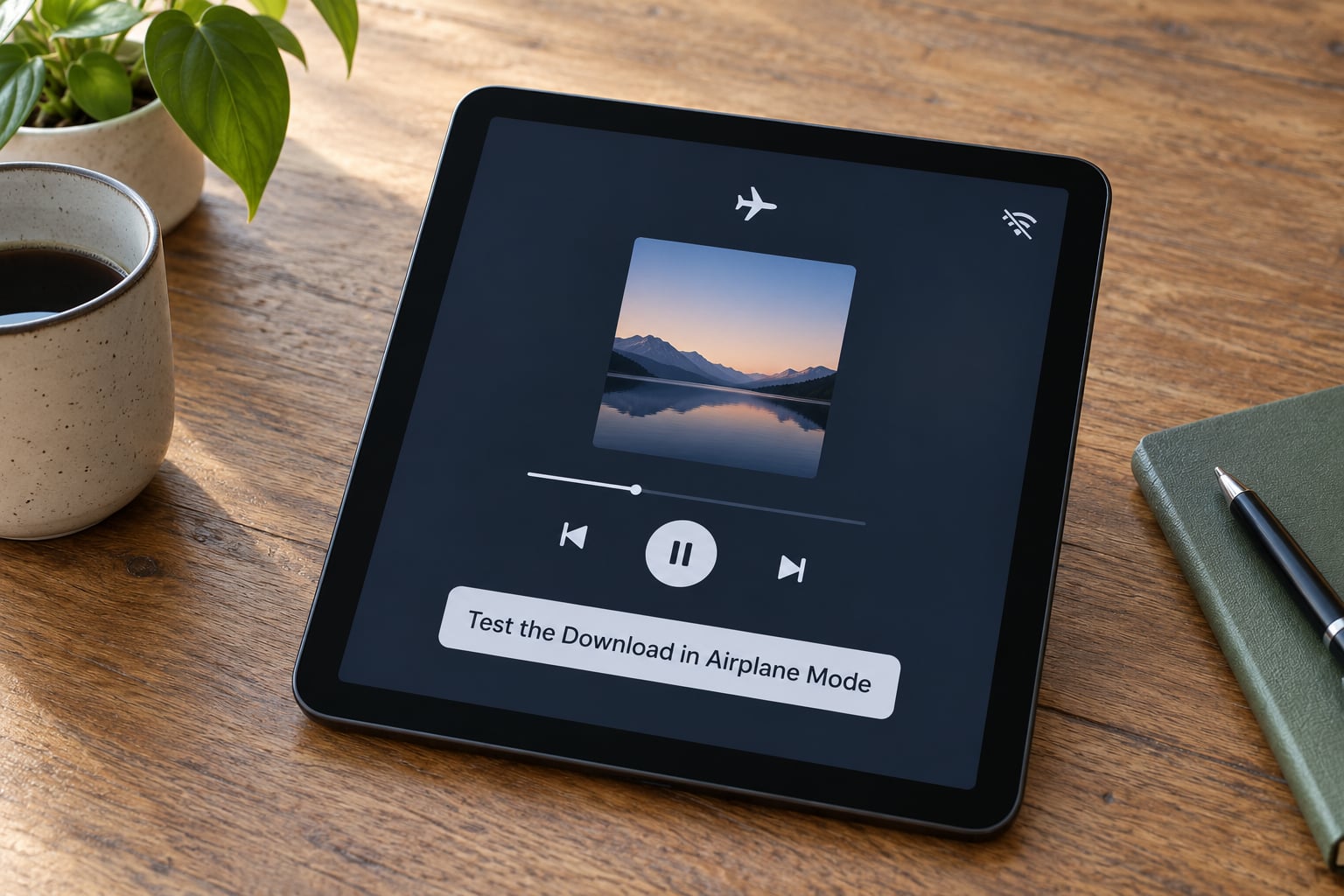
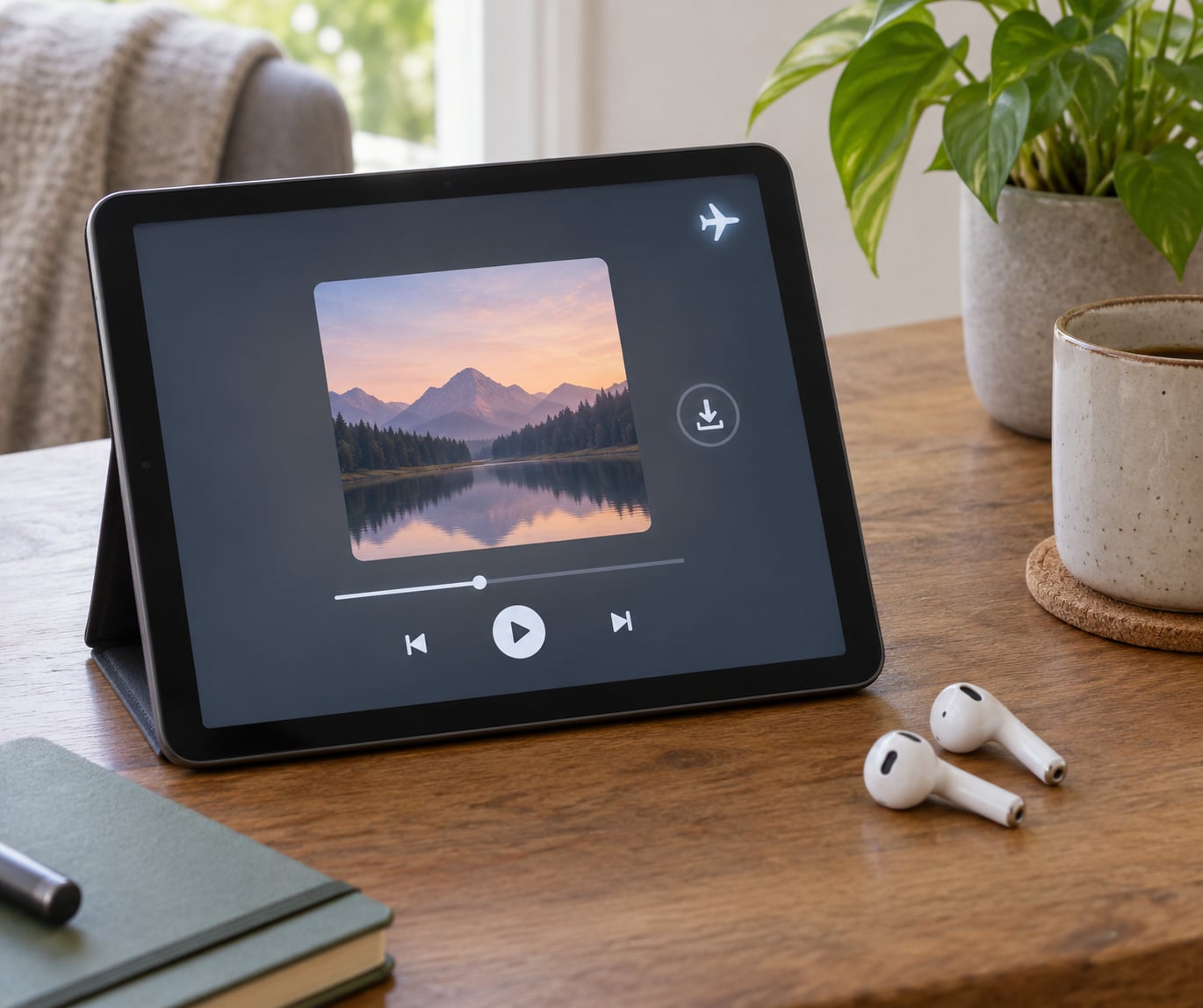
This is the step that separates a working setup from one that only appeared to work. Airplane mode turns off Wi-Fi, mobile data and Bluetooth, so nothing can quietly fall back to streaming.
On iPad: swipe down from the top right corner to open Control Centre, tap the aeroplane symbol, then reopen your podcast app and start a saved episode. On Android: pull the notification shade down, tap the aeroplane icon in Quick Settings, or go to Settings, Network and internet, Airplane mode and switch it on.
Saved episodes play normally. A live station either fails to start or plays a few seconds and stops, which is the correct result and confirms you were looking at a cache rather than a download.
If a downloaded episode won’t start, close the app fully and reopen it. Failing that, delete that one episode and download it again while you still have signal.
5. Manage Downloads and Tablet Storage
Where the files sit depends on the app. Overcast keeps downloads inside its own storage under the Playback tab, AntennaPod manages them per feed, and Apple Podcasts hides them inside the show page. In every case the app manages them, so you don’t need to hunt through folders.
Deleting is straightforward: swipe the item, or use the app’s delete option. AntennaPod offers Delete Playback to clear played episodes while keeping unplayed ones, which is the setting most useful on a long trip.
Two background switches cause avoidable trouble. Turn off mobile data use for these apps if you don’t want them downloading over cellular, and disable data saver in streaming apps, since low-data mode often strips downloads down to the lowest quality or blocks them entirely.
Low storage and low battery both cause failures that look like network problems. When a tablet is nearly full, iPadOS and Android may refuse to save a new file, and the app reports it as a failed download. Clear space first, then retry.
Common Mistakes
Almost every failed offline radio setup comes down to one of six things.
Treating a cached stream as a download. Cached audio disappears within minutes or hours, and it’s marked as temporary in most apps. Fix: look for a saved state that stays after you force close the app.
Starting the download too late. Half-finished downloads on hotel Wi-Fi are common. Fix: do it at home, then confirm the saved state before leaving.
Expecting a live station to work. Most live broadcasts simply will not play with no connection. Fix: find the same station’s on-demand show, or save a comparable podcast series.
Skipping the airplane mode test. A device on Wi-Fi hides the problem until you’re in the air. Fix: test the night before, while you can still fix it.
Running out of storage mid-trip. Fix: check free space before leaving and again at each stop.
Automatic cleanup. Some podcast apps delete played episodes after a set number of days, and that setting applies to downloads too. Fix: check the playback settings and switch automatic deletion off.
A few quick preparation habits cover most cases: download during charging, set auto-download to Wi-Fi only, keep one fallback app installed that you know works offline, and put the tablet in airplane mode before your trip rather than during it.
Frequently Asked Questions
Can I listen to live radio on my tablet without internet?
Only if your tablet has a radio tuner built in. Some Android tablets include an FM or DAB+ receiver, which receives broadcasts directly from a local transmitter and needs no internet at all. iPads have no tuner hardware, so no app can provide one. Live internet streams need a connection because the audio arrives in real time rather than as a finished file.
Does airplane mode stop downloaded radio from playing?
No. Downloaded shows and episodes are stored as ordinary audio files on the tablet, so airplane mode makes no difference to them. That is exactly why the airplane mode test works: turn it on, reopen a saved episode, and you either get audio immediately or the app was only caching a live stream. If a saved episode fails in airplane mode, delete it and download it again while connected.
Why does my radio app not have a download button?
The station you have open is almost certainly a live broadcast, and live broadcasts are not stored as files anywhere. On-demand shows, podcast episodes and station recordings do have a download control, usually a downward arrow or a three-dot menu. If the app offers no download option anywhere, try a different app built around on-demand content, such as Apple Podcasts or Overcast on iPad, or AntennaPod on Android.
Can I download an internet radio station for offline listening?
Not the live stream itself, no. A handful of services, including Calm Radio for its ambient channels, genuinely support offline playback, but most streaming radio apps do not. Some offer timed recordings you can save within a stated window, which is a different feature. Check the app for a download or offline option before you rely on it, and test in airplane mode once you have set it up.
How much tablet storage do I need for offline radio?
Speech radio at 128 kbps uses roughly 57 MB per hour, and a higher 192 kbps setting uses about 86 MB per hour. Two hours of a talk show therefore lands between 120 MB and 175 MB. A gigabyte of free space covers a long flight comfortably, while music at 320 kbps runs nearer 140 MB an hour. Keeping a gigabyte free also stops failed downloads caused by a full tablet.
What to Do First
Check whether your app offers a permanent download rather than a cache, save your shows while you still have a connection, and switch on airplane mode for a five-minute test before you travel. Once that test passes, your setup for listening to radio on a tablet offline is done, and it will keep working in the air, in a car park, or anywhere else the signal gives up.