To set a sleep timer for radio listening, open the player in your radio app, tap the clock or timer icon, choose a duration such as 30, 45 or 60 minutes, and confirm the countdown shows. If your app has no timer of its own, use the iPhone Clock app with When Timer Ends set to Stop Playing, a third-party timer app on Android, or a voice command on a smart speaker.
An internet radio stream does not have an off switch. Once it starts it keeps going until something stops it, which is why a four-hour drift into the early hours costs you phone battery, mobile data and quite a few of your station’s genuine listens. I set a timer before I even lie down, because choosing 45 minutes with a countdown on the lock screen is the version I can actually remember at 1am.
The quickest routes, depending on what you are listening through:
- Radio app with a built-in timer: player screen, timer icon, pick a length. Five seconds of work.
- iPhone: Clock app, Timer tab, set the length, When Timer Ends to Stop Playing.
- Android: the app’s own timer if it has one, otherwise a third-party sleep timer app that controls media playback.
- Smart speaker: ask the voice assistant to set a timer for the number of minutes you want.
- Bedside DAB or FM radio: press and hold the SLEEP button until the display counts down to your chosen time, then let go.
Table of Contents
- What You Need
- Step-by-Step
- Frequently Asked Questions
- Will a sleep timer keep working if my phone screen locks?
- Which radio apps have a built-in sleep timer?
- Can I set a sleep timer that lasts longer than one hour?
- How do I cancel or change a sleep timer I already set?
- My DAB clock radio has no sleep timer. What can I do?
- Does a sleep timer turn the speaker off as well as the audio?
- Conclusion
What You Need
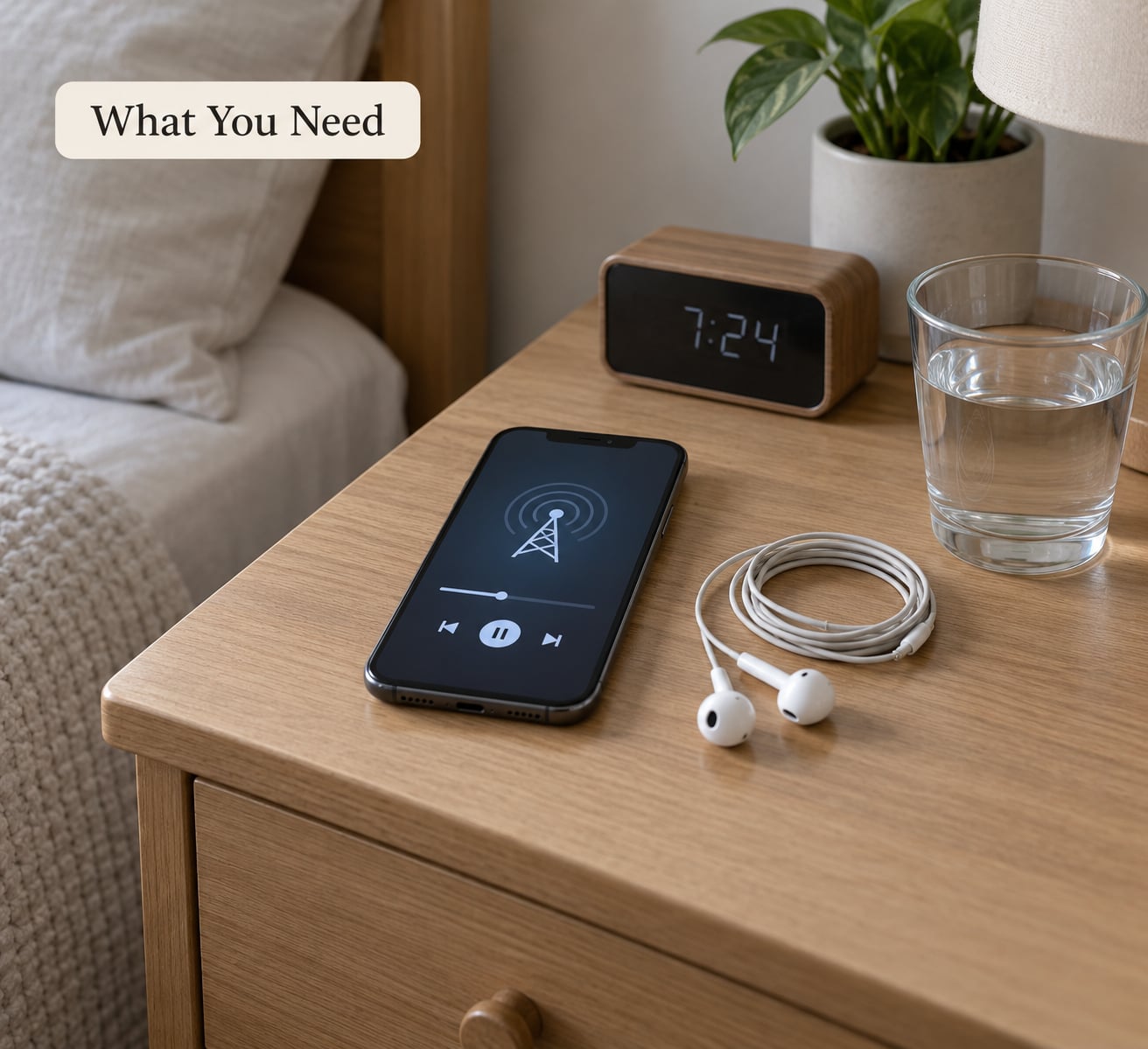
Before you tap anything, work out which of four things is actually making noise in your bedroom. The right fix depends entirely on that, and setting a timer on the wrong device is the most common reason people give up and just unplug the thing.
- Your radio app. Note the name and roughly the version, because the timer has moved around in several of them. Open the now playing screen and look for a clock, a moon or a crescent icon before you assume the feature is missing.
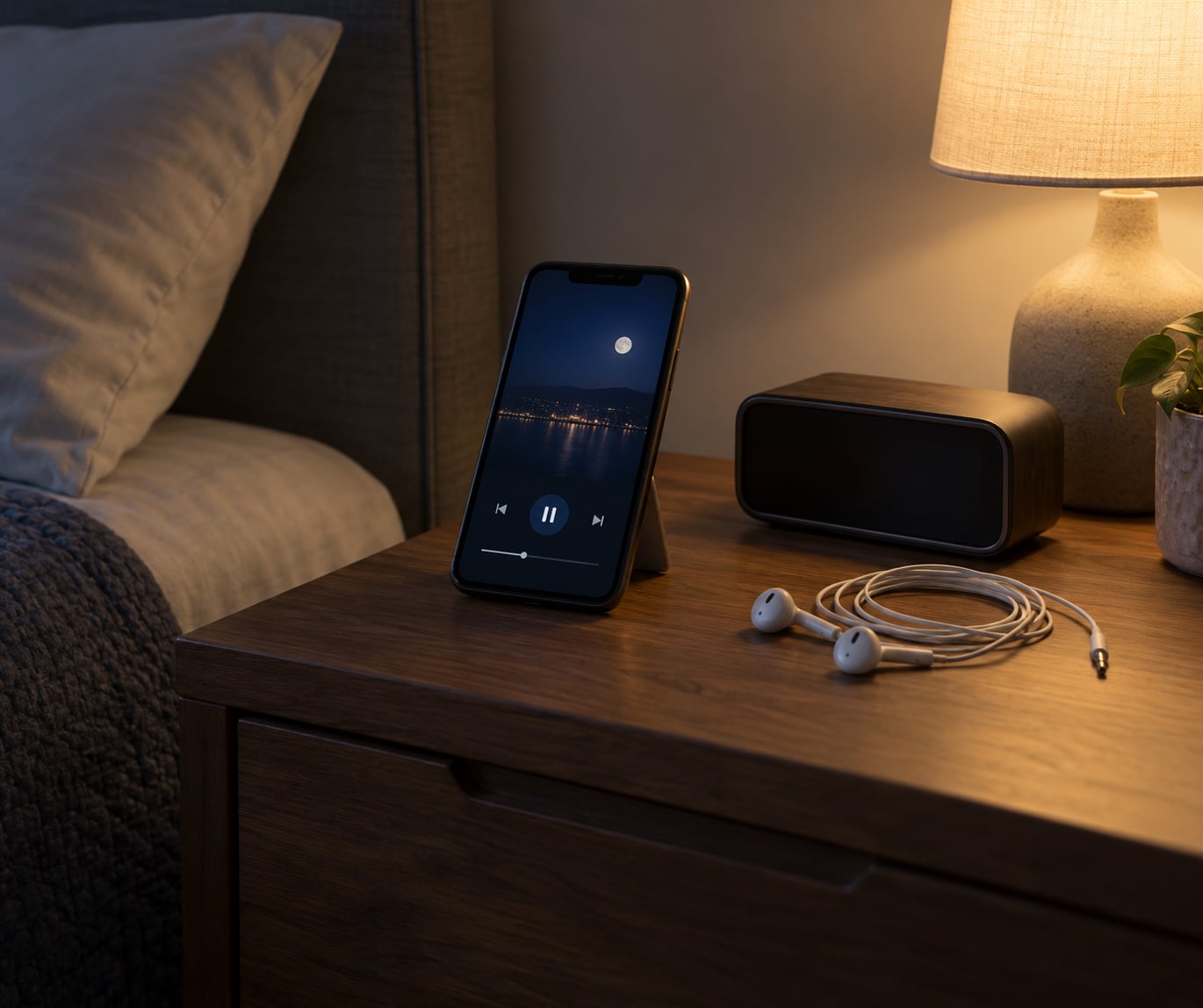
- The playback device. A phone playing through earbuds, a phone on a bedside table running Bluetooth, a laptop, a smart speaker, or a physical receiver. This decides which method applies.
- Your remaining time. Choose 15, 30, 45, 60, 90 or 120 minutes based on when you expect to be asleep, not on how long the longest option is.
- A charging cable if you plan more than an hour with the screen off, and battery saver turned off for that night so the OS does not kill the app mid-stream.
One more thing worth checking before you sleep: does your device play locally or over mobile data? Streaming radio on mobile data will quietly spend a chunk of your monthly allowance in a single night, and it is the reason a timer is not optional for a lot of listeners.
Step-by-Step
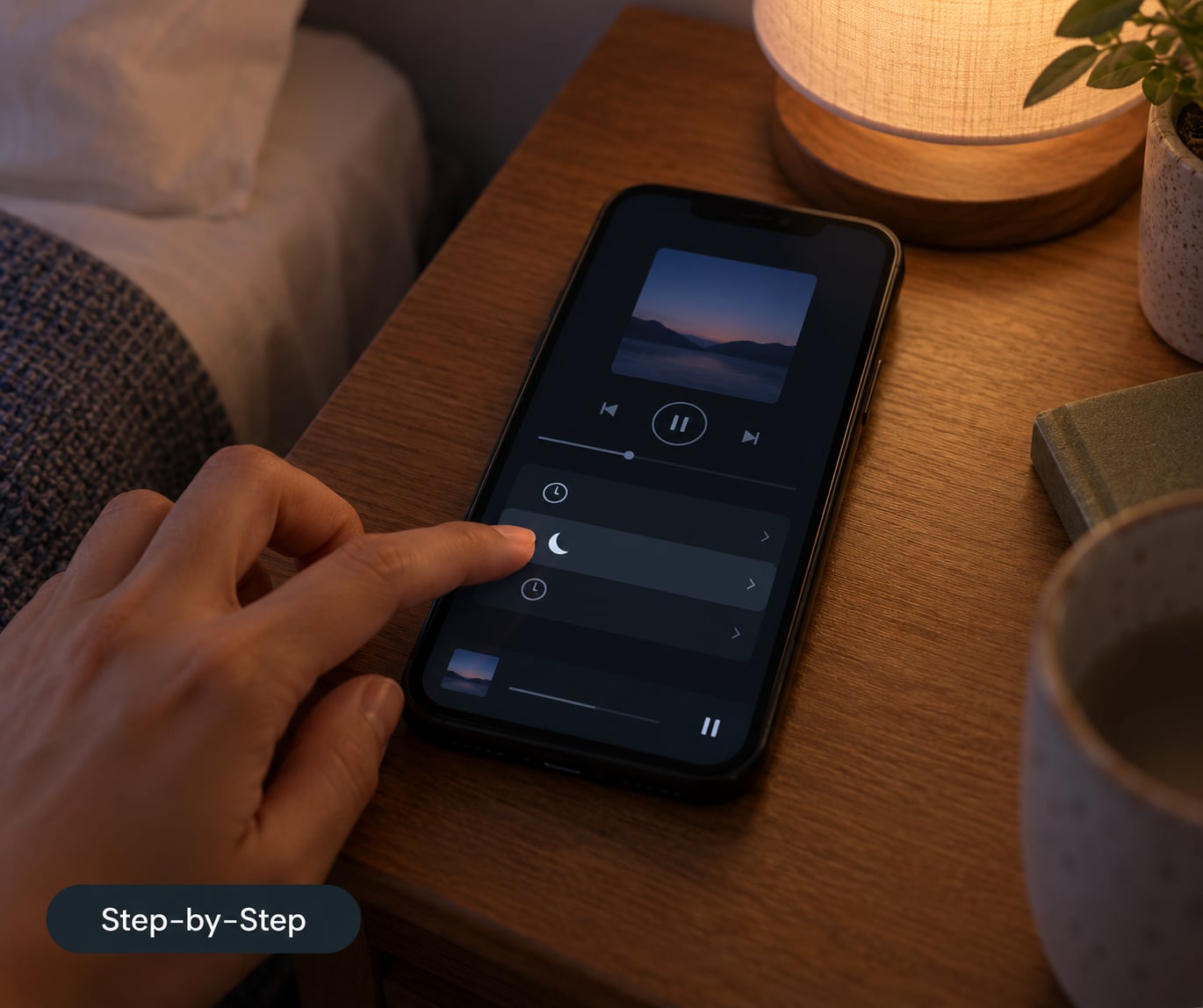
Work down the list until one of the methods below matches your setup. Each block ends with a way to confirm the timer is genuinely running, because a timer that silently failed is worse than no timer at all.
How to Set a Sleep Timer in a Radio Streaming App
Most radio apps put the timer in the now playing screen, and the route is the same even when the labels differ. Open your station and start playback, tap the artwork or the player bar to expand the full player, then scroll down the menu until you reach Sleep Timer, Sleep or Stop after. Choose a duration and tap Start or Done.
Where the timer lives, app by app:
- iHeartRadio has a built-in sleep timer inside the full player view, below the volume and station controls. Open the player, scroll, tap Sleep Timer and pick one of the listed lengths.
- TuneIn Radio Player puts its timer in the player menu too, reachable from the station screen rather than the browse screen. The current versions offer longer options than the old 30 minute cap, so check what your build shows.
- BBC Sounds offers a Sleep Timer on radio station now playing screens, and you can also choose to stop at the end of the current programme, which is a better fit for a live station than a fixed number of minutes.
- Apple Music has Sleep Timer in the Now Playing menu, with durations in 15 minute steps up to two hours, plus options to stop at the end of an album or playlist.
- Spotify keeps its timer in the Now Playing view as well, but the built in options stop well short of an hour. If you need longer, use the iPhone Clock method instead.
- Simple one-station apps such as Radio Player FM, Boom Radio and many regional station players have no timer button at all. That is not a bug you can fix with settings, so use one of the system level methods below.
To confirm it worked: lock the screen and check the lock screen or notification shade. You should see a live countdown and a remaining time next to the playback controls. A timer icon with no number, or a number that is not moving, means it did not take.
How to Set a Sleep Timer on iPhone or Android
On iPhone the system timer stops any media, including radio streams, and it is the most reliable method when the app has nothing of its own. Open the Clock app, tap Timer, set the hours and minutes, then tap When Timer Ends and choose Stop Playing instead of the default alert sound. Tap Start, then switch back to the radio app and press play.
Order matters here. If you set the timer and then start the stream, the timer is already counting down, so an hour means one hour of actual listening rather than one hour since you remembered it.
Android has no equivalent system wide media timer, which surprises people who switch from an iPhone. You have three practical routes: use the radio app’s own timer if it has one, install a sleep timer app that sends a stop command through the media session, or build it into an automation app such as Tasker or MacroDroid with a wait action followed by a media stop action.
Menu names shift between Android versions and between Samsung, Pixel and other skins, so look for a Timer inside your device’s Clock app first, then check the quick settings panel for anything like Media or Timer. On Samsung phones specifically, the alarm and timer screens are a single tabbed view rather than separate icons.
Whichever route you take on Android, turn off battery optimisation for the radio app for that night. Aggressive battery saving is the number one reason an app timer quietly stops working after the screen goes dark.
How to Set a Sleep Timer on a Smart Speaker
A smart speaker in the bedroom is the easiest option of all, because nothing sits on your phone and nothing needs a screen. Say Alexa, set a timer for 45 minutes, or Hey Google, set a timer for 45 minutes. The assistant confirms out loud, and the speaker gives a short chime when the time is up before going quiet.
To check what is left, ask how much time is on the timer, or open the Alexa or Google Home app and look at the timer entry. To change or cancel it, say cancel the timer, or set a new one and the old one is replaced.
For Sonos, playback runs through the Sonos app or a voice assistant, and sleep timer support has been uneven across platforms for years. A Sonos users group thread confirms timers now working for Audacy, Plex, Sirius XM, Amazon Music, Pandora and Sonos Radio after being missing for a long stretch, but the honest advice is to test it on your own setup rather than assume. If your Sonos speaker has no timer, route the timer through Alexa or Google with Sonos as the music service, which gives you a timer that does not depend on Sonos software at all.
How to Use a Radio Receiver Sleep Timer
Bedside DAB and FM clock radios do this in hardware, with no phone involved. On most sets, including common Philips models, you press and hold the SLEEP button and the display shows a countdown starting at 0:59 and dropping to 0:00. Release the button when the number matches the minutes you want, and the radio shuts down at zero.
The indicator to look for is the countdown digits on the display, sometimes joined by a small sleep or moon symbol. Once the numbers disappear, the timer has run its course. Pressing SLEEP again restarts the countdown, which is handy if you drift off before it ends.
If your receiver has no sleep function, check the manual under the alarm or standby section; some budget sets hide a sleep option behind a long press on the alarm button, and many simply do not have one. Beyond the manual, a cheap plug-in timer from a hardware shop or a smart plug paired with an automation app are the two things that work, though remember the first lesson from home automation forums: hardware takes a moment to respond, so set the timer a little longer than the time you need to cover.
Common Mistakes
You set an alarm instead of a timer. An alarm wakes you; it does not stop playback. The fix is to set both if you want to wake up to a station, but the stop side has to come from a timer.
The timer is set and the radio keeps playing anyway. Usually one of four things. The stream reconnected and resumed after a dropped connection, so re-check the countdown after any silence. The app was killed in the background, which on Android means battery optimisation stepped in. A Bluetooth speaker stayed connected to a phone that is now playing something else, so the audio is coming from hardware you forgot about. Or the timer is set in the wrong app, having been set on a phone that is not the one playing.
You picked the wrong duration. Listeners routinely want 90 minutes to two hours rather than the 15, 30 and 60 options that many apps lead with. Where the app cannot go longer, set the longest option and use the system timer as a backstop, or start a second timer when the first one is set.
You expected the timer to switch off the hardware. A software timer stops the stream. It does not power down a speaker, a stereo or a plug. Anything with a physical power button keeps drawing until you deal with it, which is the difference one home automation user ran into when a stereo took a delay to respond and their 30 minute cut-off left the room silent for only a few seconds.
The screen timeout is not the sleep timer. The display going dark after 30 seconds says nothing about audio. Set the audio timer separately.
You checked it the wrong way. Unlock the phone and look at the lock screen or the notification shade. That is where every reliable timer shows a live countdown, and it is the quickest way to catch a timer that never started.
Frequently Asked Questions
Will a sleep timer keep working if my phone screen locks?
Yes, a correctly set timer keeps running with the screen off, because both the app timer and the iPhone Clock timer operate at the media layer rather than in the foreground. The one exception is aggressive battery saving on some Android phones, which can kill a backgrounded app and end playback early. Exclude the radio app from battery optimisation for the night and confirm the countdown on the lock screen before you sleep.
Which radio apps have a built-in sleep timer?
iHeartRadio, TuneIn Radio Player, BBC Sounds, Apple Music and Spotify all include one in the now playing screen, and BBC Sounds can also stop at the end of a programme. Many simpler one-station players, including several regional station apps, have no timer button at all. The honest answer for those is to stop the stream with an iPhone Clock timer, a third-party Android timer app or a smart speaker timer instead.
Can I set a sleep timer that lasts longer than one hour?
Apple Music gives you durations in 15 minute steps up to two hours, and several radio apps now offer 90 and 120 minute options, so check the list in your own app. Spotify’s built-in timer is much shorter. Where no long option exists, set the app timer to its maximum and run an iPhone Clock timer as a second backstop, or ask a smart speaker to set a 90 minute timer.
How do I cancel or change a sleep timer I already set?
Open the player again and look for a Stop or Off entry where you chose the duration, or set a new duration to replace the old one. On a phone, cancel the countdown from the lock screen or notification shade. On a smart speaker, say cancel the timer out loud. Cancelling a timer never stops playback, so pause the stream separately if the room has gone quiet.
My DAB clock radio has no sleep timer. What can I do?
Check the manual first, because some budget sets hide a sleep function behind a long press on the alarm or standby button. If there is genuinely no timer, the practical options are a plug-in countdown timer from a hardware shop, or a smart plug paired with a home automation app that cuts power on a schedule. Bear in mind that hardware reacts slowly, so set the cut-off a little later than you need.
Does a sleep timer turn the speaker off as well as the audio?
No. A software timer stops the stream, and the speaker, soundbar or stereo stays powered and connected. This matters if the audio is running through a Bluetooth speaker, because you may end up with a silent room and a device still drawing power all night. Use a smart plug or a hardware timer if you want the power gone too.
Conclusion
Start in the app you are already using: open the full player, find Sleep Timer, choose a duration and start it. Then lock the screen and check that a countdown is actually running before you put the phone down. That single check catches most of the failures people run into.
If the app has no timer, move to the next layer rather than giving up on the station. An iPhone Clock timer set to Stop Playing handles any app, a third-party timer app does the same job on Android, and a smart speaker can do it for you with one spoken sentence. Only when your audio is coming from a bedside DAB radio does the hardware SLEEP button come into play, and it is usually the most dependable option of all. Set the timer in 2026, check the countdown, and go to sleep knowing the stream will not run all night.